
Running a pupil assessment
Run each section from its Start button on the pupil assessment screen. Read the section’s instructions and scoring guidance before beginning.
1. Choose how the pupil sees the assessment
Section titled “1. Choose how the pupil sees the assessment”On App As Stimulus?, choose:
- App shown to pupil: the pupil reads from the device.
- Paper shown to pupil, Answers recorded in the App: the pupil reads the printed material while you mark responses on the device.
- Enter a paper based assessment: enter responses from an assessment already completed on paper. No live timer runs; where required, enter the recorded duration when finishing.
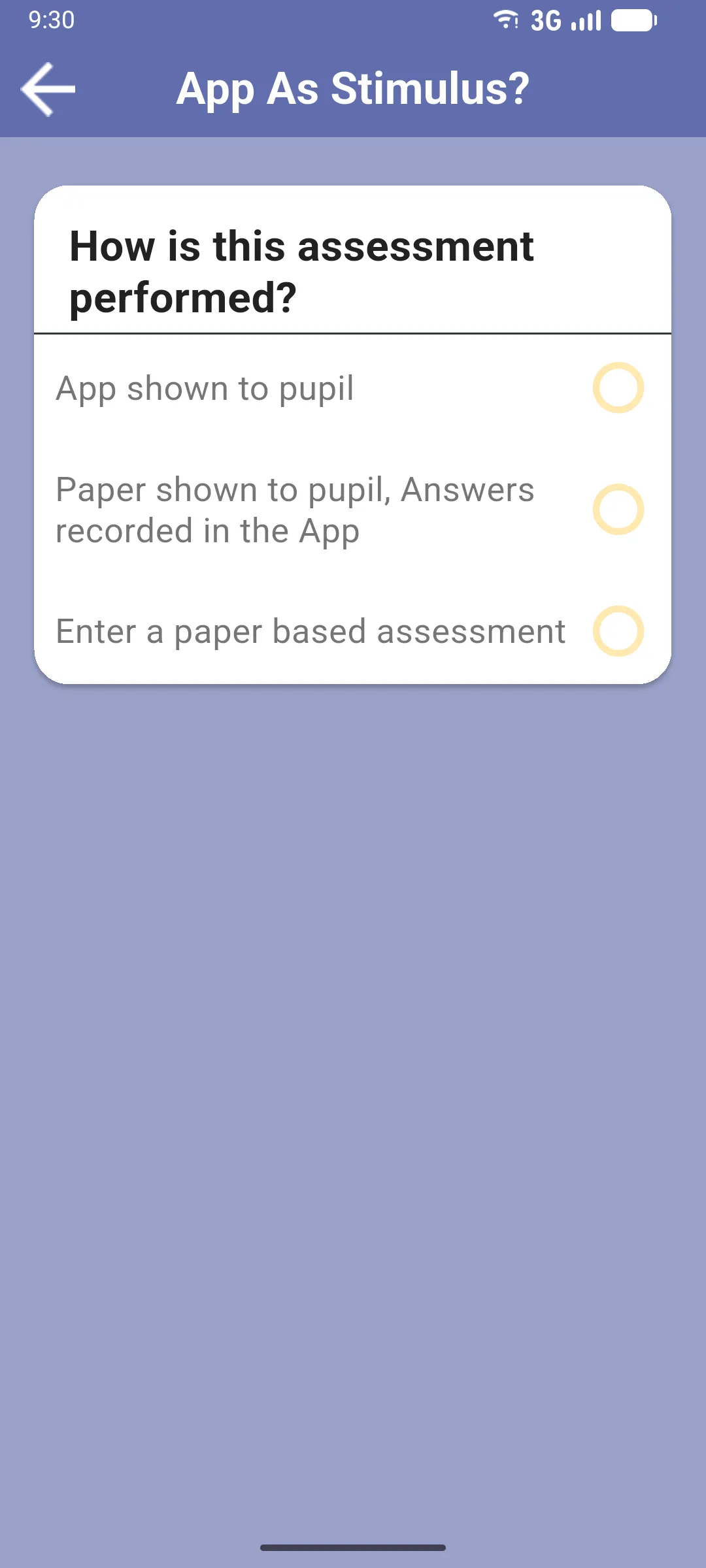
The definition determines whether a live section uses individual words or whole sentences. See Paper vs in-app sections for the layouts.
2. Read the instructions and start
Section titled “2. Read the instructions and start”Use View Scoring Guidance to check what counts as correct, then tap Start Assessment.
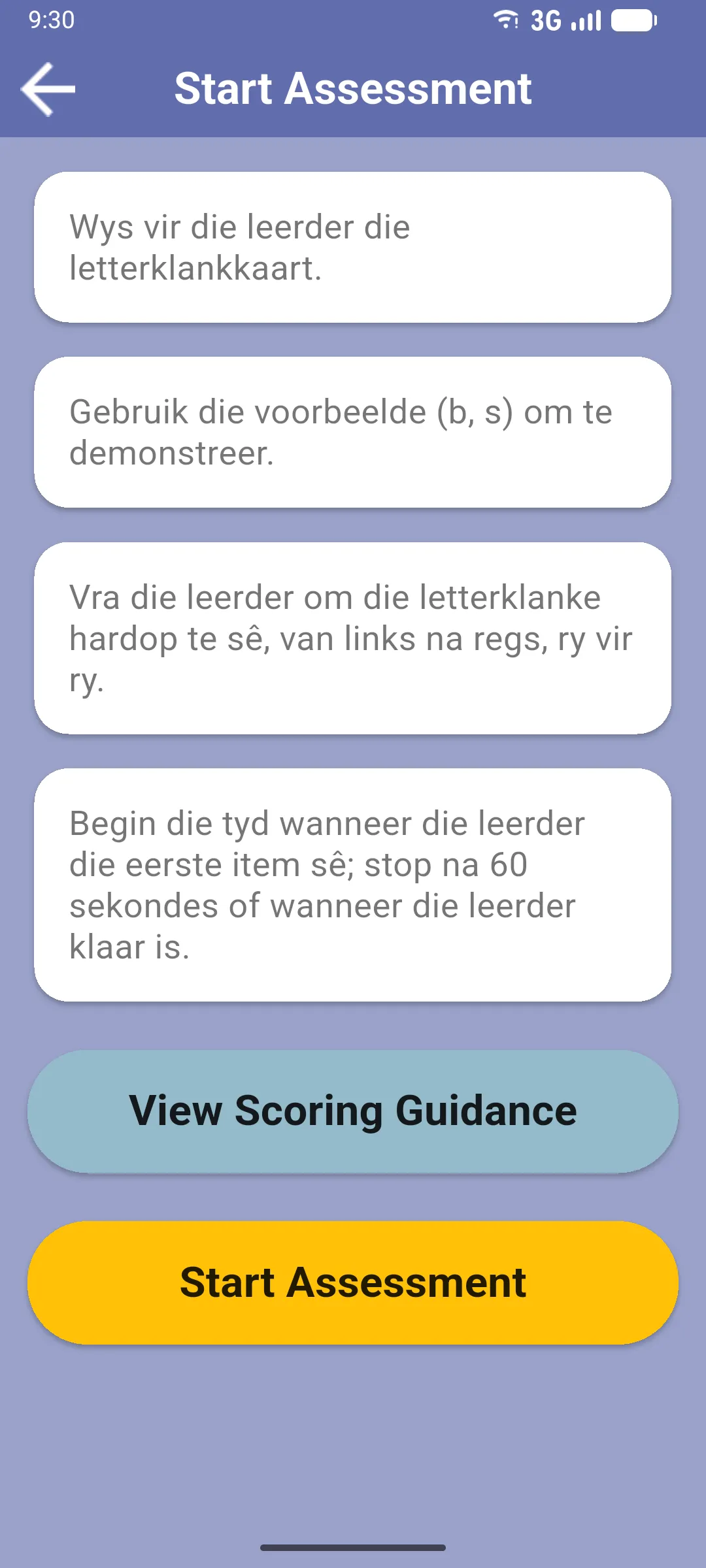
For a countdown section, tap Tap to start when the pupil is ready. The short preparation countdown finishes with GO!; the assessment timer starts then. A timed section without a time limit uses a stopwatch. Untimed sections have no assessment timer.
3. Mark the responses
Section titled “3. Mark the responses”Word-by-word sections
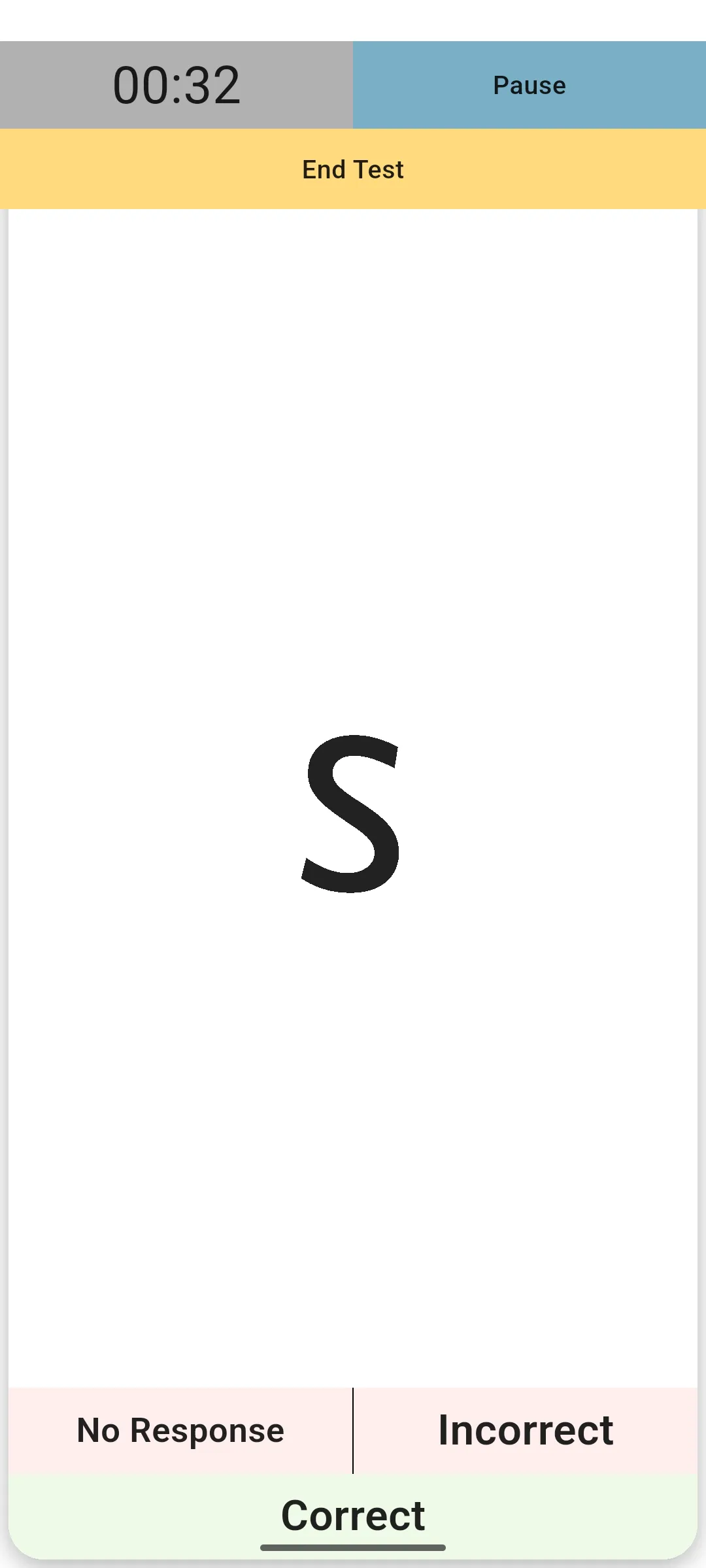
Section titled “Word-by-word sections”Use Correct, Incorrect or No Response for each item. The app stimulus shows one item at a time; the paper stimulus uses a scrolling list of items.
Sentence-by-sentence sections
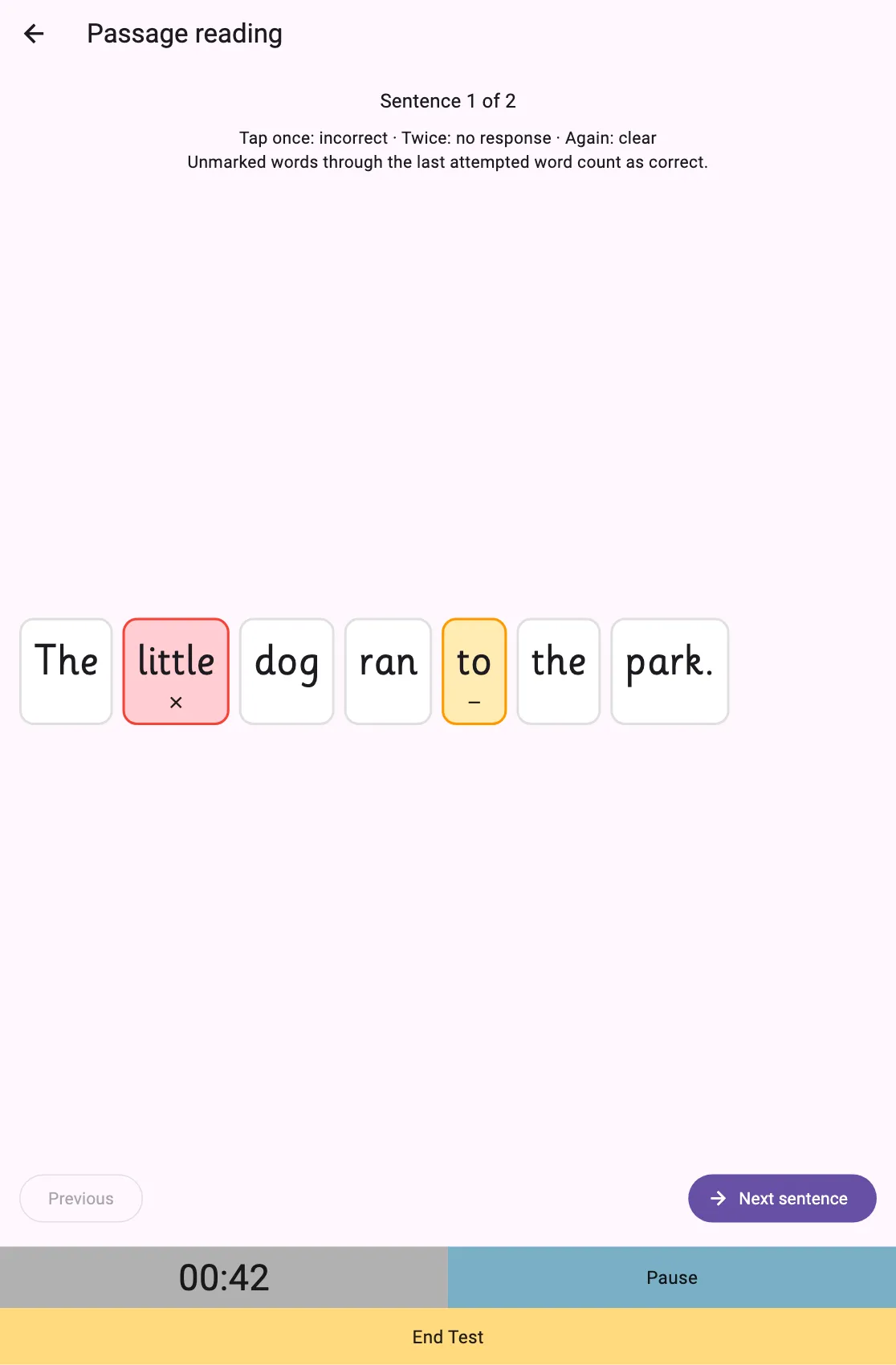
Section titled “Sentence-by-sentence sections”The whole current sentence appears together. Mark only the words that need a different response:
- Tap a word once to mark it incorrect.
- Tap it again to mark no response.
- Tap it a third time to clear the mark.
- Use Next sentence to move on, or Previous to revisit a sentence.
- Unmarked words up to and including the last attempted word count as correct. Words after that point are recorded as Not Attempted.
4. Pause or finish
Section titled “4. Pause or finish”Pause stops the assessment clock; Continue resumes it. Paused time is excluded from the recorded duration.
The assessment timer is silent: there are no warning or end beeps. It stops automatically at the configured limit. A section with a 60-second limit records 60 seconds on expiry. End Test finishes early where the definition allows it. If early finishing is not allowed, follow the cancellation prompt instead.
Select the last word in a sentence assessment
Section titled “Select the last word in a sentence assessment”At expiry, early finish or Finish on the final sentence, choose the last word read or attempted and tap Save assessment. Select No words attempted if the pupil attempted none. The save button stays disabled until you make a selection.
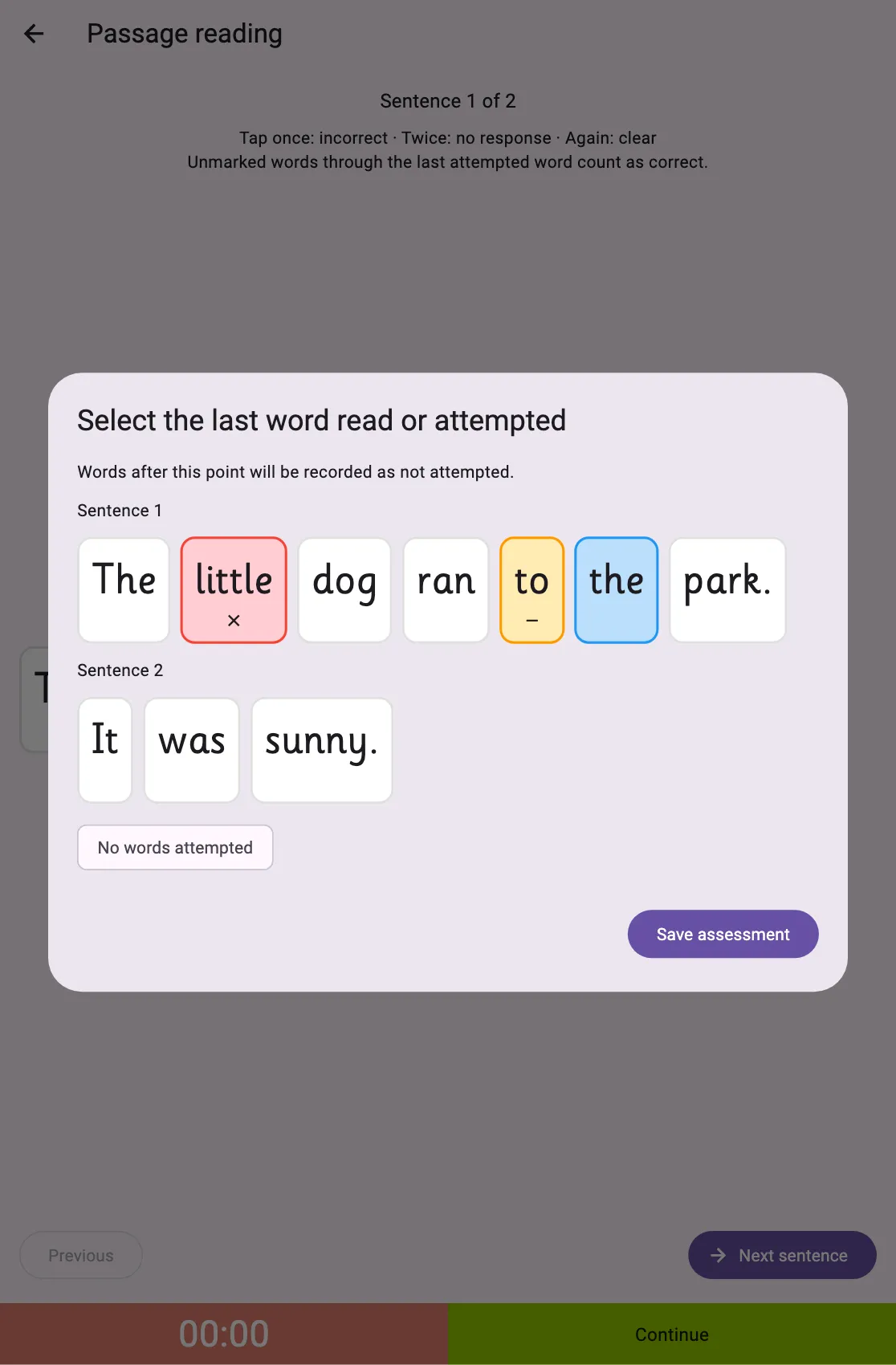
The clock stays stopped while you choose the last word. Continue test is available after an early stop if you need to return; it is unavailable after the time limit has expired.
Other assessment layouts
Section titled “Other assessment layouts”Some sections show a Complete Assessment dialog to review missing answers, the last question attempted or the duration. When entering a paper assessment with a required duration, type the time before confirming. A timed assessment that reaches its limit may go directly to the results.
5. Review the result
Section titled “5. Review the result”The completed assessment shows its duration, score and individual responses. Prepared reading-fluency passages also show Fluency (correct words per minute), including when you reopen a result from history.
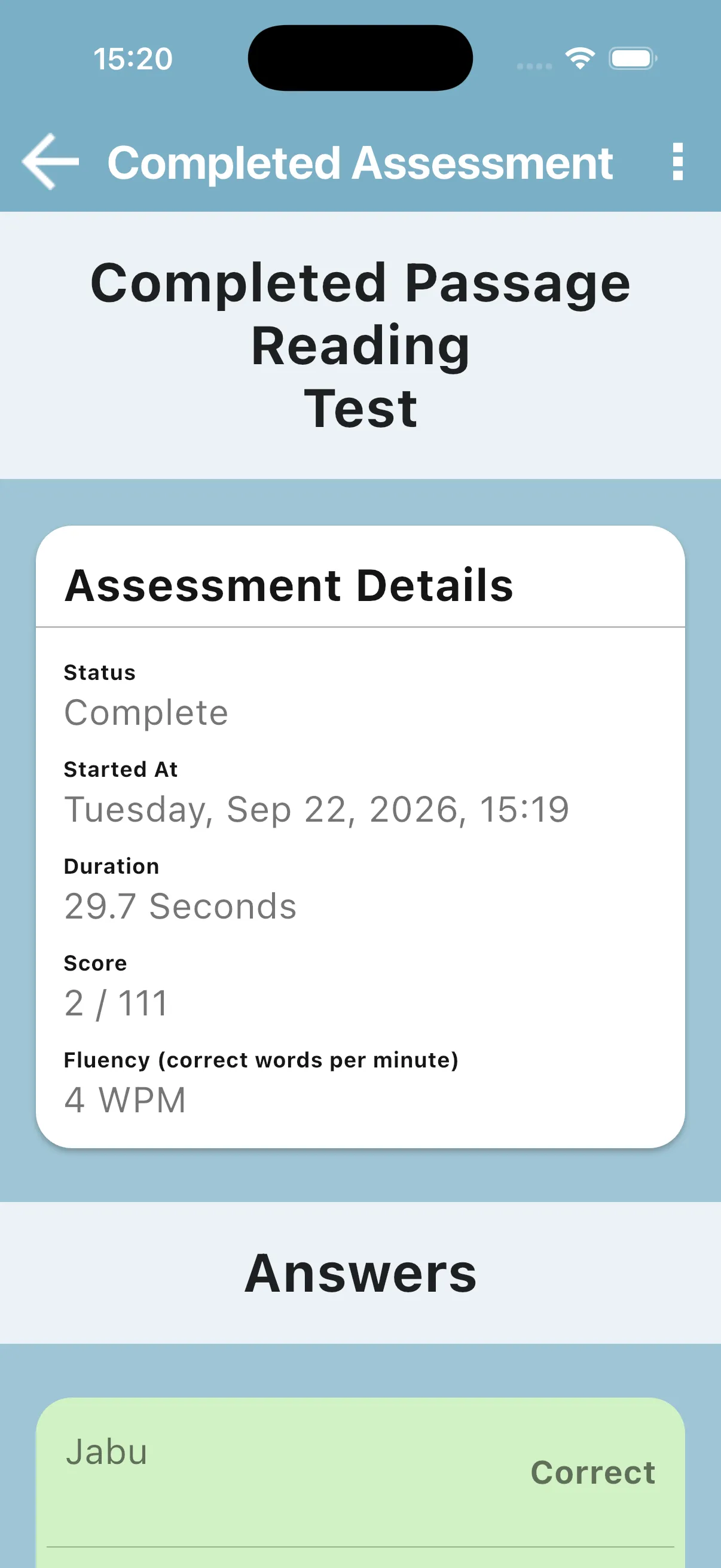
This example was recorded with demo data.
The calculation is correct words × 60 ÷ elapsed seconds:
| Example | Fluency |
|---|---|
| 2 correct words in 20 seconds | 6 correct words per minute |
| 2 correct words in 60 seconds | 2 correct words per minute |
Incorrect, no-response and not-attempted words do not add to the correct-word score. Fluency is shown only for passage sections configured for it; a missing or invalid duration shows Unavailable. The result may include one decimal place.
Next: Deleting a section