
Starting an assessment round
An assessment round groups the pupil assessments you carry out for one class. Some forms also include teacher questions. Older records and dashboard screens may call a round an internal evaluation.
1. Tap New Assessment
Section titled “1. Tap New Assessment”From MONITORING on the school home screen, tap New Assessment.
2. Choose the assessment form
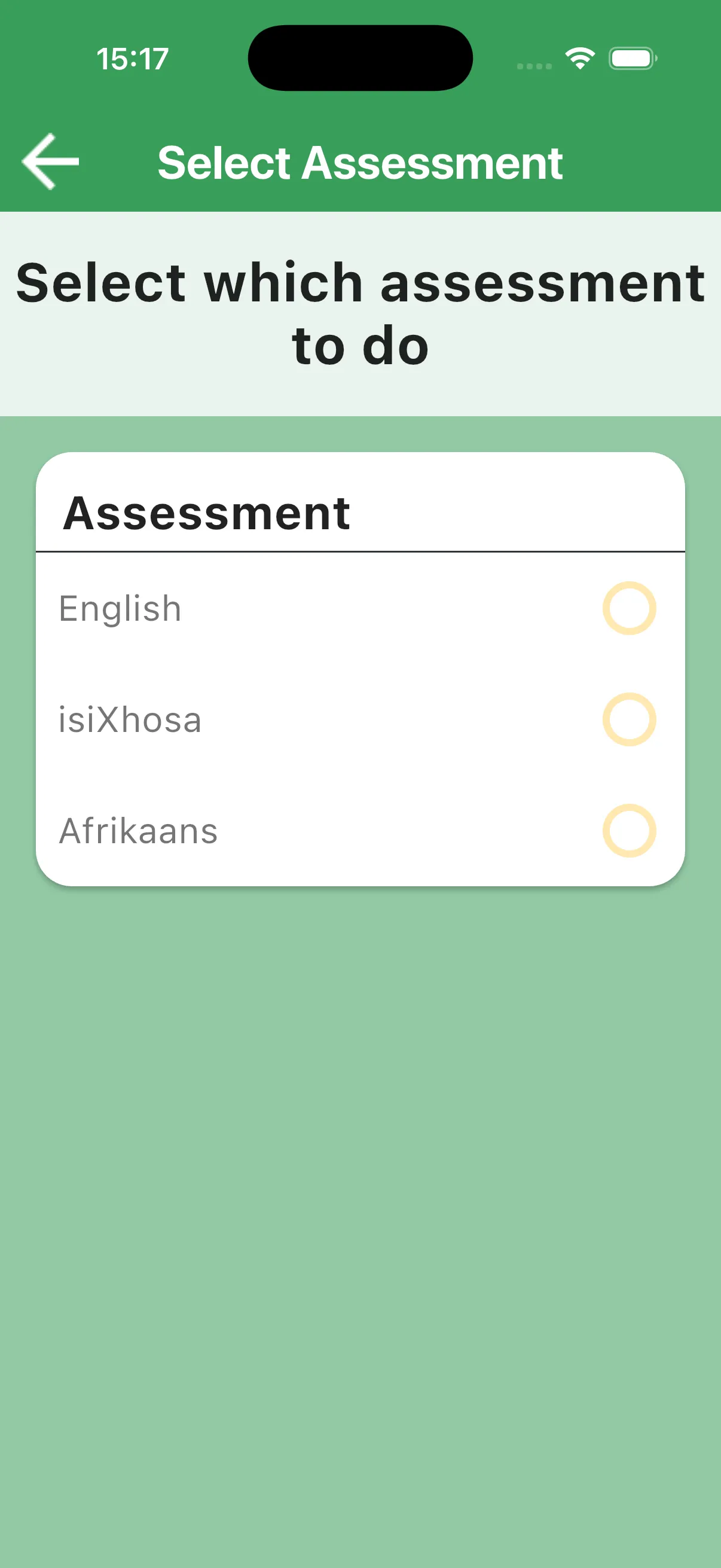
Section titled “2. Choose the assessment form”Choose the pupil assessment form and assessment language required for this round. The app selects the form automatically when only one choice is available. Your selection is reused for every pupil in the round; you do not choose a different form for each pupil.
The language of the assessment is separate from the interface language in Settings. Changing interface language does not translate the chosen assessment.
3. Select the teacher, if you are a head teacher
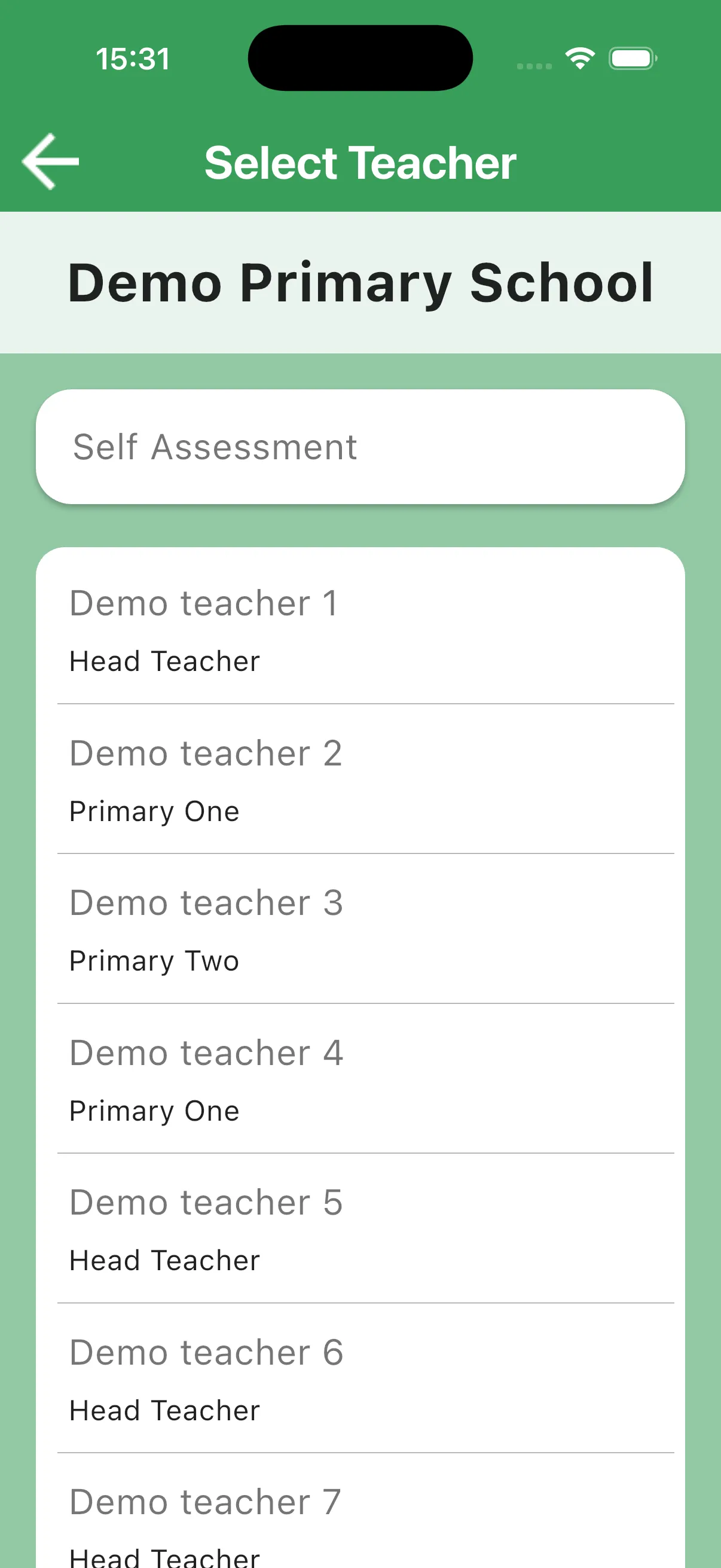
Section titled “3. Select the teacher, if you are a head teacher”Head teachers have an extra Select Teacher step. Choose Self Assessment for your own class or choose the colleague whose class you are assessing. Regular teachers assess their own classes.
4. Select a class
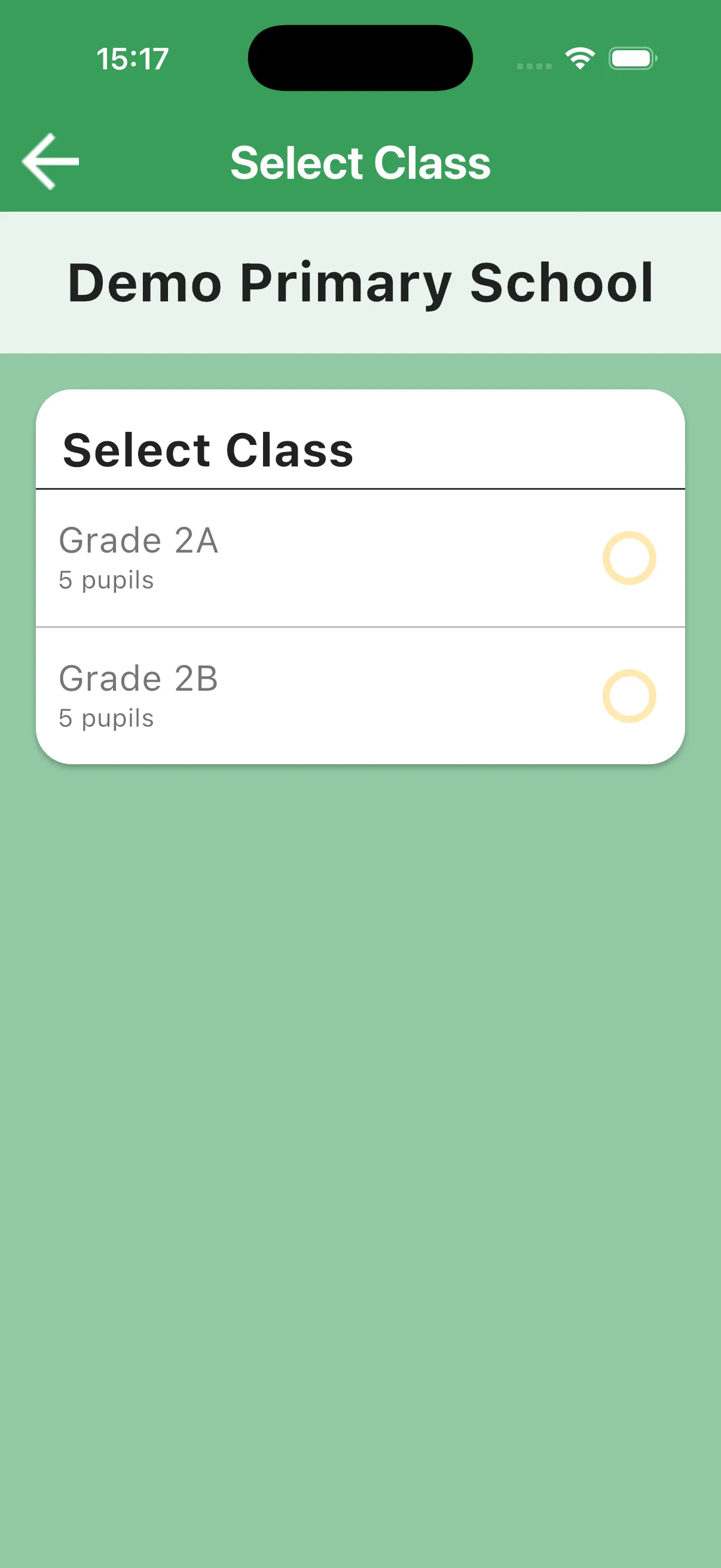
Section titled “4. Select a class”A class is required for teacher assessment rounds. Select the class you will assess, or create the class if it is missing. Register its pupils so the round can show the class roster. See Classes & Pupils.
5. Open the roster
Section titled “5. Open the roster”The round opens with the selected class and assessment form. Work through its pupils, starting or resuming each assessment. A TEACHER tab appears only when there are teacher questions to answer.
Your draft is saved on the device. You can leave and return to continue; sync to send the work to the server.