
Monitoring questions
A monitoring question is a single question that the apps ask, for example a school’s name, a teacher’s role, or a yes or no observation. Questions live in question banks and are added to forms by reference, so one question can appear on many forms.
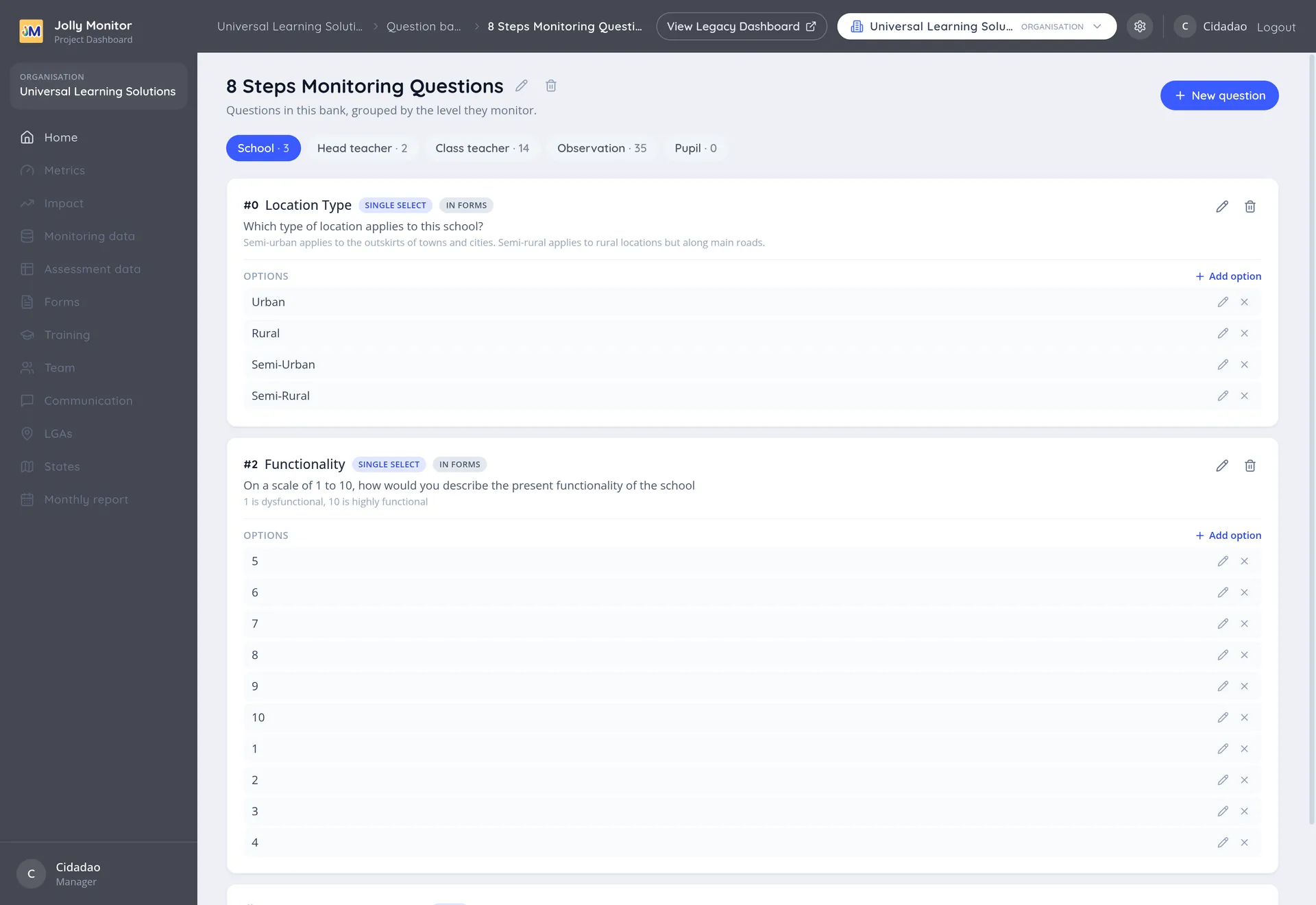
Open a bank to see and edit its questions. The banks live in the organisation settings, so reaching them at all, like editing and deleting, is administrator territory.
What a question holds
Section titled “What a question holds”| Field | Meaning |
|---|---|
| Question text | The wording the app shows |
| Short name | A brief label used in tables and exports |
| Guidance | Help text for the monitor |
| Subject | What the question is about, which decides where it appears in a visit (see below) |
| Answer type | The kind of answer collected (see below) |
| Comment | Whether a comment is allowed or required |
| On re-visit | Whether to ask again or show the previous answer (see below) |
| Required | Whether the question must be answered |
Options
Section titled “Options”For single-select and multi-select questions, each choice is an option with its own Option text, Advice, Action, Rating and Comment prompt (the question the app asks when that answer invites a comment).
The Rating is worth understanding: it is the numeric value that answer contributes, and it is what lets a set of answers become a score or feed a metric. The Advice and Action are what the app shows the monitor when that answer is chosen, which is how the system turns an observation into guidance for the teacher.
Answer types
Section titled “Answer types”The Answer type decides what kind of answer the app collects:
- Name: a person’s or place’s name.
- Teacher Role: chosen from the country’s teacher roles.
- Text: free text.
- Number: a numeric value.
- Date: a date.
- Phone Number: a phone number.
- Single Select: one choice from a list of options.
- Multi Select: any number of choices from a list.
- Section Header: a heading only, with no answer.
- Photo: a photograph.
Subjects
Section titled “Subjects”The Subject decides which part of a visit the question belongs to, and therefore which group it appears under when added to a form:
- School
- Head teacher
- Class teacher
- Observation (the lesson observation)
- Pupil
Comment types
Section titled “Comment types”The comment setting controls whether the monitor can add a comment alongside the answer:
- No comment: no comment field.
- Optional: a comment may be added.
- Required: a comment must be added.
On re-visit
Section titled “On re-visit”When a monitor returns to the same school, this setting decides what happens to a question that was answered last time:
- Ask question again: the monitor answers it afresh.
- Display old answer: the previous answer is shown, so it only needs changing if it is now wrong.
Showing the old answer saves time on things that rarely change, such as a school’s building condition. Asking again is right for anything that is genuinely observed each visit.
Next: Question banks