
Conducting an assessment round
Open an assessment round from the school home screen. Check the class and form before starting.
Work through the pupils
Section titled “Work through the pupils”The class roster shows who still needs to be assessed. Tap a pupil to start or resume their assessment, complete any required Pupil Questions, then work through the assessment sections. The round uses the same selected form for every pupil.
If there are no registered pupils, add them to the class first. A teacher round requires a pupil record for each assessment; there is no anonymous-pupil option in this workflow.
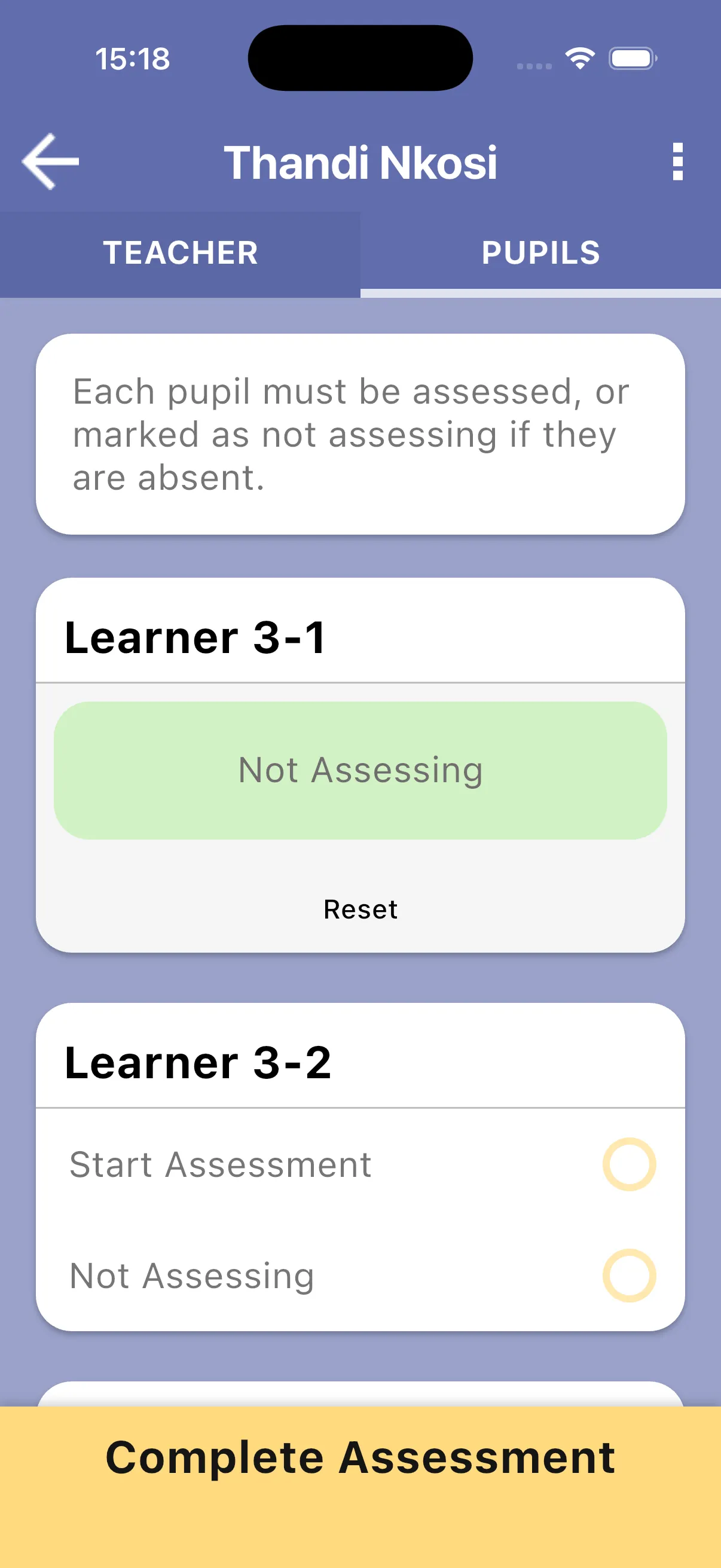
For an absent pupil, or another pupil who will not be assessed in this round, choose Not assessing on their roster card. This applies to this round and does not delete the pupil from the class. Tap Reset on the card to undo that choice if the pupil becomes available, then start their assessment.
See Adding a pupil assessment and Running a pupil assessment.
Answer teacher questions when present
Section titled “Answer teacher questions when present”The TEACHER tab is shown only when the form has teacher questions. Complete the required questions and check their progress before finishing the round.
Save, resume and sync
Section titled “Save, resume and sync”Answers save locally as you work. Leave the round to return later; use Sync to upload pending work. Cancel Assessment discards the round, so do not use it to take a break.
Complete the round
Section titled “Complete the round”Every registered pupil in the assigned class must have a completed assessment or be marked Not assessing. Required teacher questions must also be complete. See Completing an assessment round.