
Evaluating a district
The district page is where deduplication actually happens: it holds the candidate counts, the link into each list, and the action that goes looking for new duplicates.
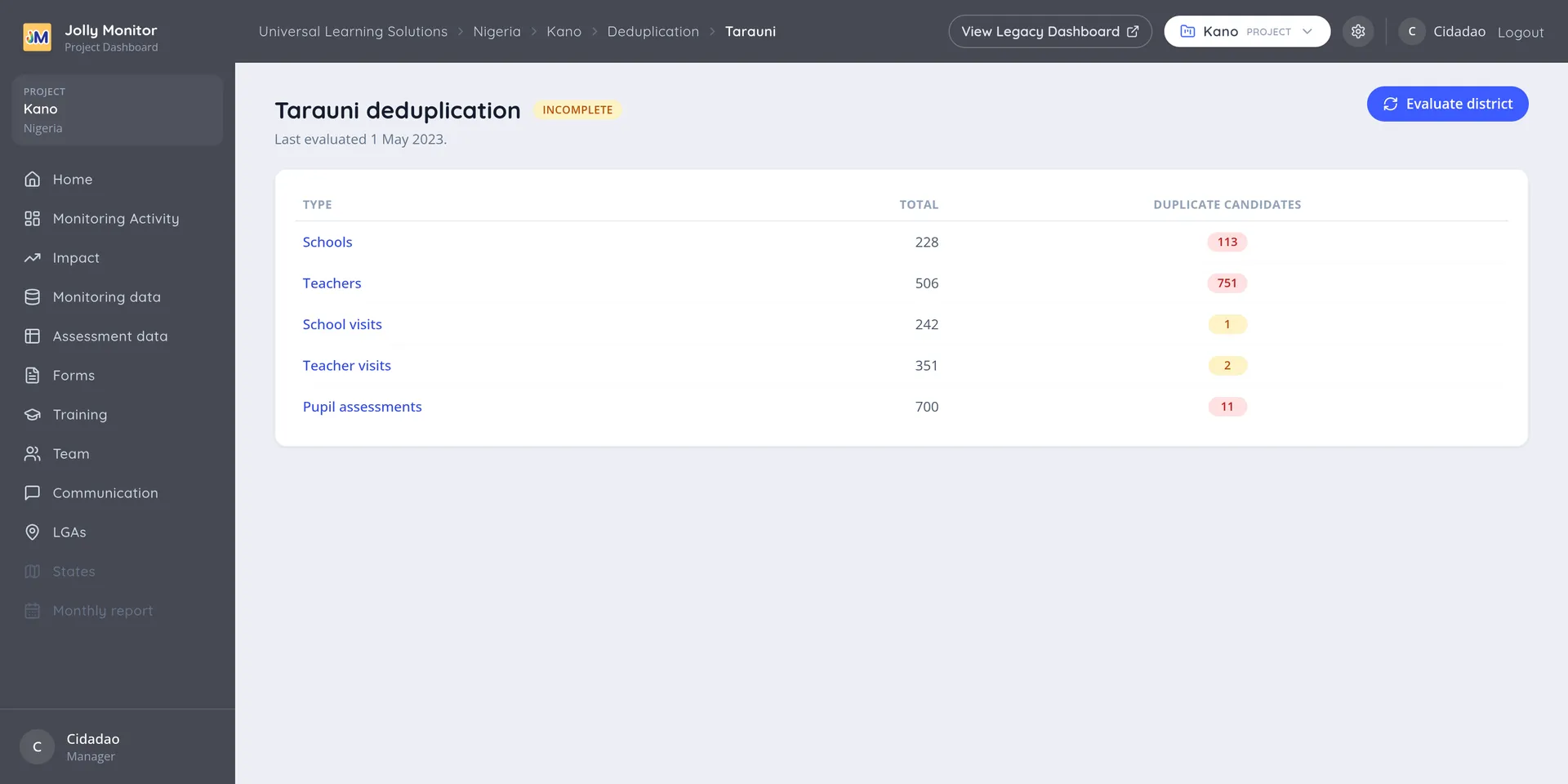
The page header
Section titled “The page header”The heading is the district’s name followed by deduplication. Once the district has been evaluated, the status sits beside it (Complete or Incomplete) with the date it was last evaluated underneath; a never-evaluated district shows no chip here and reads Not evaluated in the summary tables.
Reading the results table
Section titled “Reading the results table”The table has one row per kind of record:
| Column | What it shows |
|---|---|
| Type | Schools, Teachers, School visits, Teacher visits or Pupil assessments |
| Total | How many records of that kind the district holds |
| Duplicate candidates | How many suspected duplicate pairs were found |
Each row links into its own list of candidates, which is where the actual reviewing is done.
Running an evaluation
Section titled “Running an evaluation”Evaluate district (senior managers) searches that district for new duplicates. It compares records that look alike and records the pairs it finds; it changes nothing else.
Run one:
- After a bulk import of teachers or schools, which is when duplicates most often appear.
- After a spell of heavy fieldwork with patchy connectivity, where the same visit may have been recorded twice.
- When the Last evaluated date is old, so recent data has never been checked.
At project level the equivalent action, for administrators, evaluates every district of the project in one go.
How the matching works
Section titled “How the matching works”The comparison is not an exact match on names, because an exact match would find almost nothing: duplicates exist precisely because the two records were typed differently. Instead each pair gets a similarity score, and pairs above a threshold become candidates.
That is why the candidate lists contain pairs like “Balarabe Nurul Absal Ps” and “Balarabe Nurul Absar” at 88%, or “Hotoro Maradi Sps” and “Hotoron Maradi Sps” at 80%. A human reads those instantly as the same school; a strict comparison would never have paired them.
It also means the list contains genuine near-misses. Two different schools in the same district can have names that differ by one letter, and the system cannot tell them apart. That is the whole reason a person reviews every pair.
Where to start in a district
Section titled “Where to start in a district”Work down the types in the order the table lists them, because they are nested:
- Schools first. Merging two schools brings their teachers and visits together, so many teacher and visit pairs stop being duplicates at all.
- Teachers next, for the same reason with respect to their visits.
- School visits, then teacher visits, then pupil assessments.
The lists do not refresh themselves as you merge: re-run the evaluation after a round of school or teacher merges, and the pairs those merges made moot drop off. Doing it the other way round means resolving pairs that a later school merge would have made irrelevant anyway.
What the evaluation does not do
Section titled “What the evaluation does not do”It does not merge, delete or change any record. Its only output is the list of candidates, each one waiting for a person to decide. Nothing about your data changes until you act on a pair yourself.