
Managers
A manager is a dashboard account for somebody who works across the organisation rather than inside a single project; administrators are the highest of its four levels. You manage these accounts from the Managers & access page, reached from the settings icon while you are at organisation level.
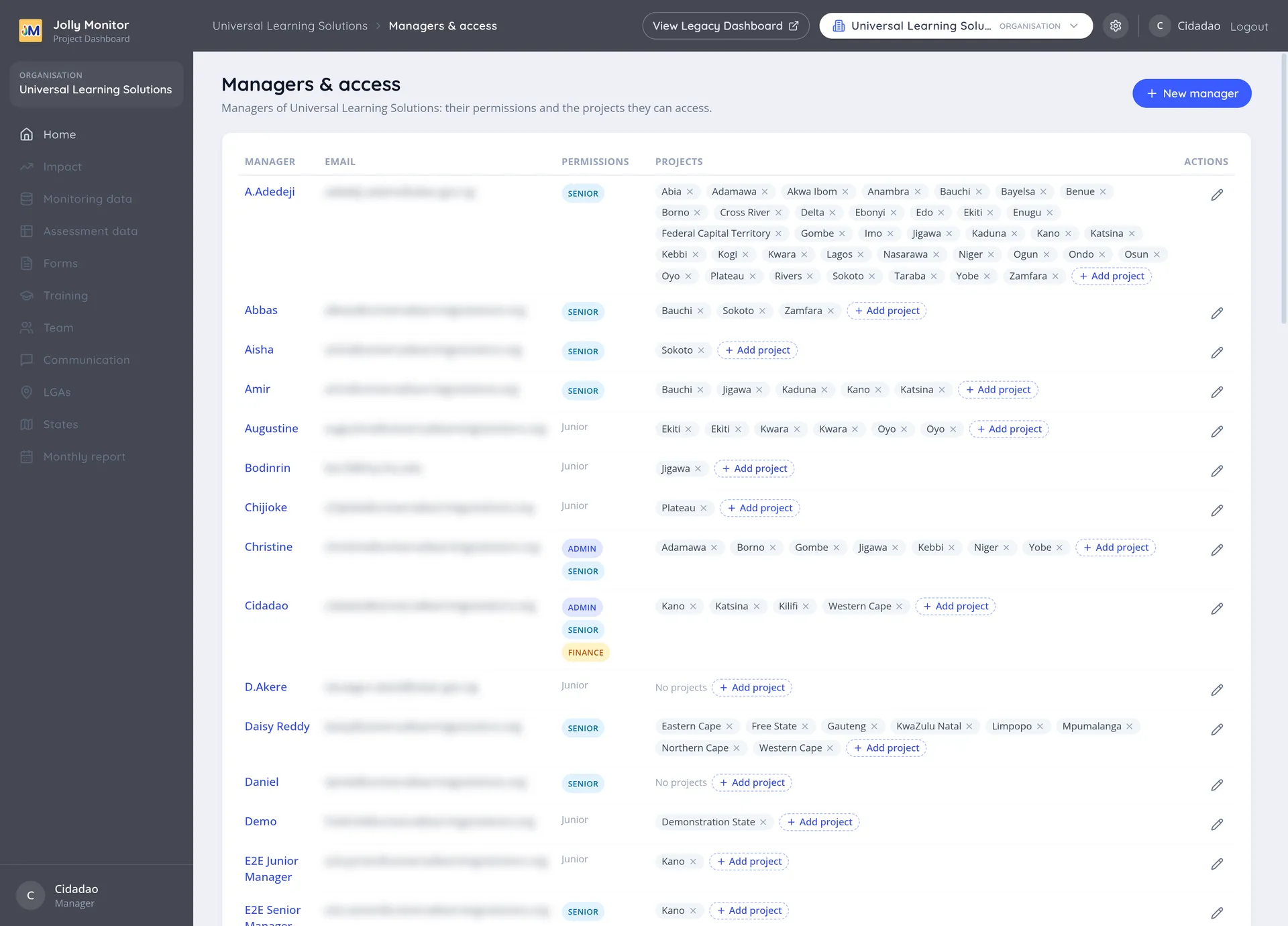
The managers table
Section titled “The managers table”The page shows a table of all managers in your organisation, with these columns:
| Column | What it shows |
|---|---|
| Manager | The manager’s name, which links to their profile |
| The address they sign in with | |
| Permissions | Their level, shown as a badge: Admin, Senior, Finance, or Junior |
| Projects | The projects assigned to that manager, each removable |
| Actions | The per-row buttons described below |
The New manager button sits above the table. The whole page is for full administrators: the gear that leads here only appears for them, and the backend refuses changes from anyone else with “This action requires an administrator”.
Creating a manager
Section titled “Creating a manager”Click New manager to open the create form. The fields are:
- Name
- Admin (a tick box)
- Senior (a tick box)
- Finance (a tick box)
- Password, which is optional
The three tick boxes decide what the new account can do. See the manager levels below.
The email, if given, must be a valid address, and a password, if given, must meet the rules in Resetting a password.
Per-row actions
Section titled “Per-row actions”Two controls live on each row:
- Add project, at the end of the Projects column: opens a project selector offering only the organisation’s projects not already assigned to that manager (it disappears when they all are). Assigning a project changes where they land and how their scope selector is grouped (every manager can already open the whole organisation).
- Edit, in the Actions column: opens an edit dialog with the create form’s fields (minus the password, which is set from the profile). There is no delete: manager accounts are edited, not removed, from here.
You can also remove a single project assignment directly from the Projects column.
The manager profile
Section titled “The manager profile”Clicking a manager’s name opens their profile page. It shows their name, email and permission level, and below that the projects they belong to, with links that switch the active scope into each project. The Edit Password button is available here when you are viewing your own profile or you are an administrator.
Resetting a password
Section titled “Resetting a password”The Edit Password dialog has a password field and a confirmation field.
The dialog enforces these rules:
- The two fields must match, or you see “Passwords don’t match”.
- “Password must be at least 8 characters long”.
- “Password must contain at least one uppercase letter and one number”.
You may only change your own password or, as an administrator, the password of a manager in your organisation. Anyone else gets “Only the manager themselves or an administrator can change this password”.
On success the dialog closes and reports “Password updated”.
Manager levels
Section titled “Manager levels”Managers come in four levels, set by the three tick boxes on the account (the list shows one badge per ticked box; Junior when none is):
- Administrator: full access. These accounts set the whole system up: managers, countries, projects, monitoring forms, questions, metrics and app versions. Only administrators see the settings icon at organisation level.
- Senior manager: a wide view across the organisation, without the administrative settings.
- Finance: access to the funding and invoicing side.
- Junior manager: shown when none of the boxes is ticked. This is the most limited level, and the right choice for someone who only works inside the projects assigned to them.
Whatever their assignments, every manager can open the whole organisation; assignments only pick their landing page and float their projects first in the scope selector. For the full breakdown of what each level can change, see Roles and what each one sees.
Next: Countries and projects