
Past visits and the read-only view
A past visit is any school visit that has been completed (it doesn’t matter whether the visit happened today or last month, as long as it’s marked complete). The app shows past visits as read-only cards in several places so you can review them, generate reports or reopen them.
Where past visits appear
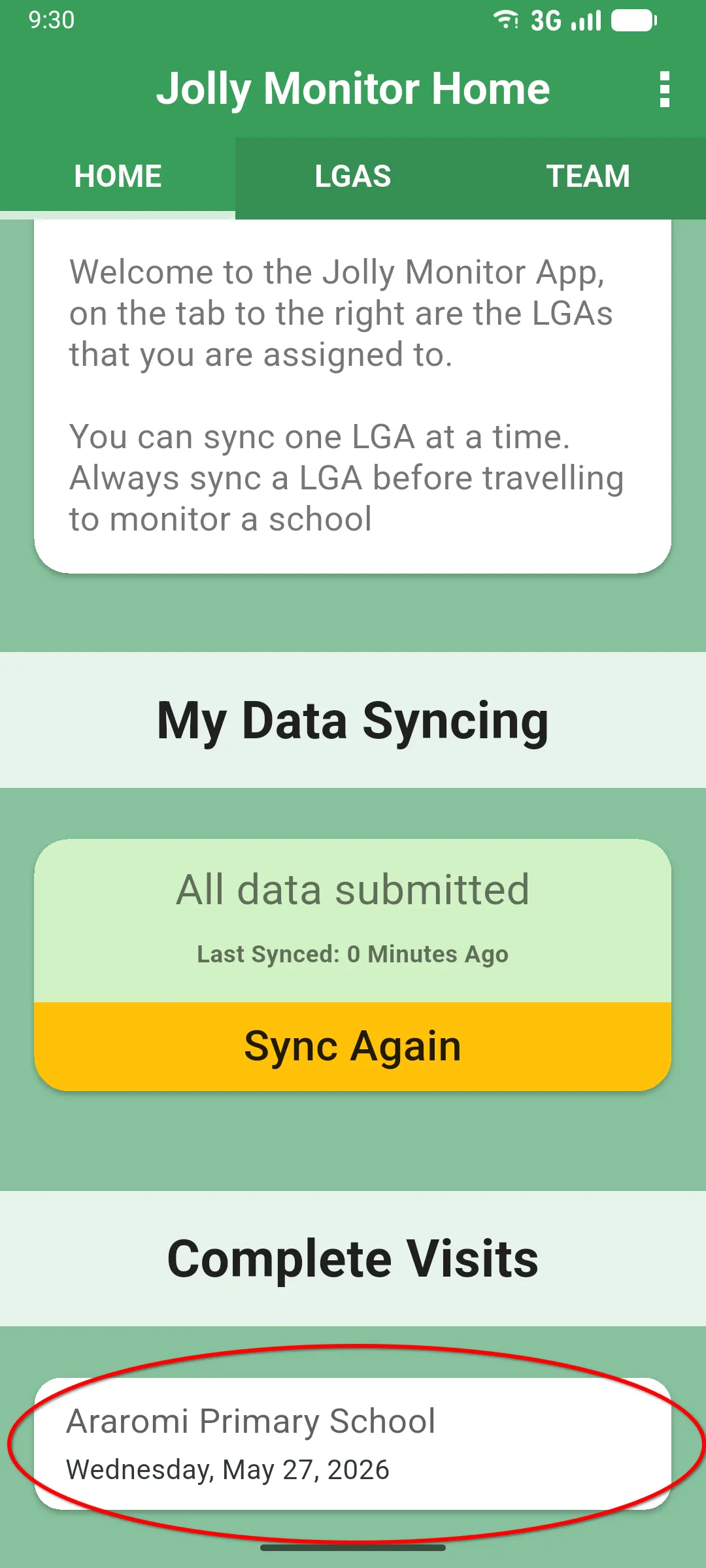
Section titled “Where past visits appear”The most direct way is from the Home tab, scroll to the bottom and you’ll find the Complete Visits section listing the visits you’ve completed across all your schools.
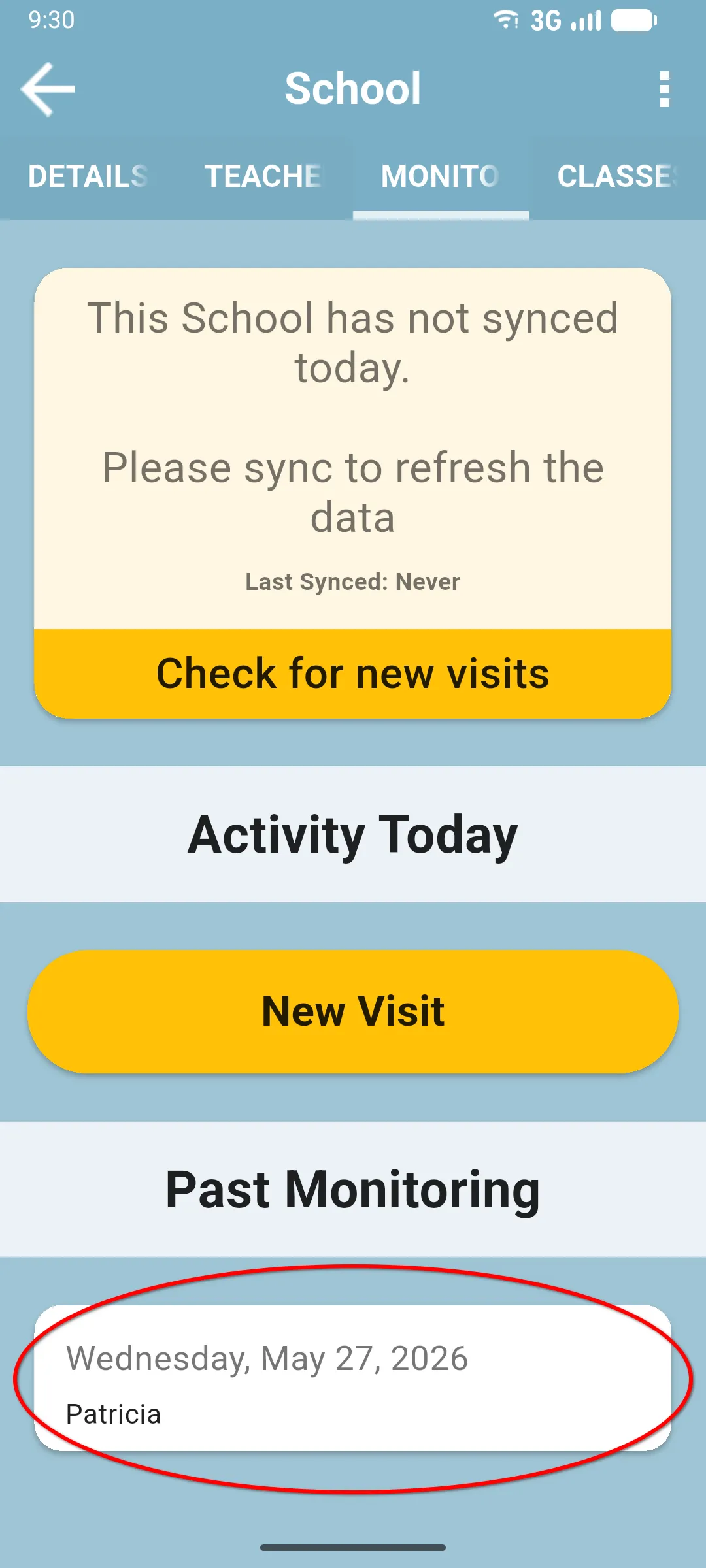
If you want the history of a specific school, open the school and go to the MONITORING tab. The Past Monitoring section at the bottom lists every past visit to that school by any monitor.
Two other places list past visits too, with the same card style:
- district detail screen: the Complete Visits section lists every past visit you’ve done in that district.
- Inside an active visit: the HISTORY tab lists past visits to the same school, useful for comparing answers between visits without leaving the screen.
Opening a past visit
Section titled “Opening a past visit”How a past visit opens depends on where you tap it:
- From the Complete Visits list on the Home or a district screen, an Open or Edit dialog appears: VIEW VISIT opens the read-only view, and EDIT VISIT opens the visit straight in the editor (no need to reopen it first).
- From a school’s Past Monitoring list or the HISTORY tab inside a visit, it opens straight into the read-only view.
The read-only view is the Completed Visit screen, a mirror of everything captured during the visit.
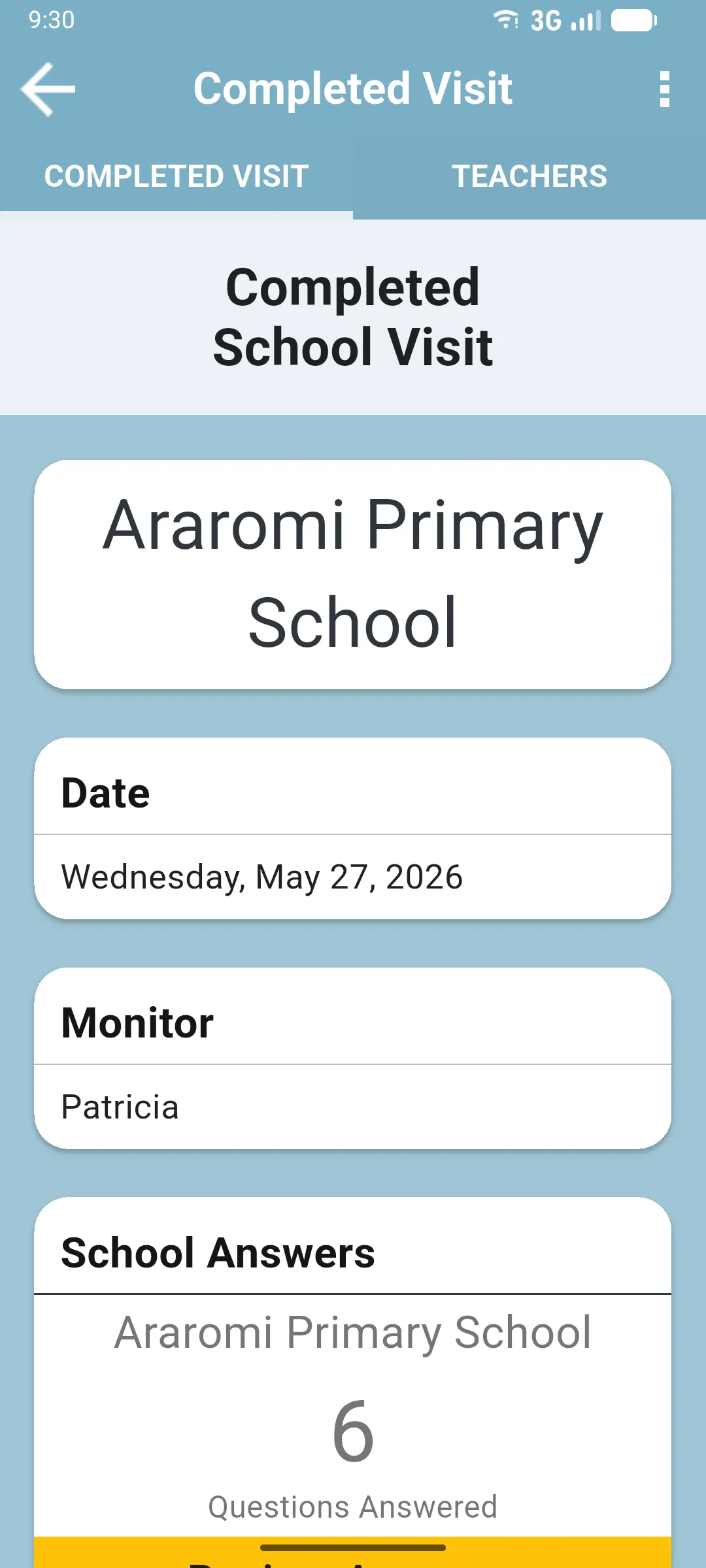
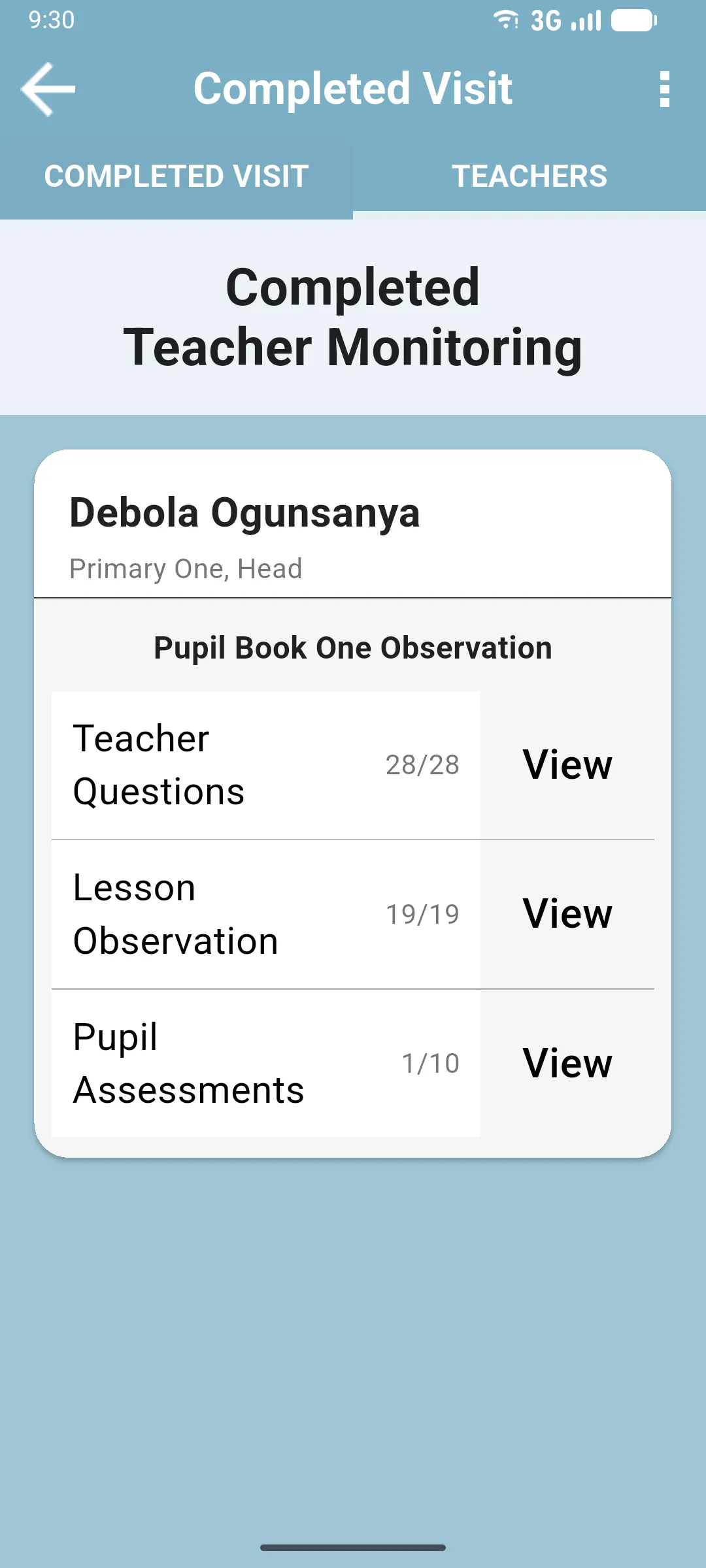
The screen has two tabs:
- COMPLETED VISIT: school name, visit date, monitor, school answers, head-teacher answers (when filled), visit-level answers (when the form had any) and a Create Report card.
- TEACHERS: each monitored teacher with their answers, lesson observation (when recorded) and pupil assessments.
You can scroll, tap answers to see them expanded, and that’s it. You can’t change anything.
Generating a report
Section titled “Generating a report”Scroll to the teacher you want, tap Create Report. The report renders on screen and you can send it with the device share sheet. See Creating a report for what it includes.
Reopening a past visit
Section titled “Reopening a past visit”If you were the monitor on the visit, a Reopen Visit button appears at the bottom of the COMPLETED VISIT tab. Tap it, confirm the warning (You should only reopen a visit if you plan to change answers) and the app takes you back to the editable visit screen.
The button does not appear on visits monitored by someone else. If you registered a paper visit on behalf of another monitor, the button appears in their account, not yours.
Next: Activity Today and visits in progress