
Past assessments
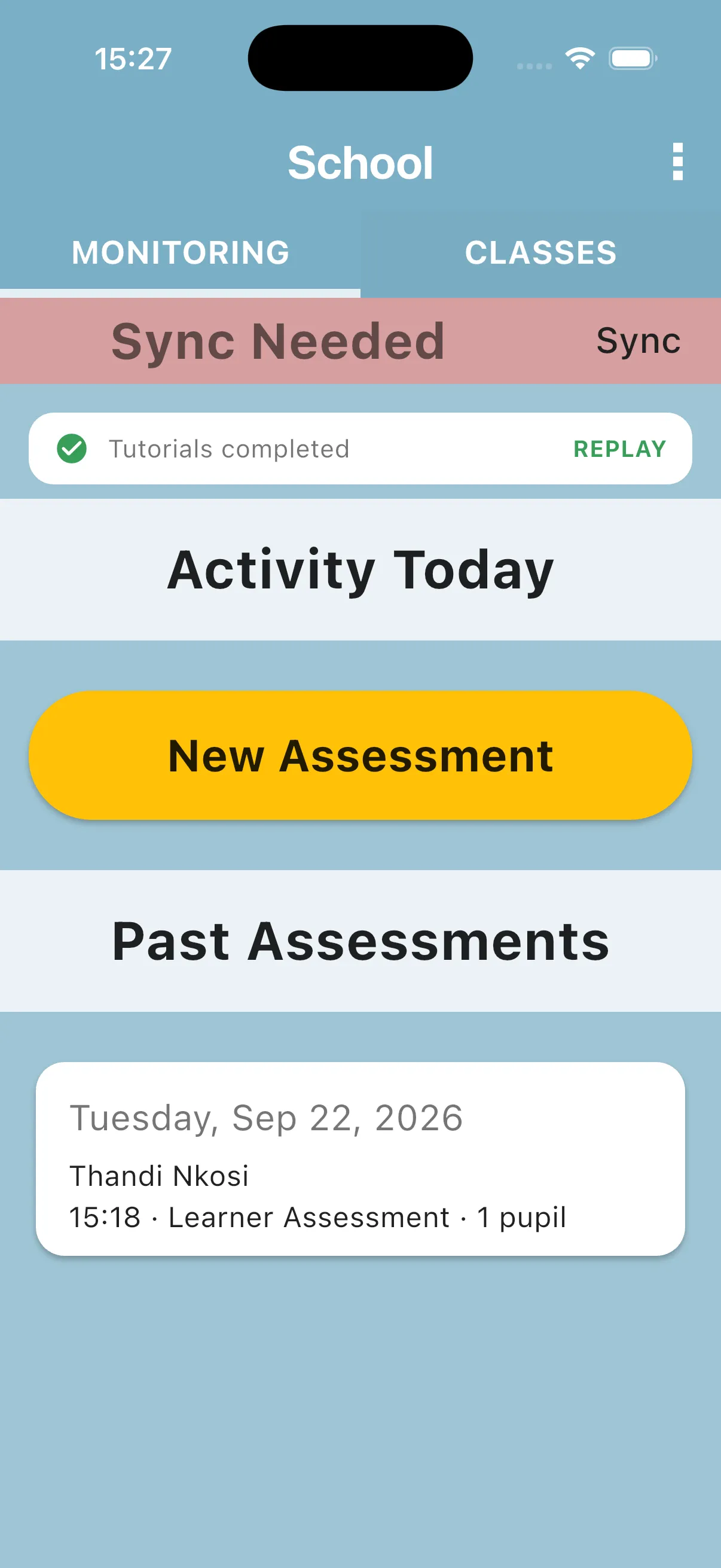
Completed rounds and unfinished rounds from earlier days appear under Past Assessments. Synced records can be downloaded again after you sign in. Past assessments live on the school home screen, grouped under their own section.
1. Find the list of past assessments
Section titled “1. Find the list of past assessments”Open the school home and stay on the MONITORING tab. Below the Activity Today section you will see a banner titled Past Assessments with completed rounds and older unfinished rounds. Each row shows the evaluated teacher’s name and the round date, ordered from most recent to oldest.
2. Open an entry to review the answers
Section titled “2. Open an entry to review the answers”Tap any row in Past Assessments to open the saved assessment. What happens next depends on whether you were the evaluator:
- If somebody else evaluated the teacher (for example, the head teacher), the saved assessment opens directly in read mode. You can browse the teacher questions and pupil assessments to see the answers that were recorded.
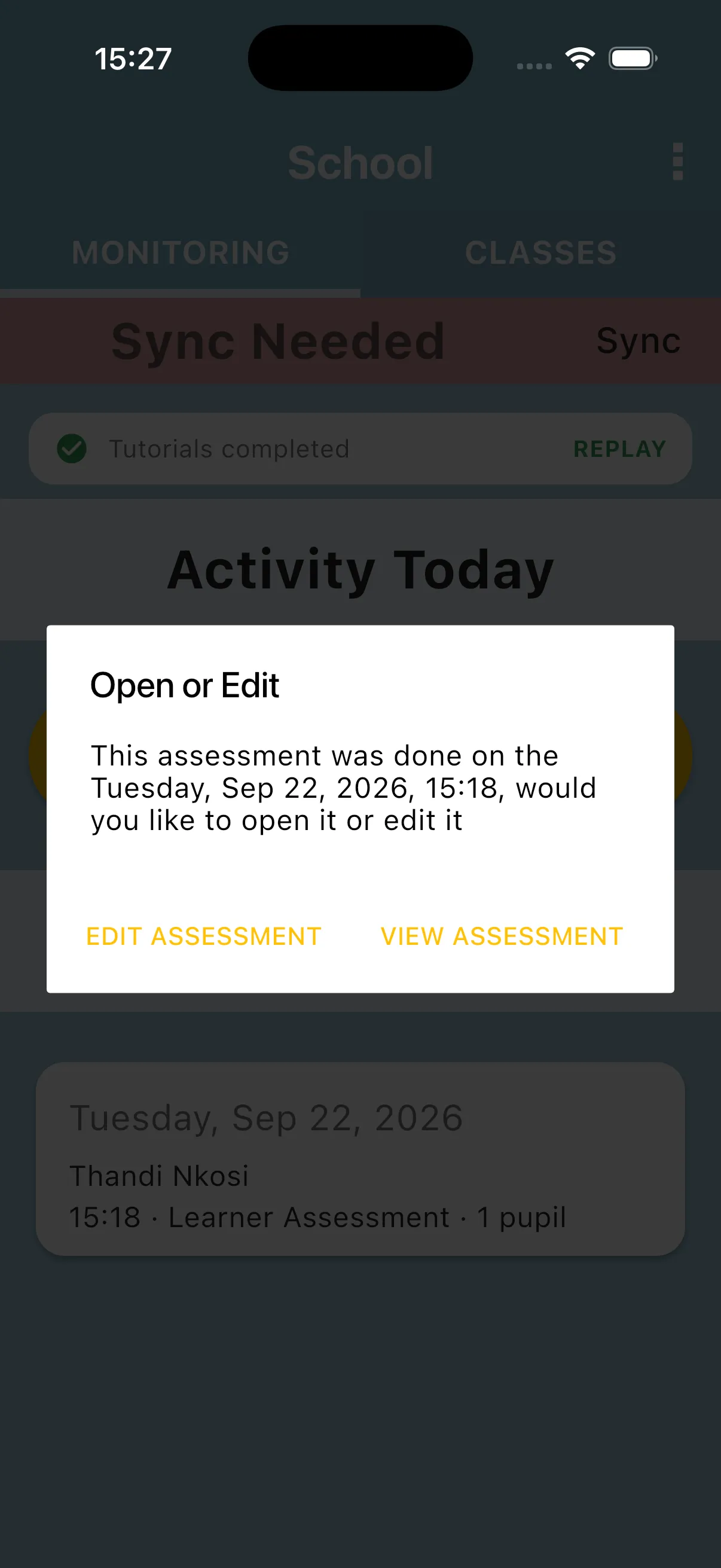
- If you were the evaluator yourself, a dialog appears first asking whether you want to View Assessment or Edit Assessment. Pick View Assessment to read the answers without changing them, or Edit Assessment to jump straight into editing mode.
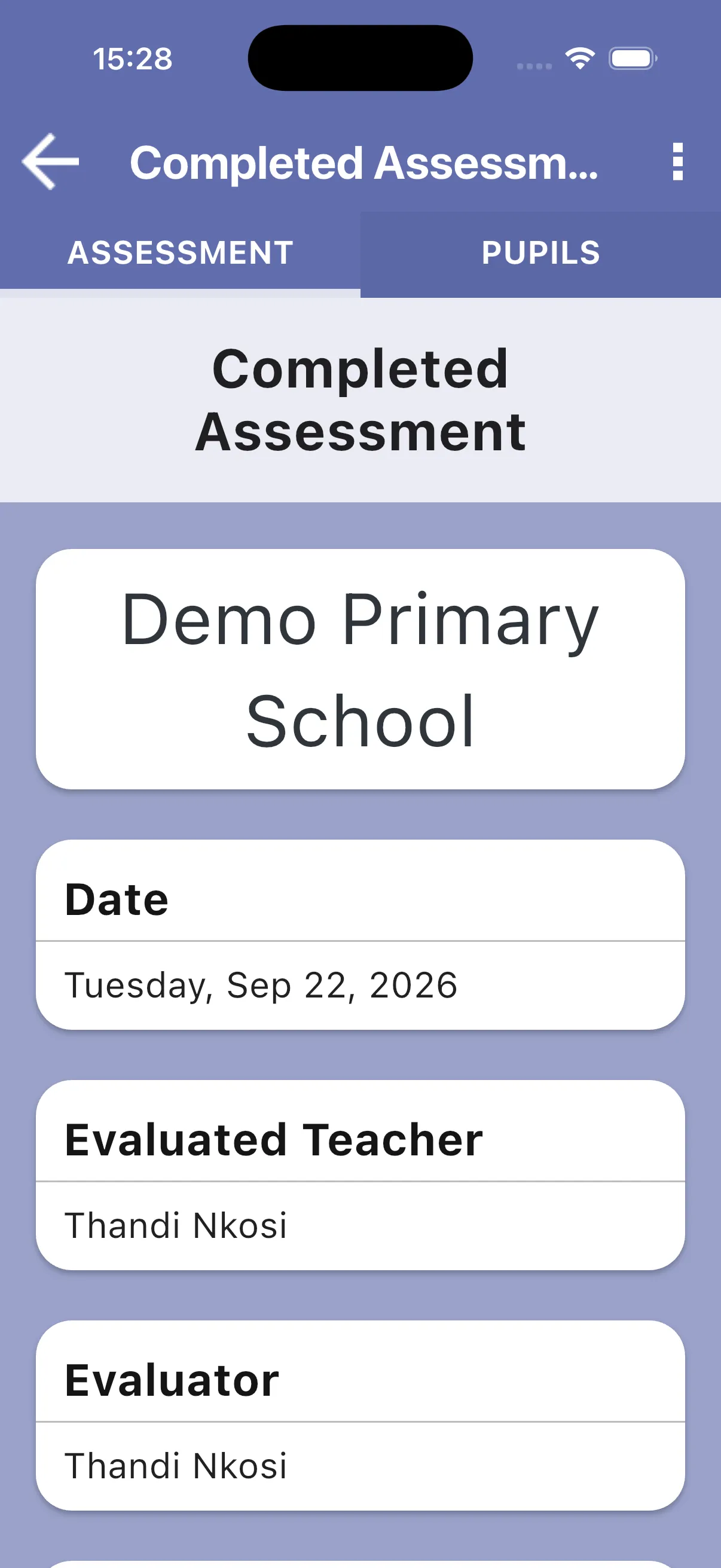
Once inside, the assessment home is split into two tabs:
- ASSESSMENT shows the school, date, evaluated teacher, evaluator, class, form, the teacher questions card, the Create Report action and, when you were the evaluator, the Reopen Assessment button at the very bottom.
- PUPILS lists the completed pupil assessments for the learners selected during the evaluation.
Even after choosing View Assessment, you still have a second chance to edit it: scroll to the bottom of the ASSESSMENT tab and you will find a Reopen Assessment button. Tapping it puts the assessment back into editing mode, the same as choosing Edit Assessment from the dialog. This option only appears when the logged-in teacher was the evaluator.
Next: Creating a report
For an older unfinished round, resume it and complete the roster and required questions before finishing.