
TEACHERS tab (head teacher only)
The TEACHERS tab appears on the school home screen only when you are signed in as a head teacher. It is the middle tab in the head teacher’s home (between MONITORING and CLASSES), and it gives you the list of every teacher attached to the school. Regular teachers do not see this tab at all (see Head teacher vs regular teacher for the full role comparison).
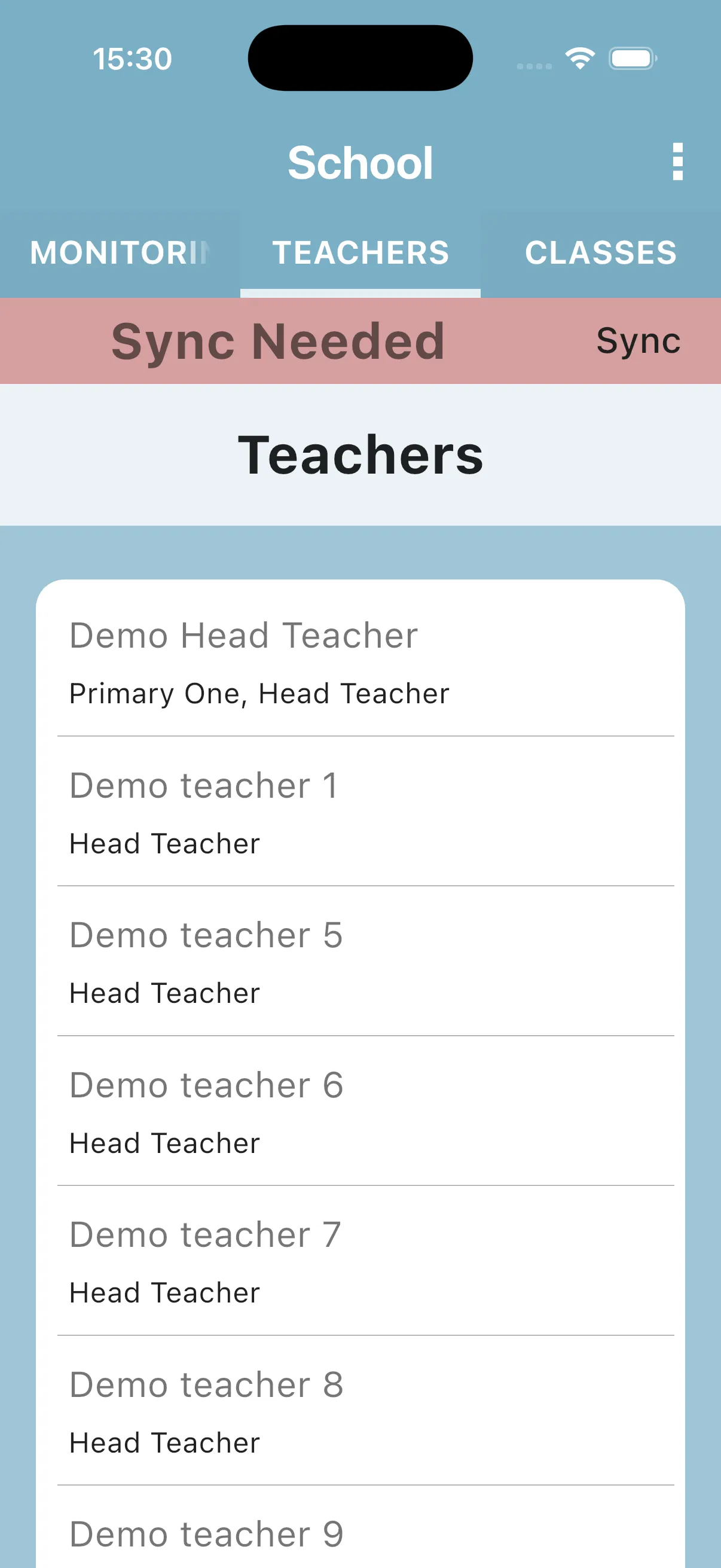
What you see on the screen
Section titled “What you see on the screen”- A section banner labelled Teachers at the top of the tab.
- One card per teacher, each card showing the teacher’s name and a short role description underneath (for example Head, Primary One, Deputy Head, English Teacher, or Administrator).
What you can do
Section titled “What you can do”- Tap any teacher card to open that colleague’s profile. The profile shows the teacher’s details (name, role, contact information) and the list of Internal Evaluations that have been carried out for them. See Teacher profile (head teacher view) for the full breakdown.
- Use the menu in the top right of the school home to Sync if the list looks out of date.
What you cannot do from this tab
Section titled “What you cannot do from this tab”- There is no Add Teacher button. Teachers are managed centrally by the monitoring team, not from the school home. If a colleague is missing, ask the monitoring team to add them and run a sync.
- You cannot edit or delete a teacher from this tab. The school home menu includes school and account actions; its Edit Name action renames the school. To edit a teacher’s name or delete a teacher, open the teacher’s profile first (tap their card); inside the profile the three-dot menu shows Sync, Edit Name and Delete for that specific teacher.
Next: Teacher profile (head teacher view).