
Browsing the teachers in a school
From your district’s SCHOOLS tab, tap the school you want and then tap TEACHERS at the top.
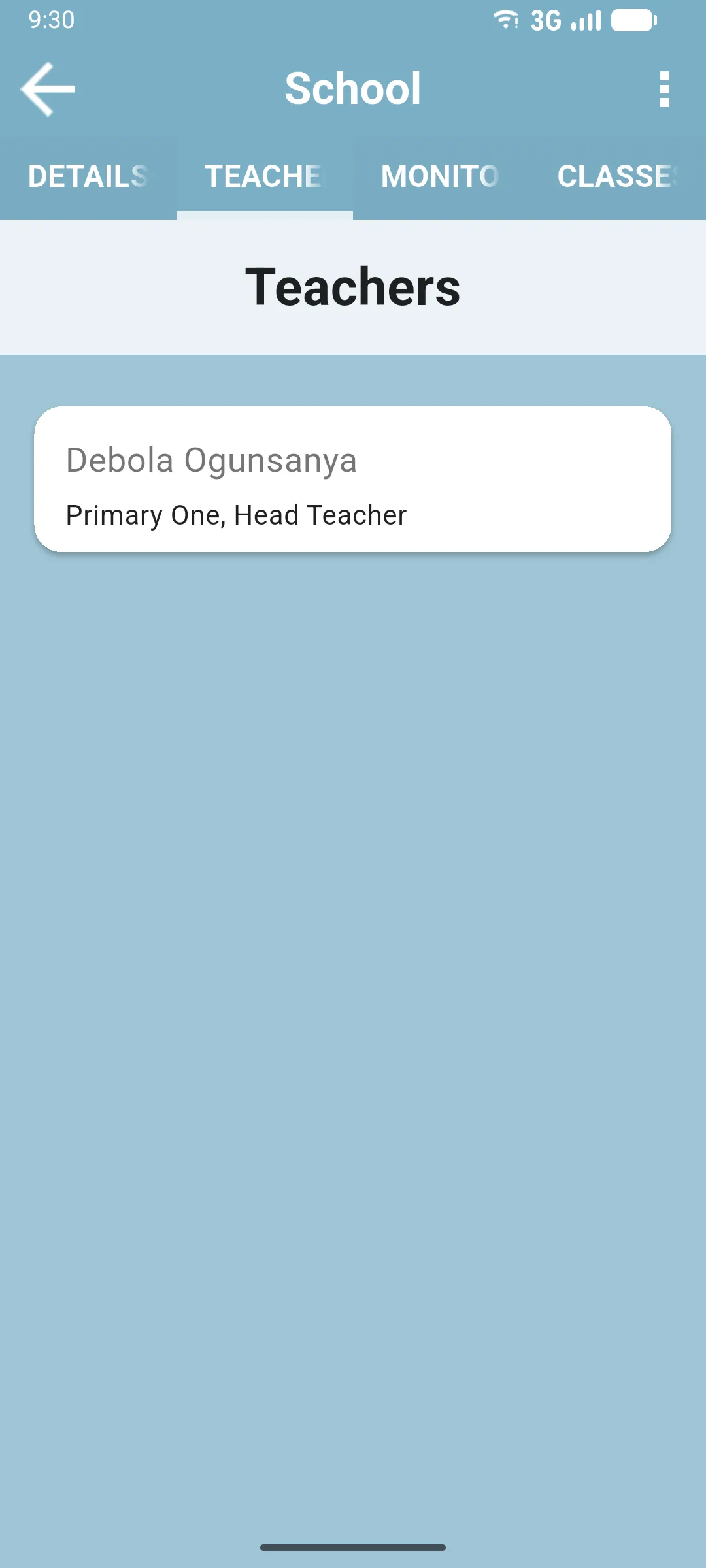
The tab lists every teacher registered at that school. Each card shows the teacher’s name and their role (or roles, comma-separated, if more than one). If no teachers exist yet, the tab shows There are no teachers to display.
Tap a card to open the Teacher Detail screen.
Adding a new teacher
Section titled “Adding a new teacher”This screen is read-only: there’s no Add Teacher button here. New teachers are always added from inside a school visit, using the New Teacher button at the bottom of the visit’s TEACHERS tab. See Conducting a school visit.
When teachers aren’t listed
Section titled “When teachers aren’t listed”- They were just added by another monitor and haven’t synced yet. Run a sync (see Sync & Data).
- They were never registered in Jolly Monitor. Start a visit at the school and use New Teacher as described above.
Next: The Teacher Detail screen