
Your home screen (Head Teacher)
If your account is the head teacher of the school, the School home screen looks almost identical to the regular teacher view described in Your home screen, but with three differences. This page only covers what changes.
Three tabs instead of two
Section titled “Three tabs instead of two”If required tutorials are pending, complete them before working with real records. Head teachers can use the same tutorials, language settings and certificate download.
A regular teacher sees MONITORING and CLASSES. As a head teacher you see a third tab in the middle: TEACHERS.
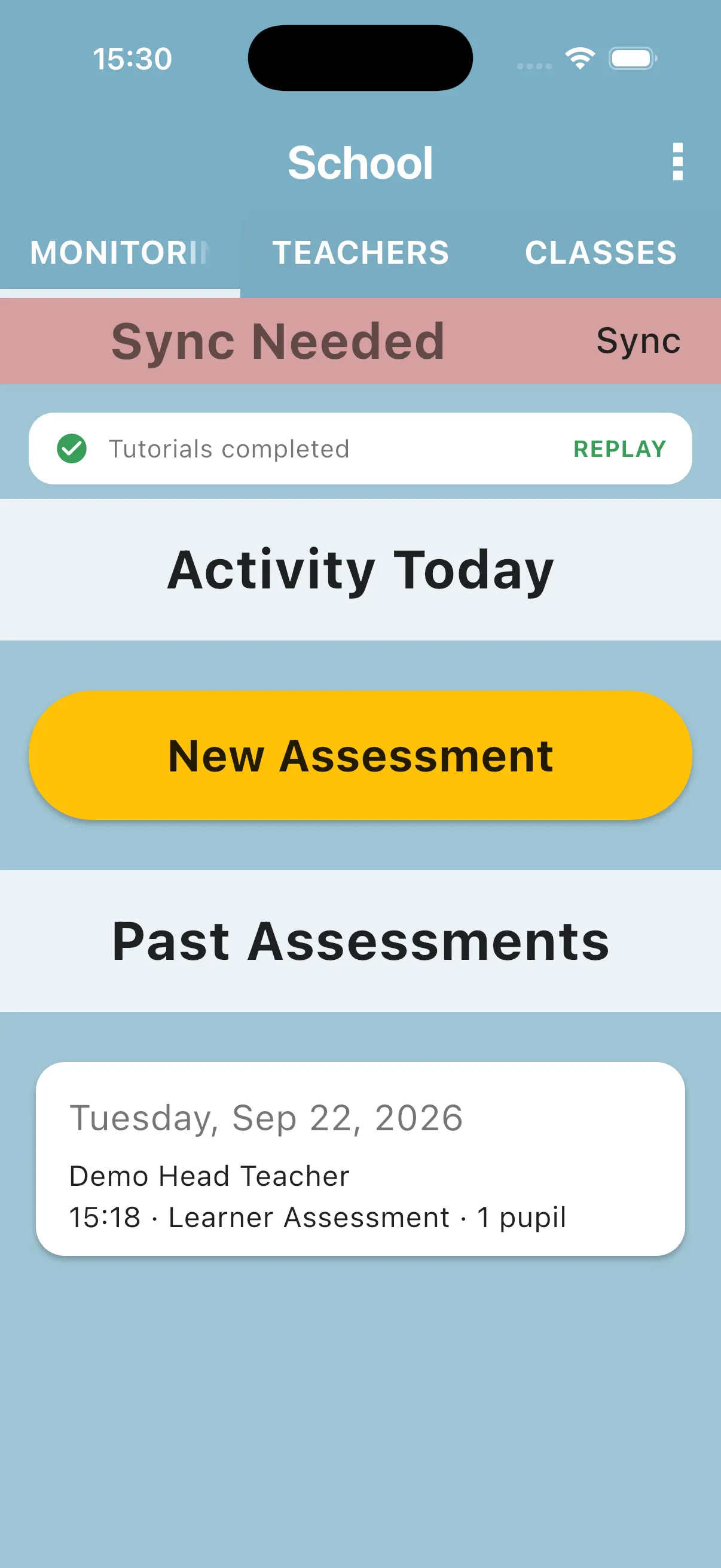
The TEACHERS tab
Section titled “The TEACHERS tab”The new tab lists every teacher attached to your school, grouped by role. From here you can open any teacher’s profile to review their evaluations and pupil assessments.
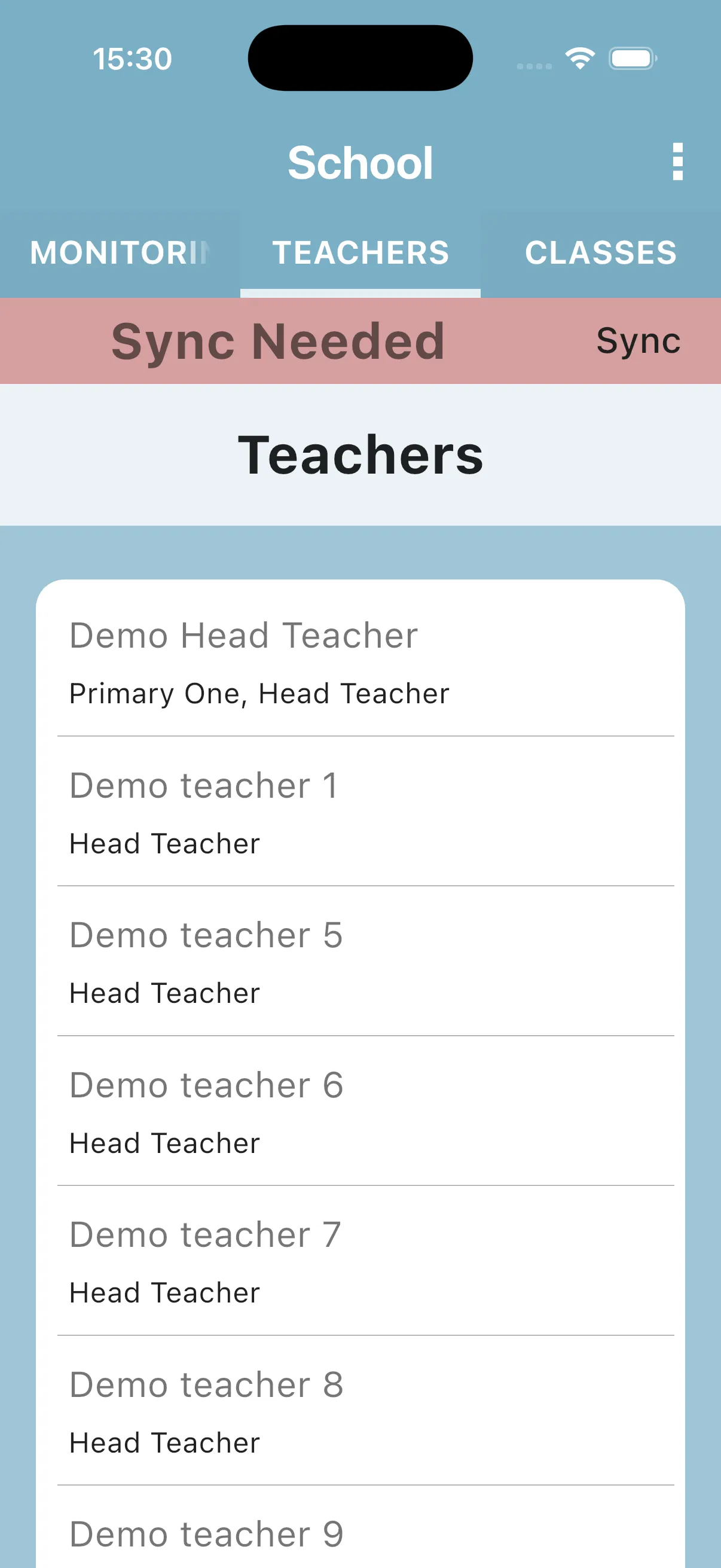
See Teachers tab listing for what you can do on this tab and Teacher detail (from head teacher) for the profile screen.
The CLASSES tab shows every class
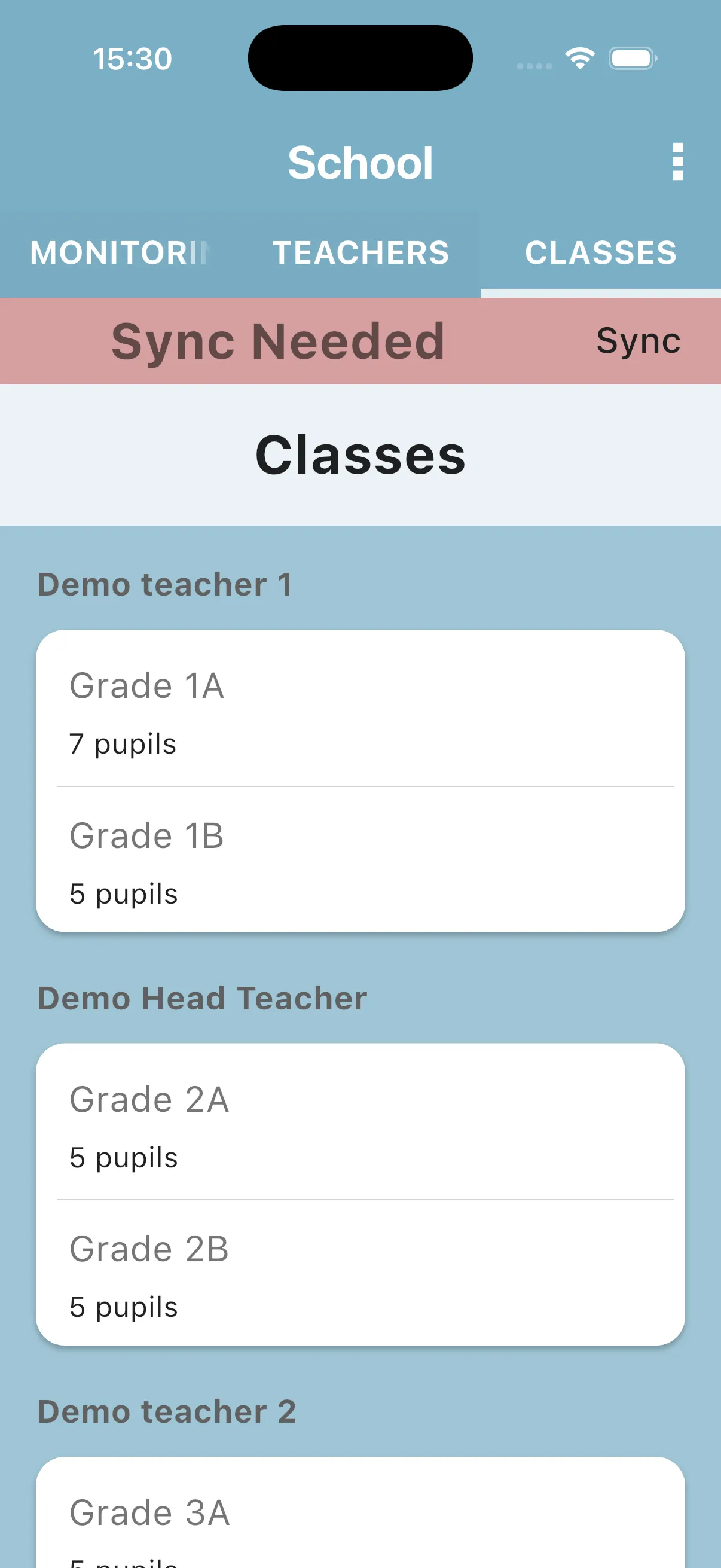
Section titled “The CLASSES tab shows every class”A regular teacher only sees the classes they teach. As a head teacher the CLASSES tab shows every class at the school, grouped by teacher, and still has the New Class button at the bottom. A class you create from here is assigned to you.
New Assessment adds a Select Teacher step
Section titled “New Assessment adds a Select Teacher step”The New Assessment flow uses the same fullscreen screens for both roles: choose the assessment form, then the required class. As a head teacher, the Select Teacher screen appears between the form and the class so you can pick the colleague being evaluated (or pick Self Assessment).
What stays the same
Section titled “What stays the same”- The sync banner and Sync menu action.
- Activity Today and Past Assessments: same lists and same filtering rules as the regular view.
- The three-dot menu in the top right (Sync, Edit Name, My Profile, Settings, Help & Support, App Details, Logout).
Next: Head teacher vs regular teacher