
Team
There are two team views in the app, and they show different things. Both are read-only and refresh on every sync.
District Team tab: the monitors in that district
Section titled “District Team tab: the monitors in that district”This is the team view you’ll actually use. Open a district from the Districts tab and tap the TEAM tab inside it. It lists every monitor assigned to that specific district, the colleagues you share schools with.
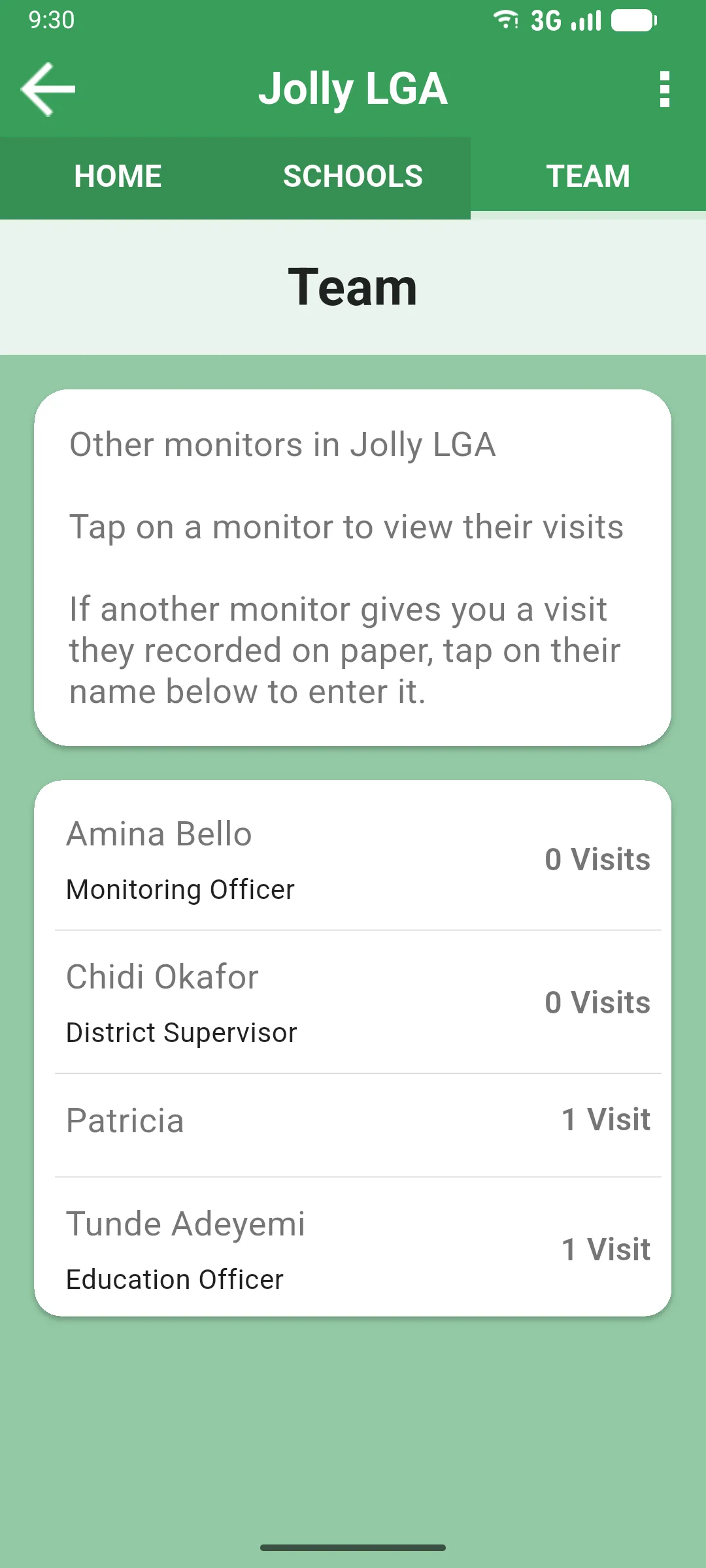
Each card shows the monitor’s name, their job title and their number of visits. Your own card is in the list too. Tapping a monitor opens their profile, where you can review their visits or enter a paper visit on their behalf.
Home Team tab: project staff
Section titled “Home Team tab: project staff”The TEAM tab on the Jolly Monitor Home screen is different: it lists your project’s staff (coordinators and project-level officials), not the monitors of a given district.
This tab only has cards if your account is linked to a project’s staff list. For a regional official it shows just the header and no cards, which is expected: your team is the per-district list above, not the project staff.
Opening a monitor’s profile
Section titled “Opening a monitor’s profile”When you tap a teammate’s card from the TEAM tab (either from the multi-district home or from inside a district), the app first syncs their data and then opens their profile.
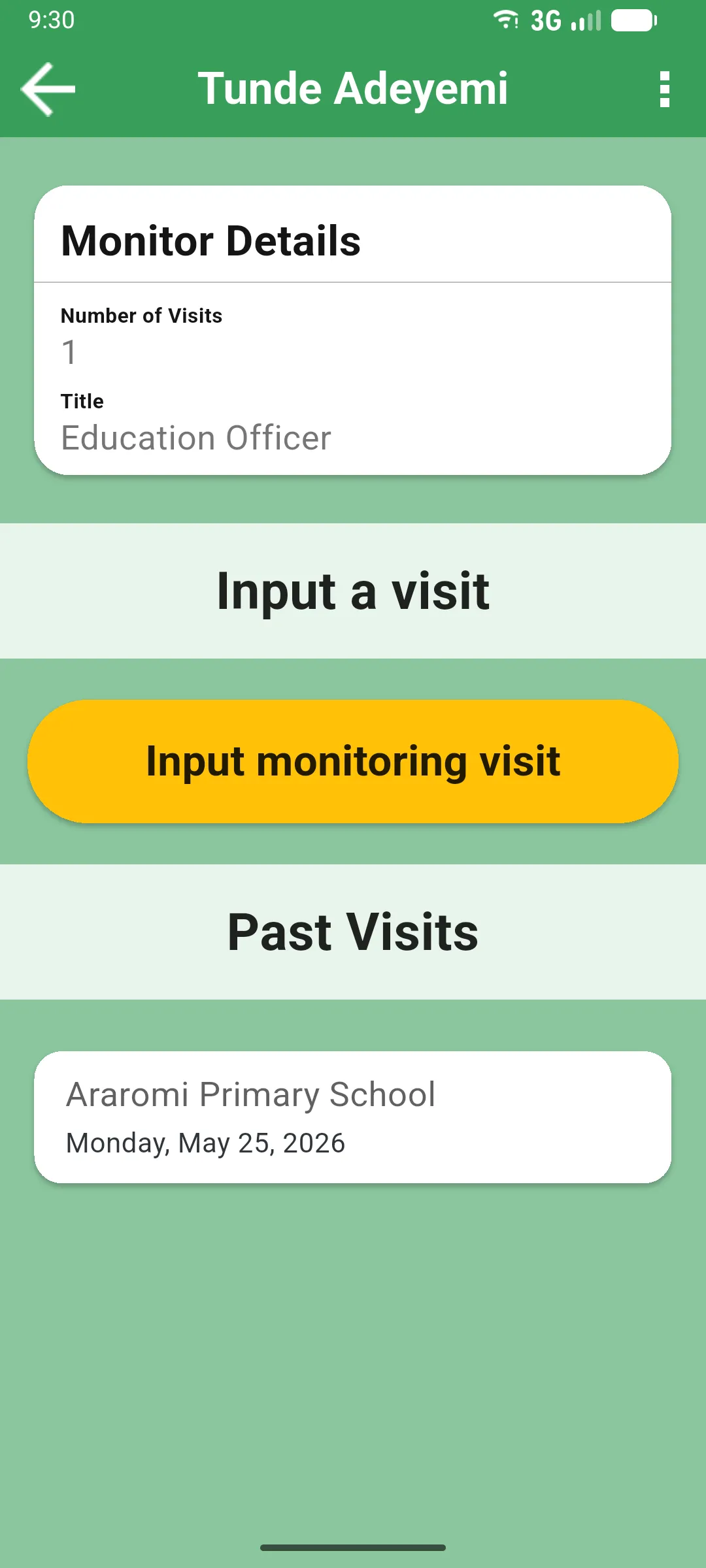
The profile is read-only by design: you cannot edit anything about that monitor, only review what they have done and, in one case, enter a paper visit they did offline.
Monitor Details
Section titled “Monitor Details”- Number of Visits they have on record.
- Title (job title).
- Phone Number.
Incomplete Visits
Section titled “Incomplete Visits”Visits that monitor has started but not yet completed. Tap one to view it; you cannot continue someone else’s in-progress visit, only review it.
Input a visit
Section titled “Input a visit”If that monitor has no incomplete visits (everything they have is finished), an Input a visit section appears with an Input monitoring visit button. Use this when a teammate gives you a paper visit they recorded offline and asks you to enter it into the system on their behalf.
When you tap it:
- The app confirms: “Input a visit for [name]. The visit you are now entering will be associated with this monitor.”
- If that monitor only covers one district, the app jumps straight to the visit date screen.
- If they cover several districts, you pick the district first (the app syncs that district before continuing).
- From there the flow is the same as Creating a school visit, but the visit is saved with the other monitor as the author.
Past Visits
Section titled “Past Visits”Their completed visits, newest first. Tap one to choose View Visit (read-only) or Edit Visit (open in the editor).