
Cancelling a visit
Cancelling marks a visit as deleted. If the visit was never sent to the server, it disappears from your phone immediately. If it was already synced, it stays locally with a deleted flag and the server removes it on the next sync.
In-progress visits can be cancelled by anyone who opens them, including a teammate’s visit if you happen to land on it from the school’s Activity Today section. Completed visits can only be cancelled by the original monitor: they have to open the visit from Past Visits and tap Reopen Visit first (the button only appears on visits you monitored), and then cancel it from the editable screen.
When to cancel
Section titled “When to cancel”- You picked the wrong school by accident.
- You picked the wrong monitoring form (the form can’t be changed inside the visit; you have to cancel and start over).
- You started a visit during testing or training and don’t want it in your records.
1. Open the in-progress visit
Section titled “1. Open the in-progress visit”If it’s open already, stay on it. Otherwise from the school’s MONITORING tab, tap the visit under Activity Today to open it.
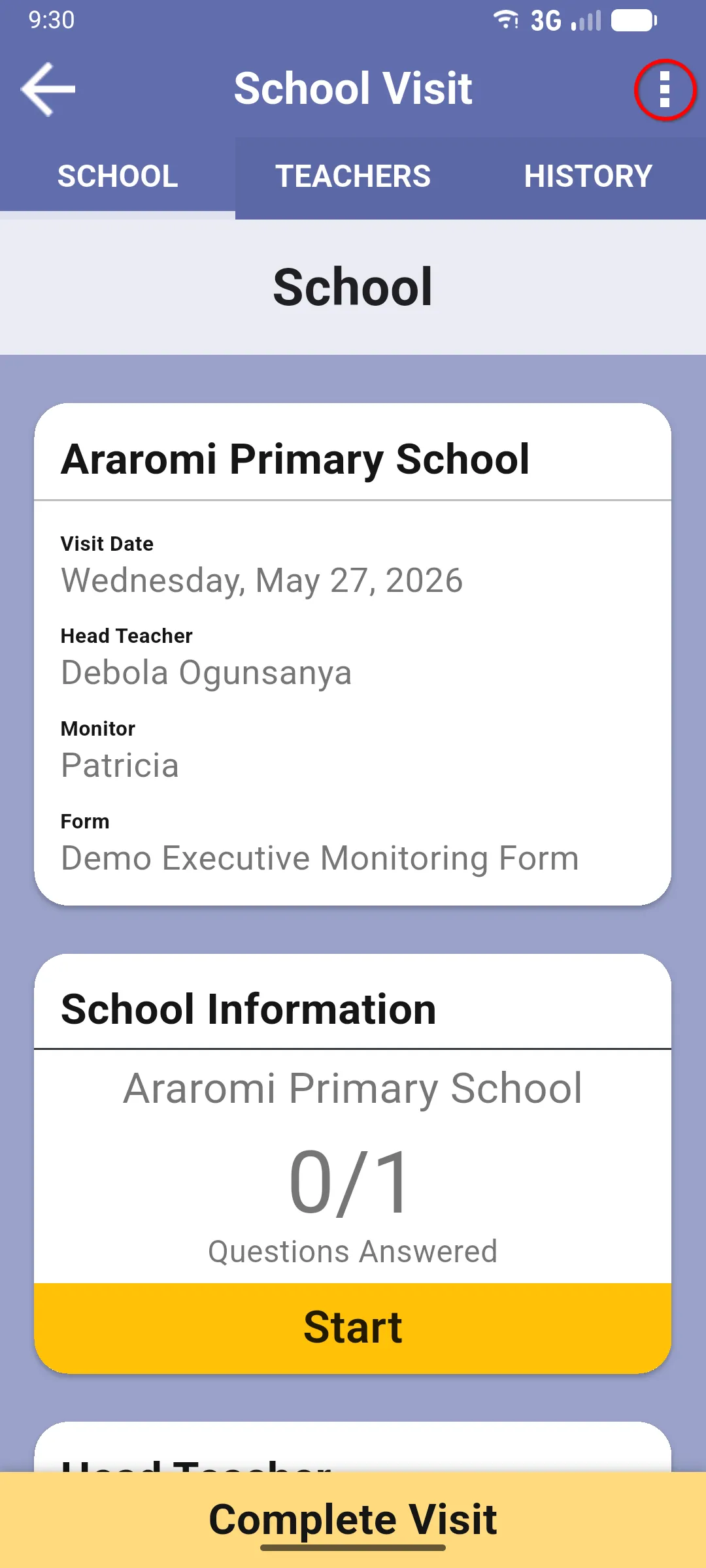
2. Tap the three-dot menu
Section titled “2. Tap the three-dot menu”Top right of the School Visit screen.
3. Tap Cancel Visit
Section titled “3. Tap Cancel Visit”The menu shows Sync and Cancel Visit. Pick Cancel Visit.
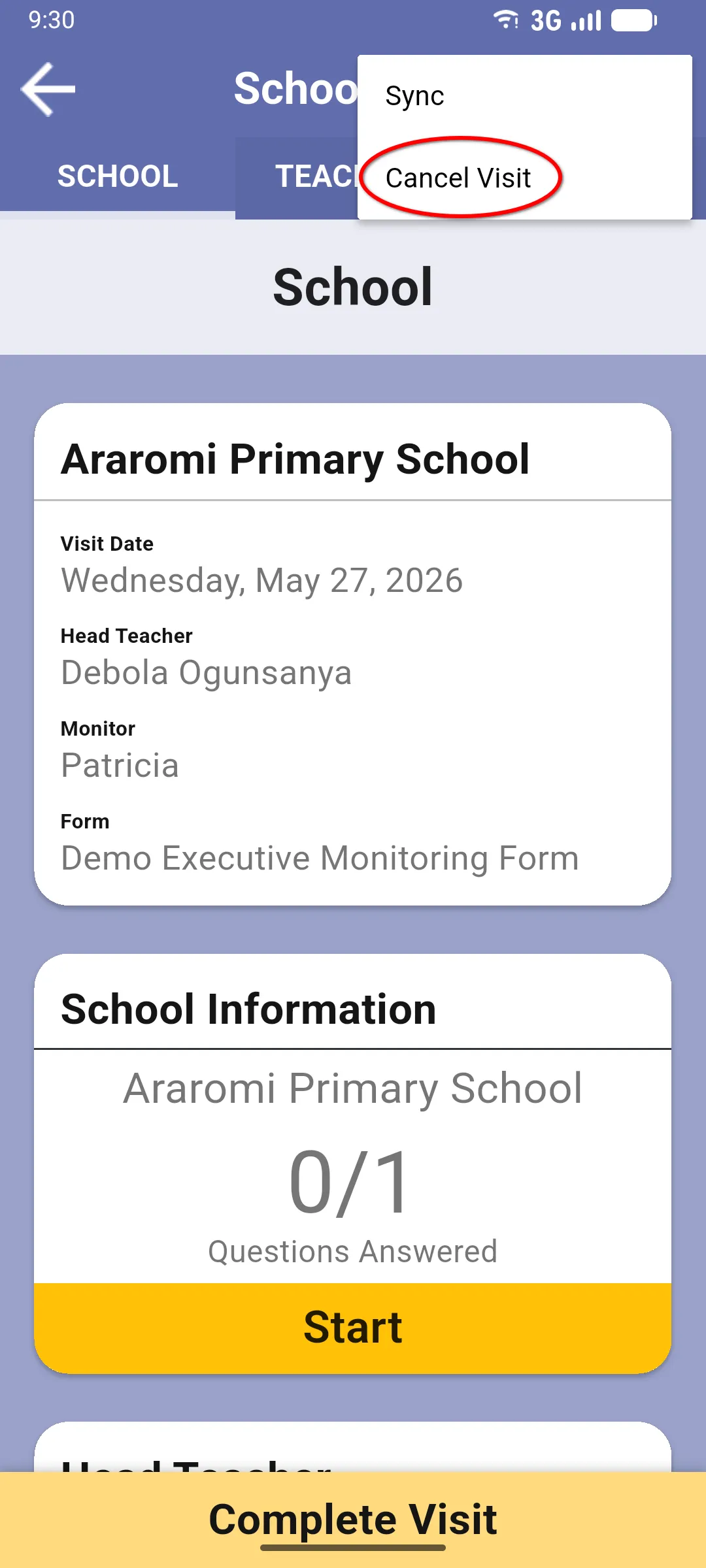
A confirmation dialog appears titled Cancel Visit with the message All your input will be lost. Tap OK to discard the visit, or CANCEL to keep it.
Cancelling is permanent: every answer, observation and pupil assessment inside the visit is deleted.
Next section: Teachers