
Your home screen (Single district)
If your account only covers one district, the app skips the districts list and drops you straight into that district. The screens described in Your home screen (HOME, Districts, TEAM) do not apply. This page covers what you see instead.
Lands you straight in the district
Section titled “Lands you straight in the district”The top bar reads Jolly instead of Jolly Monitor Home, there is no back arrow, and the tabs are HOME, SCHOOLS and TEAM.
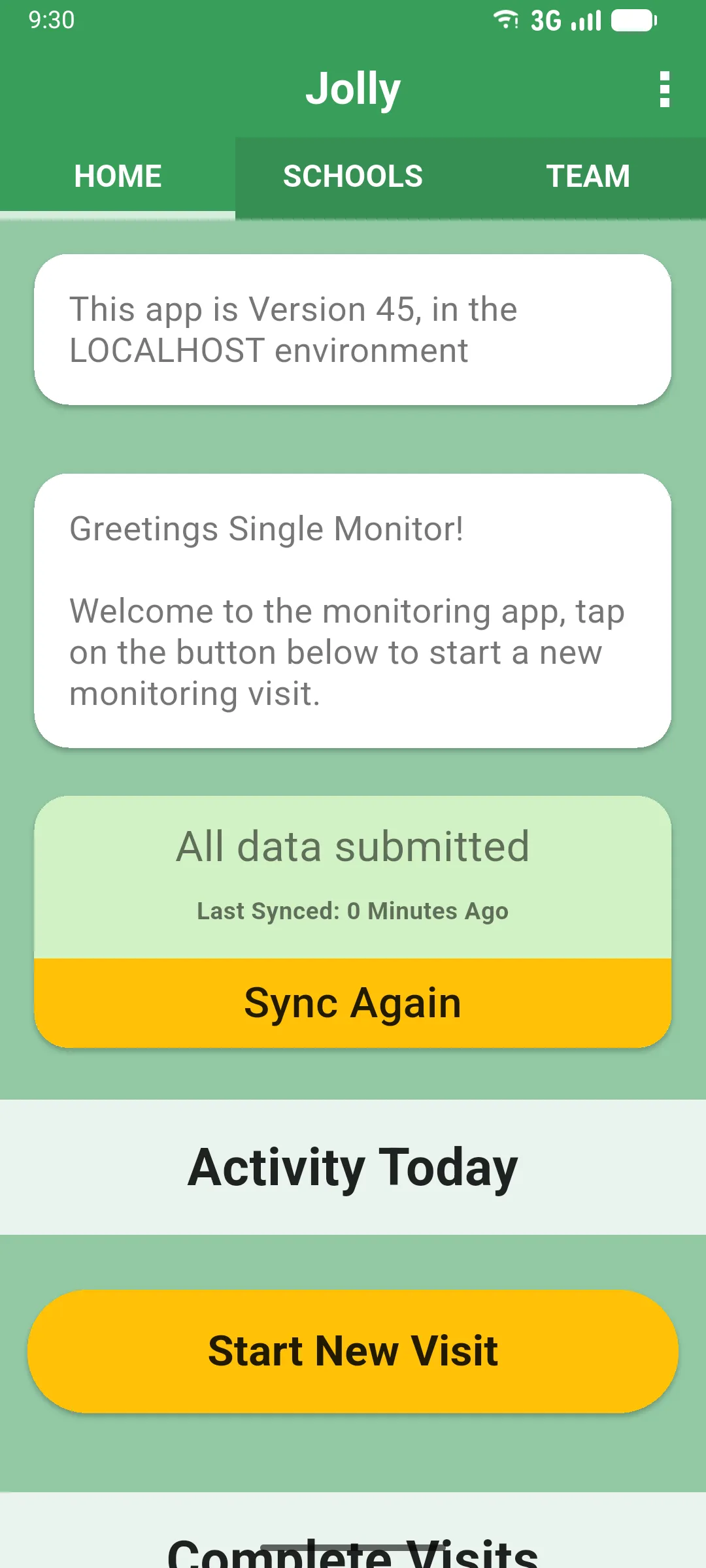
The HOME tab has, from top to bottom:
- App version and environment.
- A greeting with your name and a welcome message.
- My Data Syncing card with a Sync Again button.
- Activity Today with today’s in-progress visits.
- Start New Visit button to begin a school visit (see Creating a school visit).
- Complete Visits with the list of finished visits, newest first.
SCHOOLS tab
Section titled “SCHOOLS tab”The schools that belong to your district.
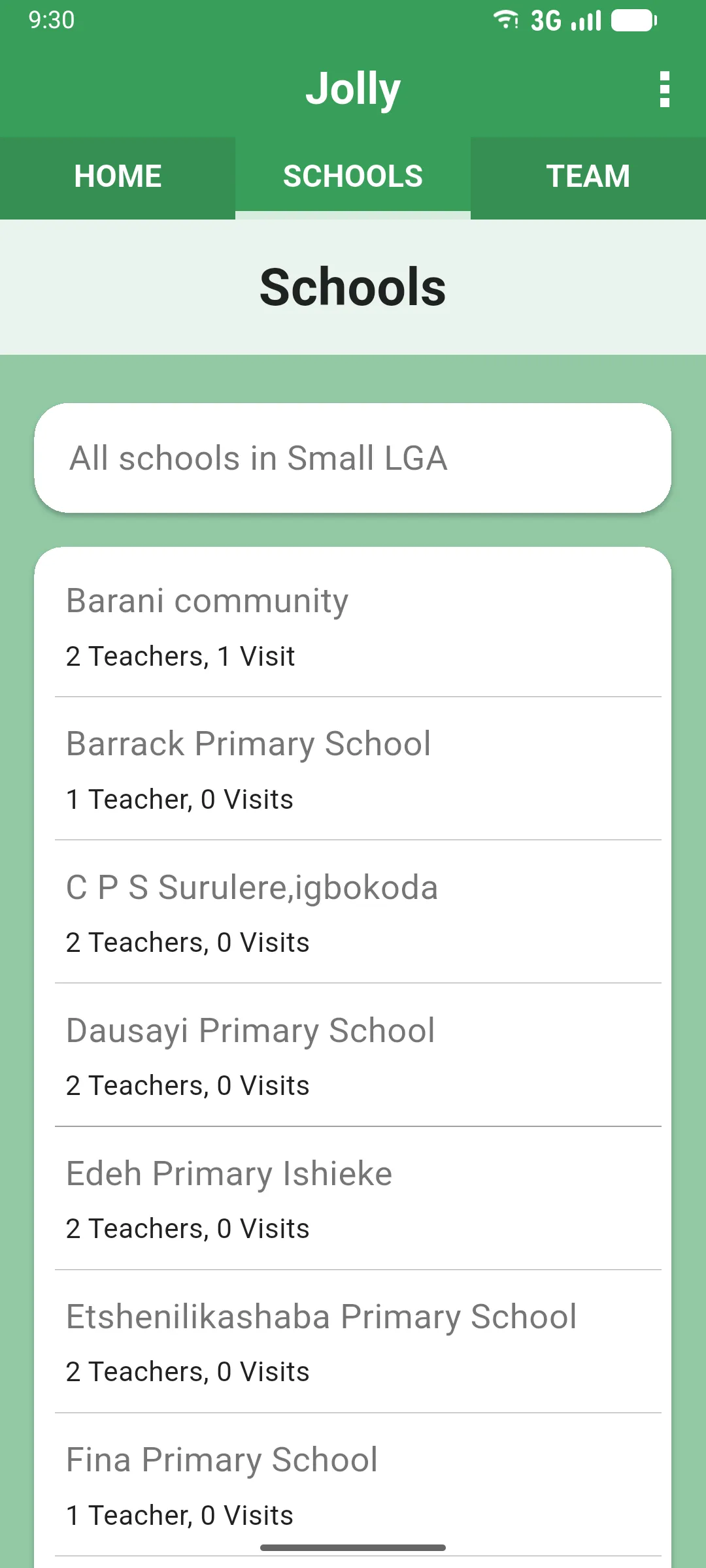
Tap a school to open its detail screen. See School detail overview for what you can do from there.
TEAM tab
Section titled “TEAM tab”Other monitors who operate in your district. The list is narrower than the multi-district TEAM tab: it shows only the officials assigned to this specific district, not the whole project staff.
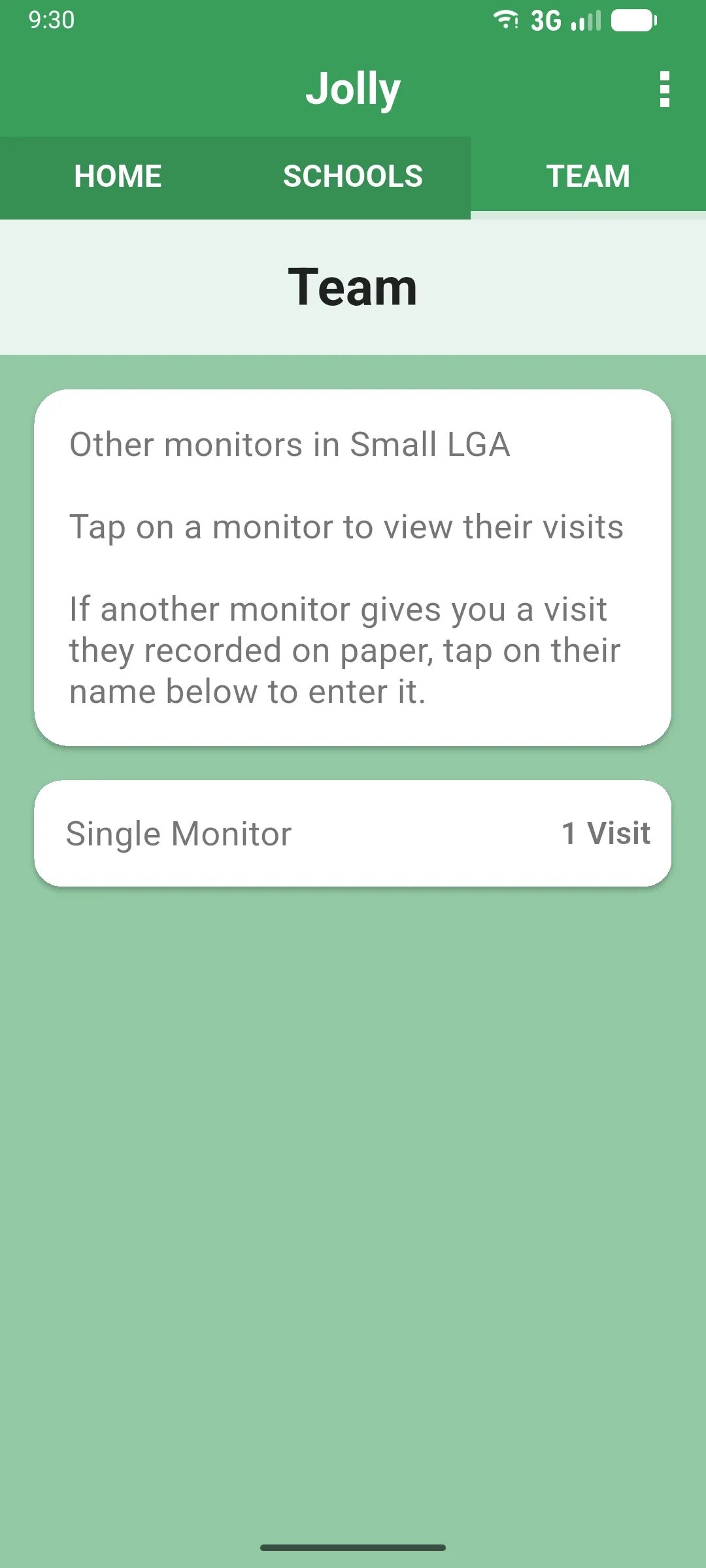
Each card shows the monitor’s name (with their job title underneath, if any) and the number of Visits they have. Tap a card to open their profile (read-only). See Opening a monitor’s profile for what you can do from there, including entering a paper visit on their behalf.
Next: One district vs several districts