
Monitoring forms
A monitoring form is the structure behind everything the apps collect. It decides which questions a monitor answers about a school, its head teacher, each class teacher, the lesson observation, and each pupil assessment. Setting these up is administrator work, so the editing buttons on this page appear only for the roles that hold them: Print is there for everyone, Add to all country projects and teacher assignment need a manager, and Configure Form needs an administrator. Everyone else sees the same pages read-only.
The form hierarchy
Section titled “The form hierarchy”Forms nest inside one another, from the school at the top down to a single assessment:
- A School Form Specification is the top-level form. It holds the questions asked about the school itself and its head teacher, and it contains the teacher forms.
- A Teacher Form Specification holds the questions asked about a class teacher and the lesson observation, and it contains the pupil forms.
- A Pupil Form Specification is the form a monitor uses for one pupil. It points at an Assessment Definition, which is the actual reading or numeracy test, split into assessment sections (Sounds, Words and so on), each with its own script, scoring guidance and questions. See Assessment definitions.
Questions themselves are not created inside a form. They live in Question Banks and are added to a form by reference. See Question banks and Monitoring questions.
Finding a country’s forms
Section titled “Finding a country’s forms”The country’s Forms section lists the country-wide reports built from its forms, grouped under Monitoring data and Assessment data, each heading carrying a count. The form specifications themselves are managed from the country settings menu (the gear while in a country), under Monitoring forms.
The School Form Specification view
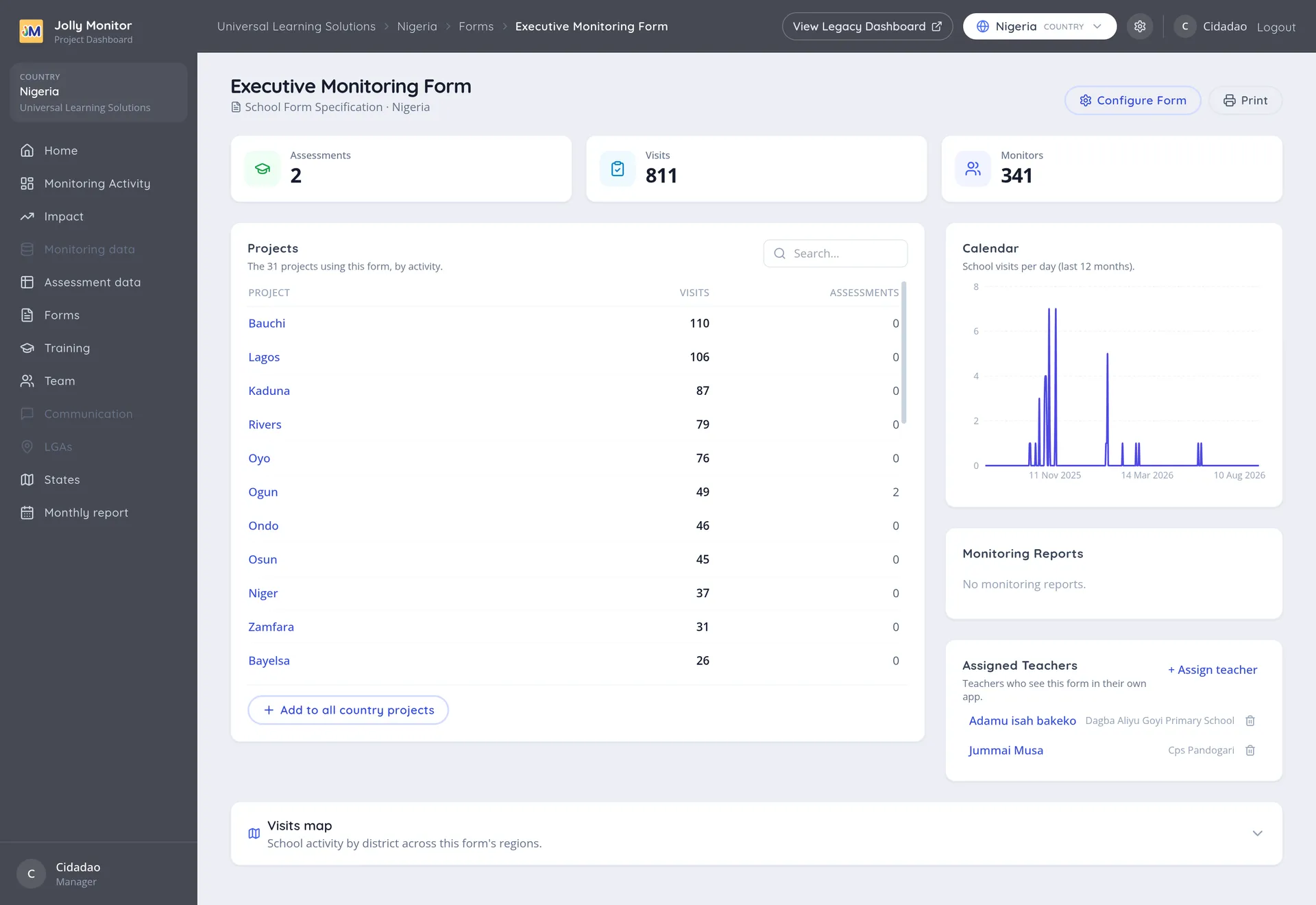
Section titled “The School Form Specification view”Opening a form shows its name as the heading, with the subtitle School Form Specification followed by the country it belongs to.
The three figures
Section titled “The three figures”Across the top of the page:
| Figure | Meaning |
|---|---|
| Assessments | Pupil assessments collected with this form |
| Visits | School visits collected with this form |
| Monitors | Monitors linked to it through their projects |
Projects
Section titled “Projects”The Projects card lists the projects that use this form, with their Visits and Assessments, ordered by activity. On a form used by more than a handful of projects it grows a search box, which is worth knowing about when yours is used by thirty.
Calendar and visits map
Section titled “Calendar and visits map”A Calendar card charts school visits per day over the last twelve months, and a Visits map below shows school activity by district across the form’s regions. Both answer the same question in different ways: whether this form is genuinely in use, and where.
Monitoring Reports and Assessment Reports
Section titled “Monitoring Reports and Assessment Reports”The Monitoring Reports card lists the reports built from this form, and reads “No monitoring reports.” when there are none. Forms whose pupil forms carry assessments also get an Assessment Reports card.
What you can do here
Section titled “What you can do here”Available to everyone:
- Print: printable copies of the form. See Printing forms.
For managers:
- Add to all country projects: adds this form to every project in the country that does not already have it. Check the Projects card first to see how many projects already use it (the rest are the ones this will touch): undoing it afterwards means deleting the form project by project, and only while a project has not used it.
- Assigned Teachers: assign the form to individual teachers. See Assigning teachers to forms.
Only for administrators:
- Configure Form: opens the Form Configuration page, where you add and arrange the questions of every level of the form: school, head teacher, class teacher, observation and pupil.
The reports themselves are managed elsewhere: the country’s Forms section lists them, and new assessment reports are created from the country’s Assessment data section.
Next: Configuring a form