
Excel exports
Sooner or later an analysis has to leave the dashboard, whether for a funder’s template, a statistician, or a meeting where nobody has a login. Exports are how the data gets out.
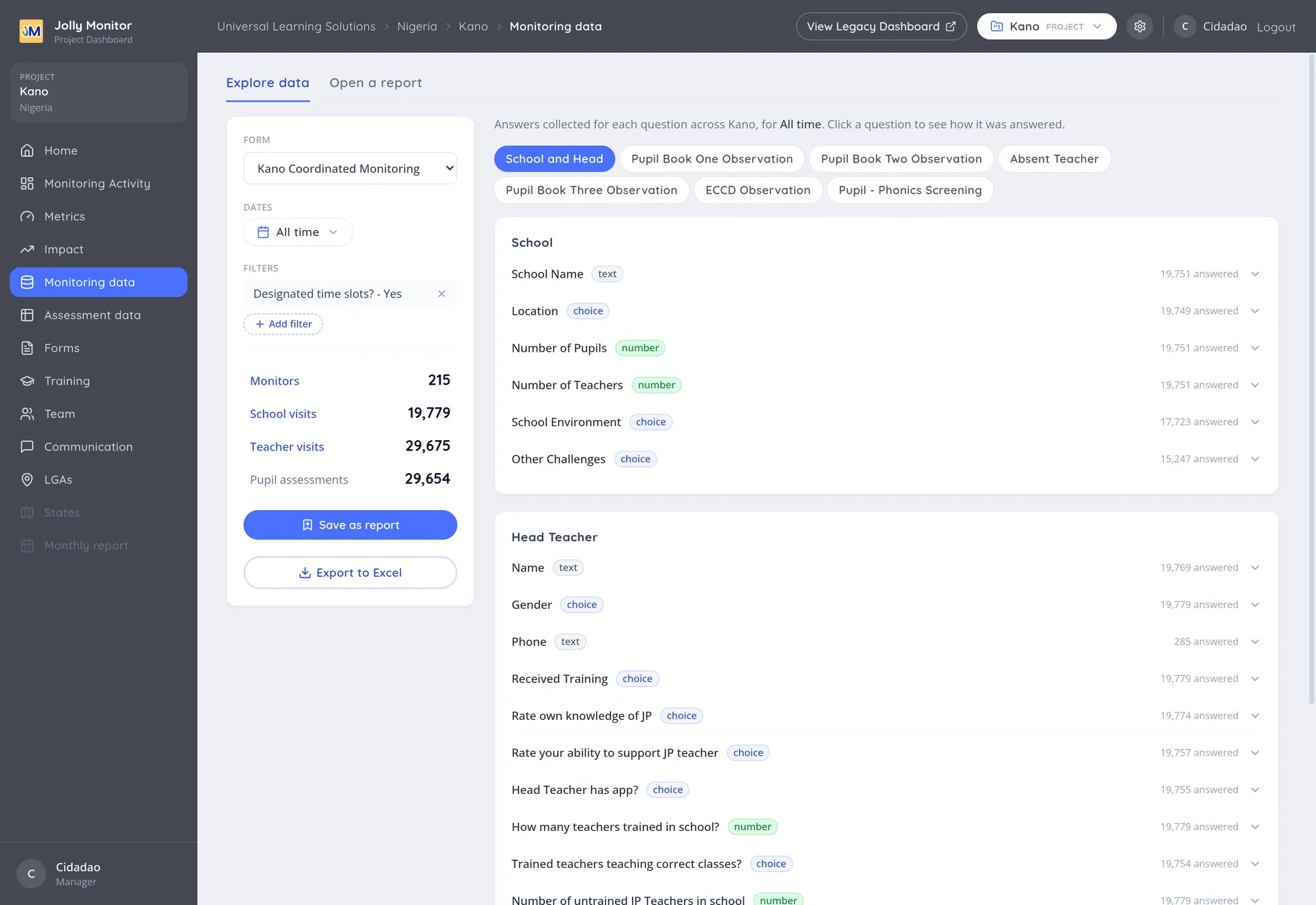
Exporting monitoring answers
Section titled “Exporting monitoring answers”Export to Excel on a Monitoring data view downloads the current selection: the form, the period and any filters you applied.
The spreadsheet keeps the structure of the visit, with the school and head answers, the teacher answers and the pupil data separated, because they are collected at different levels and would be meaningless flattened into one sheet.
Exporting assessment results
Section titled “Exporting assessment results”Assessment data exports at two levels, both from the project’s Assessment data section:
- A sample group downloads as a spreadsheet of its pupils and their scores.
- A whole report exports with its groups together.
The assessment exports include pupil-level detail, so the analysis can be redone independently rather than taken on trust.
What the export is not
Section titled “What the export is not”Before you export
Section titled “Before you export”Two checks are worth the minute they cost:
- Read the counters. They tell you how much data is actually in the selection. Exporting an empty selection produces an empty file that looks like a system failure.
- Check for duplicates in the scope you are exporting, if the figures are going somewhere that matters. Duplicated visits inflate every count they touch. See Deduplication overview.