
Assessment definitions
An assessment definition is the actual test a monitor administers to a pupil: a reading assessment, a sounds assessment, a comprehension test. Pupil forms point at a definition, so the same test can sit under many different forms and its results stay comparable.
Open the definitions list from the settings menu at organisation level.
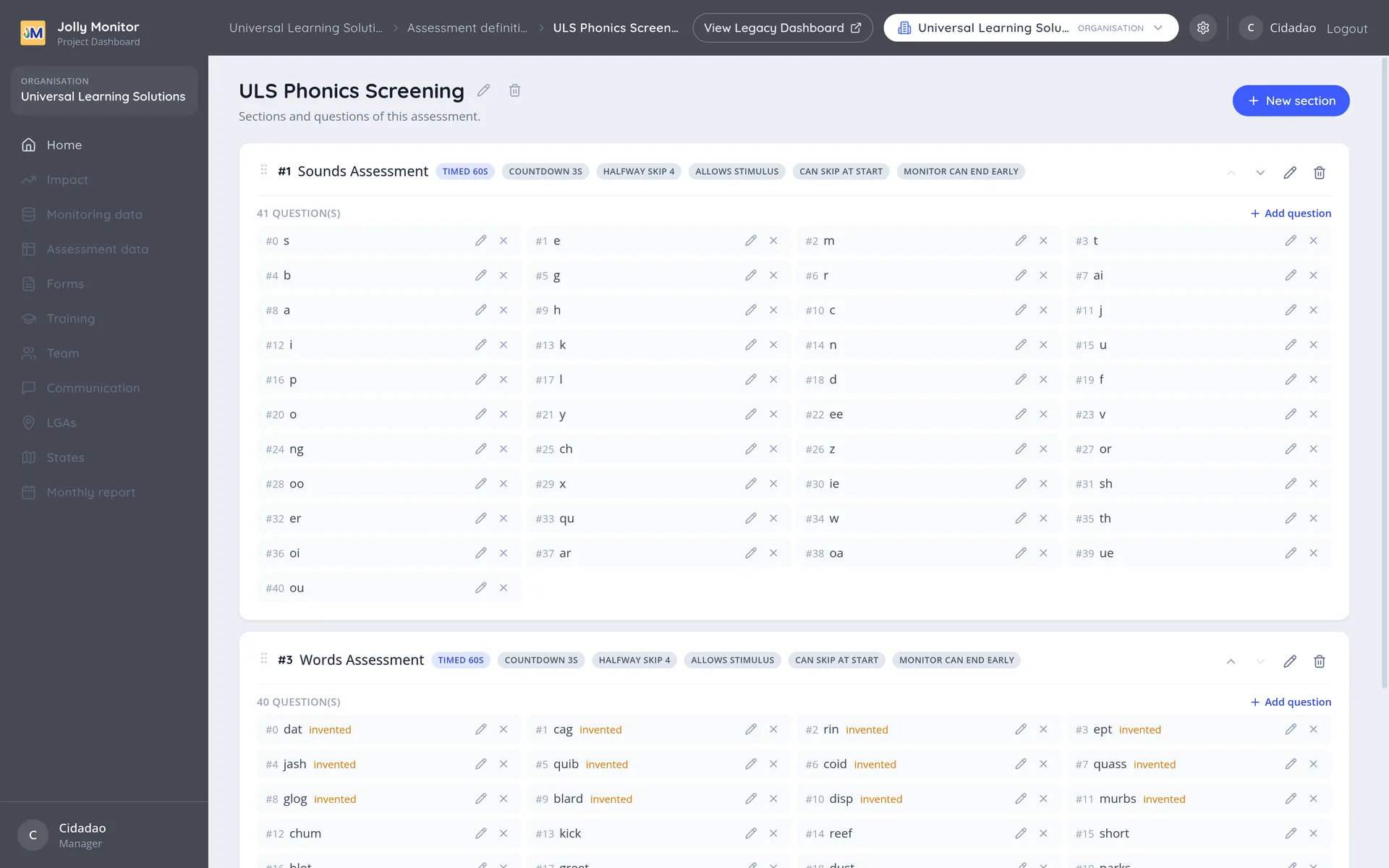
The definitions list
Section titled “The definitions list”Each row shows the definition’s Name, how many Sections it contains, and how many Forms use it. New Assessment Definition adds another.
Sections
Section titled “Sections”A definition is made of sections, numbered in the order the monitor works through them. A section is a part of the assessment that is scored together, for example Sounds, then Words, then Reading Fluency.
Each section shows its rules as badges, which are what make the assessment run the same way for every pupil:
| Setting | What it does |
|---|---|
| Timed / Time limit | Whether the clock runs, and the automatic stopping limit in seconds. A timed section without a limit uses a stopwatch. |
| Assessment display | Word by word or Sentence by sentence for live assessment |
| Countdown | A countdown before the timer starts, so the pupil is ready |
| Halfway skip | After this many consecutive failures the app offers to skip the rest of the section, so a struggling pupil is not pushed through every remaining item |
| Allows stimulus / Requires stimulus | Whether a card or sheet is shown to the pupil |
| Can skip at start | Whether the section can be skipped before it begins |
| Monitor can end early | Whether the monitor may stop the section |
| Pupil year | The year group the section is aimed at |
| Brackets | The section’s analysis brackets, covered below |
Adding a section
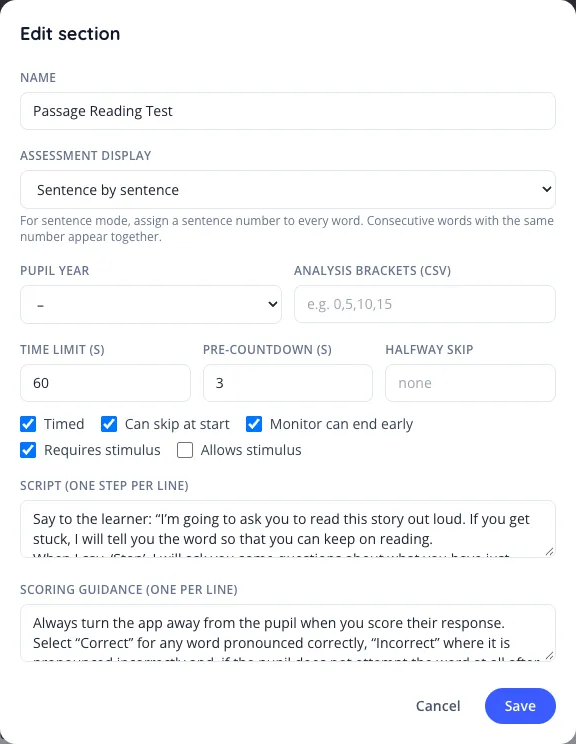
Section titled “Adding a section”New section asks for the Name, the settings above, the Pupil year the section is aimed at, and three pieces of text:
- Script: what the monitor says, one step per line.
- Scoring guidance: how to score it, one point per line.
- Analysis brackets: the score bands used when the results are reported, as comma-separated values.
The analysis brackets are what later appear as the score bands in the assessment reports, so they are worth setting deliberately: they decide how the results are grouped for everyone who reads them. Left empty, the bands default to quarters of the section’s question count. (The Impact pages’ bands are configured separately, in the country’s and each project’s impact configuration.)
Configure a sentence passage
Section titled “Configure a sentence passage”- Edit the passage section and set Assessment display to Sentence by sentence.
- Keep one question for each word. Edit each question’s Sentence number, using a positive whole number.
- Give consecutive words in the same sentence the same number; use a new number for the next sentence. Keep the words in reading order.
- Check the Sentence preview on the section. Every word must belong to a sentence before the app can run this layout. A sentence number must not reappear in a later, separate group.
- Save the changes and sync the app before testing the passage.
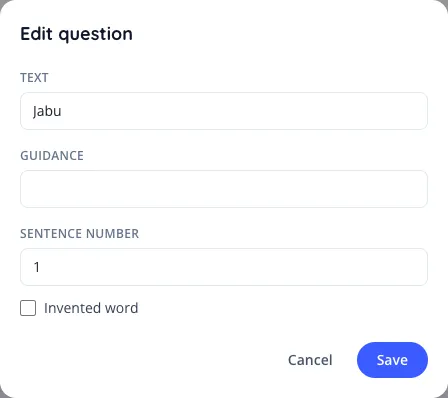
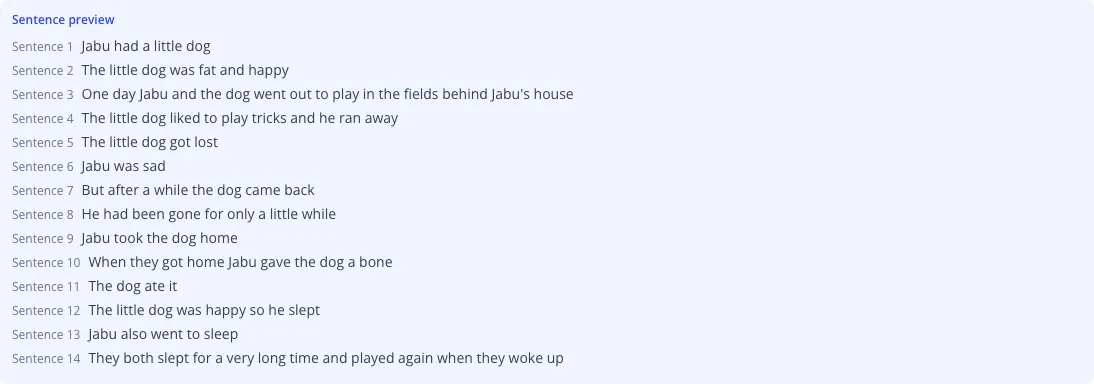
For example, The / dog / ran can all have sentence number 1, followed by The / cat / sat with sentence number 2. Use the actual assessed sentence boundaries from the source material.
Sentence numbers describe the passage independently of the display choice. They are retained if you switch Assessment display back to Word by word. Leave sentence numbers blank on standalone sounds and word lists.
The sentence screen shows the whole sentence, lets the assessor mark individual errors and no responses, and asks for the last attempted word at completion. See the assessment guide.
Timing and fluency
Section titled “Timing and fluency”The assessment timer is silent and stops at the configured limit. A full 60-second test records 60 seconds; early completion uses the actual elapsed time, excluding pauses. Prepared passage sections display correct words × 60 ÷ elapsed seconds in the app. Sentence display or complete sentence markers identify these passages; this does not add a new score field to dashboard exports.
How a definition reaches a pupil
Section titled “How a definition reaches a pupil”A definition on its own does nothing. It reaches a pupil through the form hierarchy:
- A pupil form points at the assessment definition.
- That pupil form sits under a teacher form, which sits under a school form.
- A project uses the school form, so its monitors carry the assessment on their tablets.
That indirection is what lets the same reading test be used by several projects and several countries while the results stay comparable. See Monitoring forms for the full hierarchy.
Questions inside a section
Section titled “Questions inside a section”Each section holds its own questions, added with Add question and shown in order with their text. In a sounds assessment these are the individual sounds; in a words assessment, the words. A question can be marked Invented word, which flags a non-word used to test decoding rather than recall.
Sections and questions can both be reordered, and that order is the order the monitor follows on the tablet.