
Project Staff
The Team section lists the people doing the monitoring on a project, with how much each of them has recorded.
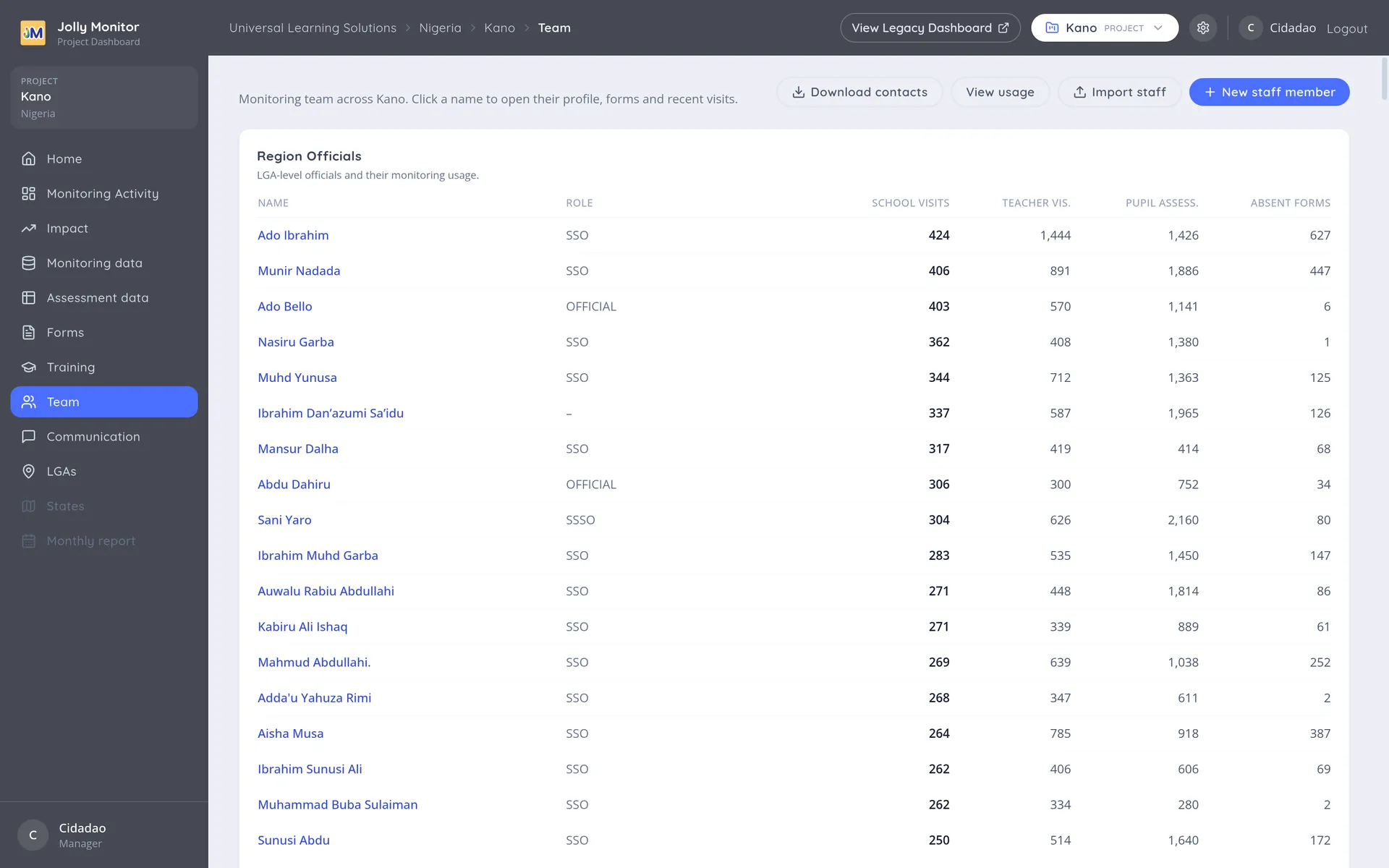
The two team tables
Section titled “The two team tables”The page holds two tables, one per kind of monitor: Region Officials, the district-level officials, and Project Staff, the project’s own team. Both share these columns:
| Column | What it shows |
|---|---|
| Name | The person, a link to their profile |
| Role | Their job title as your programme names it, for example SSO or Project Coordinator |
| School visits | Visits they recorded in the period |
| Teacher vis. | Teacher observations they made |
| Pupil assess. | Assessments they took |
| Absent forms | Visits where the teacher was recorded as absent |
The Project Staff table adds a Type column: Central Official, Coordinator, Academic or Other.
The activity columns count the whole history: this page has no period selector, so it always shows who has been active ever. For recent activity, read the leaderboards on Monitoring Activity, which do follow the period.
Adding people
Section titled “Adding people”- New staff member (administrators only; others do not see the button) adds one person, with their name, role and details.
- Import staff brings in a list at once, which is the sensible route at the start of a year.
- Download contacts exports the team’s contact details.
- View usage shows how the project’s staff are being used.
The buttons are for managers, except New staff member, which only administrators see; project staff see the tables without them.
Setting a new monitor up
Section titled “Setting a new monitor up”Creating the record is the first of four steps. For the person to actually start monitoring:
- Create them here (New staff member needs an administrator; Import staff any manager). New people always come in as project staff; if they are really a region official, open their profile and Swap them.
- Open their profile and note their pin, and get them the app from the public Install App page. See Pins and rollout.
- Assign their districts on the profile (region officials only; project staff reach the whole project), which is what puts their schools into the app.
- Assign their forms, which is what they open at the school.
A monitor who can sign in but sees no schools is missing step 3; one who sees schools but no form is missing step 4. See A staff member’s profile.
Two kinds of monitor
Section titled “Two kinds of monitor”The team holds two roles, and the difference matters:
- Region officials work at the district level: they carry district assignments, which decide the schools in their app.
- Project staff belong to the project itself and reach all of it.
A person’s role can be changed later from their profile, for when somebody moves between the two.
Importing staff
Section titled “Importing staff”Import staff takes a spreadsheet of people rather than adding them one at a time. You map your columns onto: Name, Phone Numbers, Email (optional), Gender (optional) and Job Title. Everyone in the file comes in as project staff of this project; there is no district column, because staff belong to the project rather than to one district.
Checking usage
Section titled “Checking usage”View usage shows how the project’s staff are being used across the whole history: who is active, who has stopped, and how the work is distributed. It is the quickest way to spot a project where three people are doing everything and the rest have gone quiet.
Next: Region Officials