
Reviewing duplicate candidates
Once a district has been evaluated, each record type with flagged candidates has its own list. Schools and teachers list pairs, each with its own review page; school and teacher visits come grouped with their actions inline; pupil assessment pairs are decided inline in their list. Those decisions are the only point at which data is actually merged or removed: the school and teacher pair decisions need a senior manager, the visit and assessment ones any manager.
The candidate list
Section titled “The candidate list”Opening a type from the district table gives a list of its pairs, most similar first. For schools it reads Suspected duplicate schools and shows:
| Column | What it shows |
|---|---|
| School 1 and School 2 | The two records |
| S1 visits and S2 visits | How many visits each one holds |
| Similarity | How alike the matching logic found them, as a percentage |
| Status | Suspected (resolved pairs leave the list) |
| Review | A link into the comparison page |
Teachers have an equivalent pair list. Visits and pupil assessments are shaped differently, as described below.
The visit counts are worth reading before you open anything. A pair where one side has seven visits and the other has none is the classic duplicate: a school registered twice, with all the real work recorded against one of them.
The review page
Section titled “The review page”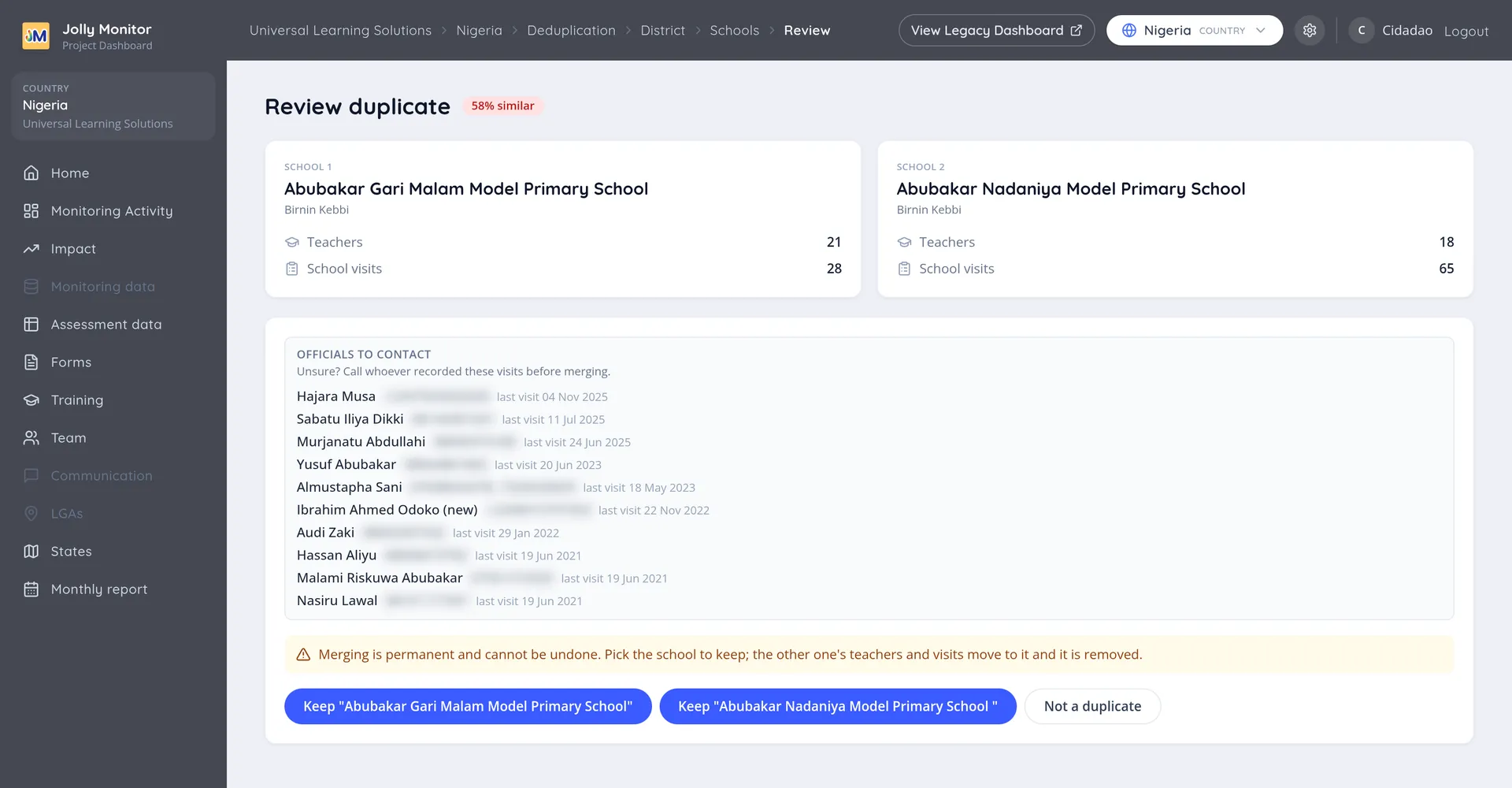
The page shows the similarity at the top, then the two records side by side, each with its name, its district and its counts of teachers and visits.
On the school review page, Officials to contact lists the people who recorded visits at either school, with their phone numbers and the date they were last there, most recent first. It sits above the decision buttons on purpose, so the check is in front of you before the choice is.
Underneath, the page states plainly what is about to happen: merging is permanent, the record you keep absorbs the other one’s teachers and visits, and the other one is removed.
The three decisions
Section titled “The three decisions”| Decision | What it does |
|---|---|
| Keep the first record | The second is merged into it and removed |
| Keep the second record | The first is merged into it and removed |
| Not a duplicate | Both records are left alone, and the pair stops being flagged |
The buttons name the actual records, for example Keep “Hotoro Maradi Sps”, so there is no ambiguity about which one survives.
Not a duplicate is a real answer
Section titled “Not a duplicate is a real answer”Two schools in the same district genuinely can have names one letter apart, and two different pupils in the same class can have nearly identical names. Not a duplicate is the right answer in those cases, and using it matters: it takes the pair off the list permanently, so the list stays short and worth trusting.
A list nobody trusts is a list nobody works through.
Visits and assessments are different
Section titled “Visits and assessments are different”Schools and teachers are merged: the surviving record absorbs the other’s children. Visits and pupil assessments carry answers and scores of their own, which cannot be blended, so their tools work differently:
- School visits and teacher visits are grouped rather than paired, since the same visit can arrive more than twice. Merging a group keeps one visit and moves the teacher visits and assessments of the others onto it. Where a duplicate is genuinely empty, deleting it is cleaner.
- Pupil assessments are not merged at all. You delete one side of the pair, because two score sets cannot become one. Keep the one that looks complete: a partial assessment is usually the one that was abandoned and repeated.
Verifying before you decide
Section titled “Verifying before you decide”The safest check on an unclear pair is the person who recorded it. The monitor or official who registered both records can usually say in one sentence whether they are the same school, and the Officials to contact list on the review page gives you their number without leaving the page.
Start at the top of that list. The person who was there most recently is the one most likely to remember, and where the same name appears against both records you have someone who has seen them both.
That extra step costs a phone call and prevents a permanent mistake. It is worth it on any pair where the names differ by more than a spelling slip, or where both records carry real visits.
A safe review routine
Section titled “A safe review routine”- Start with the pairs at the top, where similarity is highest and the decision is usually obvious.
- Read the counts before opening a pair. A one-sided pair is almost always a duplicate.
- When a pair is not obvious, call someone from Officials to contact rather than guessing.
- Resolve schools before teachers, and teachers before visits: a school merge makes many pairs below it moot.
- Re-run the evaluation afterwards: the lists do not refresh themselves, and the fresh run drops the pairs your merges made irrelevant.
Next: The country dashboard