
Country configuration
Everything you set up for a country lives behind the settings icon in the header bar, shown to senior managers and administrators while you are inside a country.
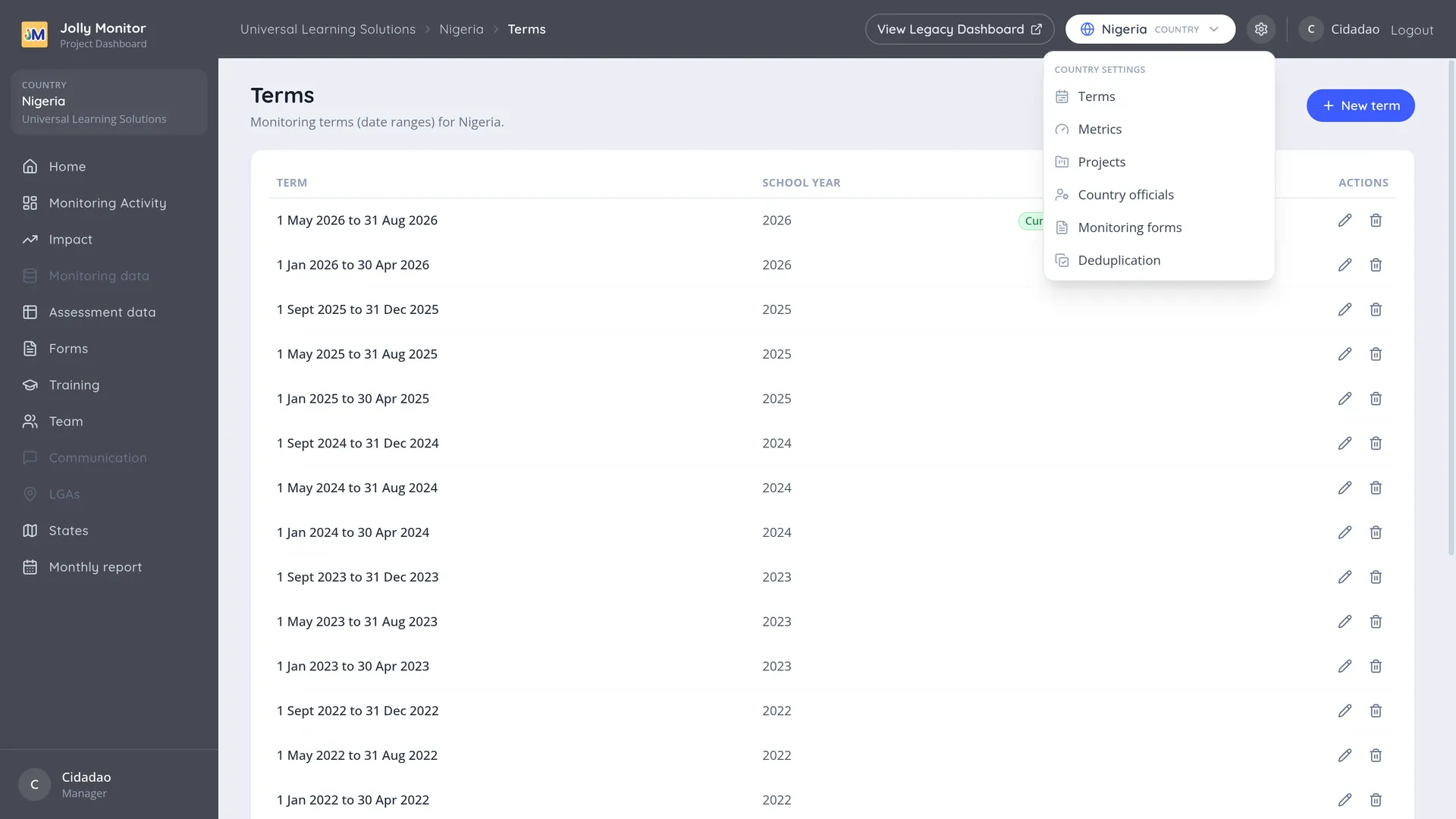
What is in the menu
Section titled “What is in the menu”| Entry | What it sets up |
|---|---|
| Terms | The school terms, which drive the period selector everywhere |
| Metrics | The country’s metrics and their targets |
| Projects | The country’s projects and their class sizes |
| Country officials | The officials who work across the whole country |
| Monitoring forms | The form specifications used to collect data |
| Deduplication | Finding and merging duplicate records |
A term is a stretch of the school year, given by a start and an end date; terms are grouped into school years by the calendar year their end date falls in.
Terms matter more than they look. The period selector at the top of the dashboard offers them, and every per-period figure is grouped by them. A visit recorded outside every term still exists, but it will not appear when somebody filters by term.
New term adds one; the actions on each row edit or delete.
Country officials
Section titled “Country officials”A country official works across the whole country rather than inside one project. Each row shows their Name, Email and PIN, with actions to edit or remove them.
The PIN is the credential they use to sign in on the monitoring app, so treat it accordingly: change it if it has been shared or written down somewhere it should not be.
New Country Official creates one. Opening an official shows their contact card: email, PIN and phone numbers, each number opening WhatsApp when tapped.
Projects
Section titled “Projects”The country’s projects, each with the average class sizes used to work out pupils reached. Adding a project here also creates the region behind it.
See Countries and projects for the detail, including why those class sizes matter.
Monitoring forms, metrics and deduplication
Section titled “Monitoring forms, metrics and deduplication”These three have their own pages in this guide:
- Monitoring forms for the form specifications.
- Creating and editing a metric for metrics and targets.
- Deduplication overview for duplicate records.