
Marking a teacher absent or not monitoring
In the TEACHERS tab of a school visit, every teacher must have one of the three options set before the visit can be completed. Start Monitoring is covered on its own page (Conducting a teacher visit). The other two are below.
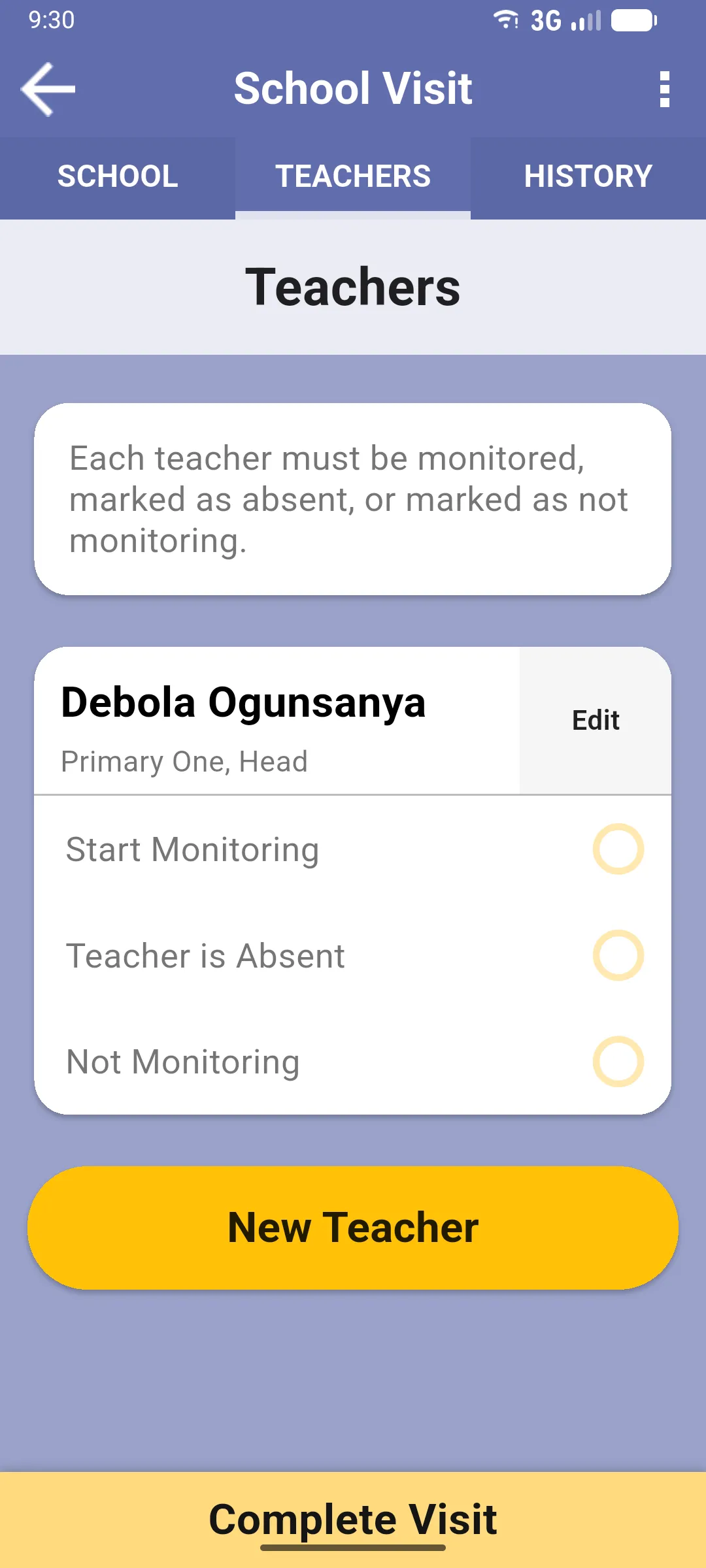
Teacher is Absent
Section titled “Teacher is Absent”The teacher isn’t at the school today. Tapping it opens an absent form with the questions your project has configured (typically the reason for the absence, further comments, and whether a follow-up action is needed). Fill it in and the absence is recorded on the visit.
Not Monitoring
Section titled “Not Monitoring”The teacher is at the school but isn’t being observed today. No form opens, no questions asked, the teacher is just marked as Not Monitoring.
Changing your choice
Section titled “Changing your choice”If you picked the wrong option, tap Reset at the bottom of the teacher card to clear it and choose again. If you had already filled answers (Start Monitoring or the absent form), the app asks for confirmation before deleting them.
Next: Conducting a teacher visit