The dashboard for teachers
Teachers do their work in the app. The dashboard gives them a second, smaller way in from a computer: the same classes and results they have on their phone, and nothing of the rest of the project.
A teacher signs in at the same address as everybody else, with their email address and the password they chose for the app. A teacher who has not chosen a password yet cannot sign in here. See Logging in.
My classes
Section titled “My classes”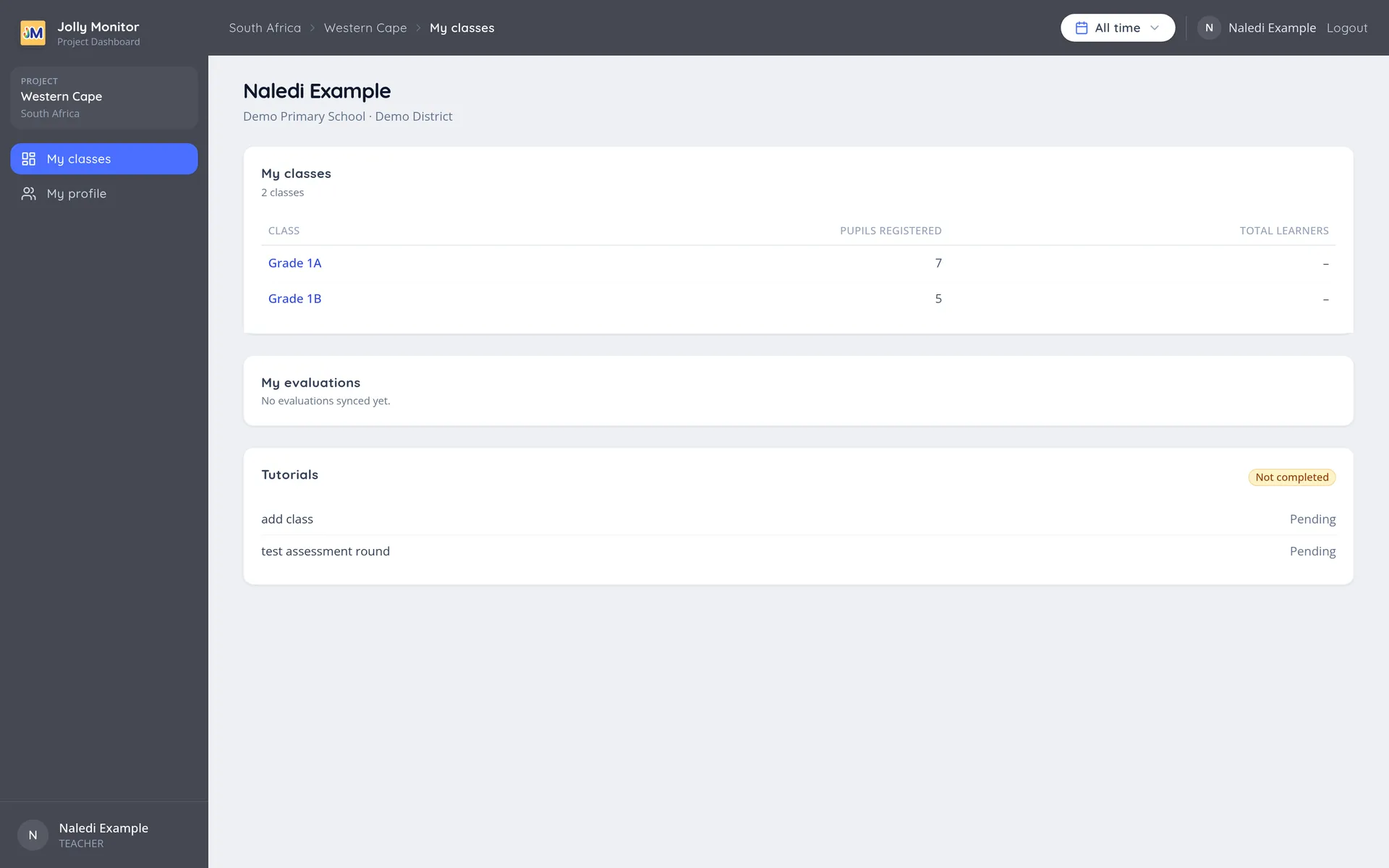
The first page carries the teacher’s name, their school and district, and three blocks:
| Block | What it shows |
|---|---|
| My classes | Each class with the pupils registered in it and, where it has been recorded, the total number of learners |
| My evaluations | The assessment rounds synced from the app, each with its date and the number of pupils assessed |
| Tutorials | Certified with the date, or Not completed, and each tutorial as Done or Pending |
A teacher with no class yet is told to create it in the app and sync.
Inside a class
Section titled “Inside a class”Clicking a class opens its page, with the class record, its pupils and the evaluations recorded for it. Each pupil opens their own record with their results.
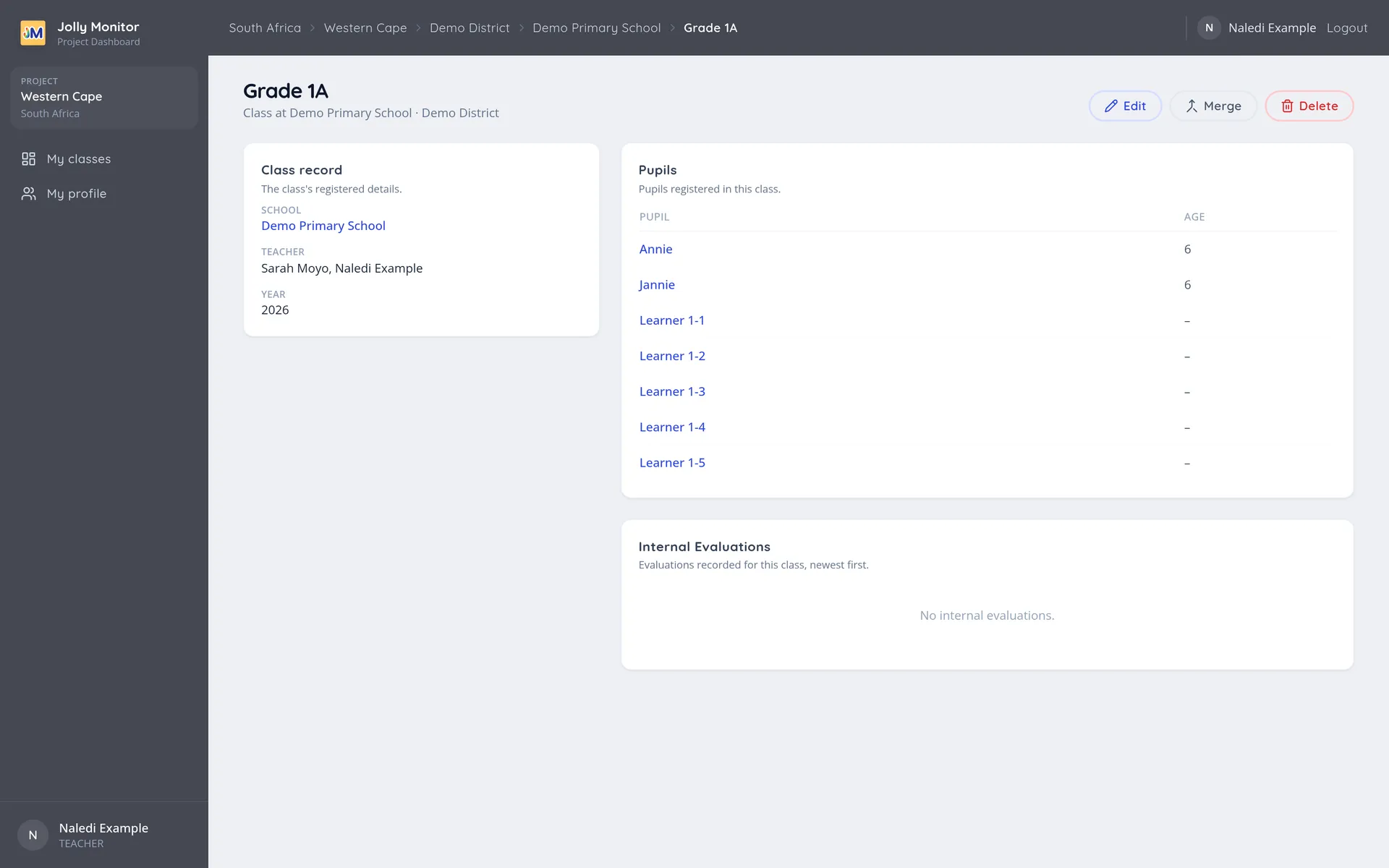
On their own classes a teacher has the same Edit, Merge and Delete buttons a manager has. They are described in Classes and pupils.
My profile
Section titled “My profile”My profile, in the sidebar, is the teacher’s own page: their record, the classes and forms assigned to them, the visits they have received and their evaluations. It is the same page a manager sees for that teacher. See The Teacher page.
What a teacher cannot open
Section titled “What a teacher cannot open”The limit is on the data itself, not only on the menu:
- Another teacher’s class, or another teacher’s page, answers You don’t have access.
- So does their own school’s page.
- The project’s sections, such as Teachers, Team or Districts, are closed to them.
- There is no search box and no settings.