
Pupil assessments
A pupil assessment records how one pupil performed in one assessment, on one day. It is the smallest unit of evidence in the system, and everything on the Impact pages is built from these.
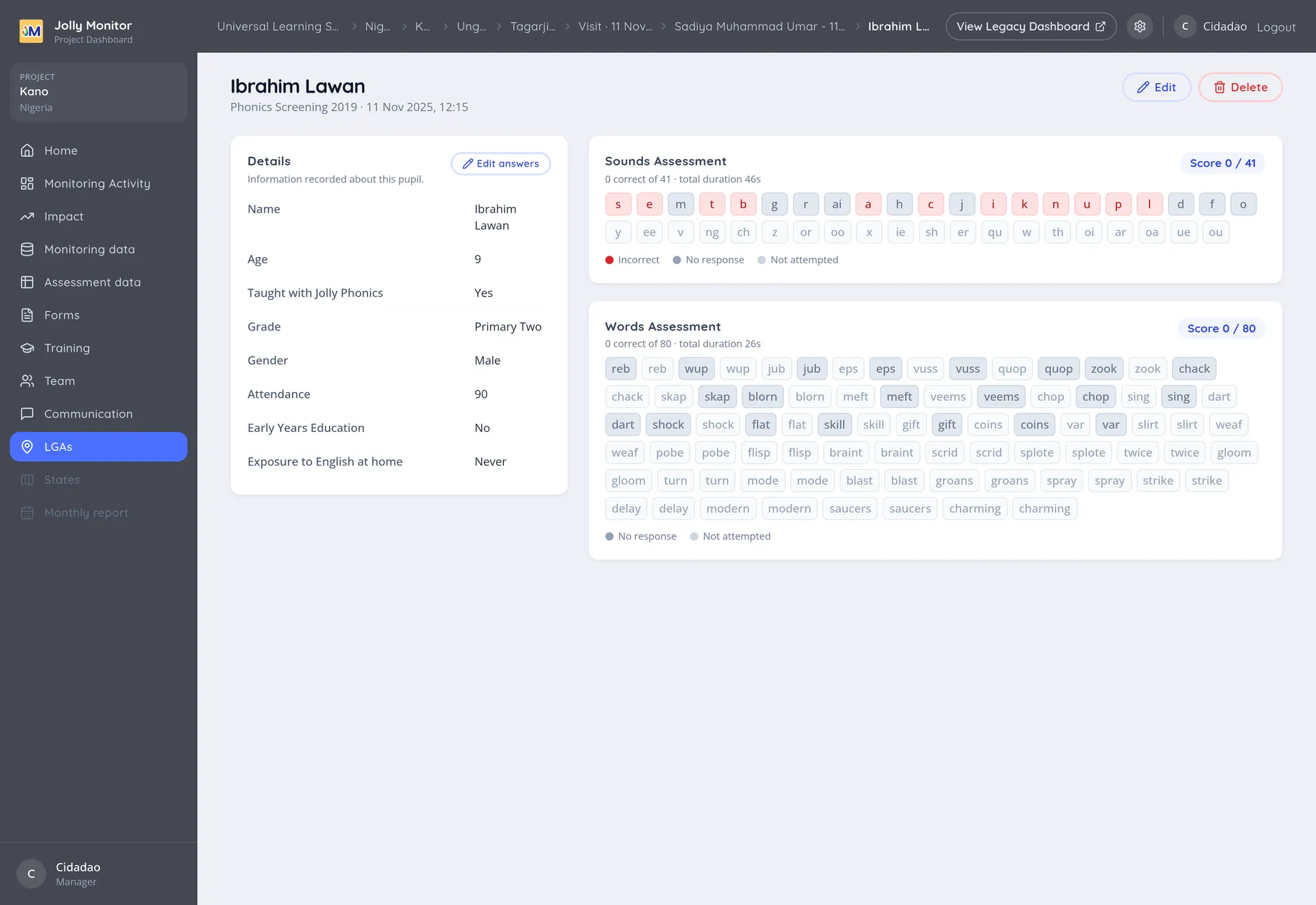
The details
Section titled “The details”Who was assessed, when, and as part of which teacher visit.
A pupil assessment may be tied to a registered pupil record, but it does not have to be: many assessments simply record the pupil’s name without linking to a pupil in the system.
The sections
Section titled “The sections”The assessment is broken into the sections defined in its assessment definition, each carrying the score the pupil achieved.
Those section scores are what the assessment reports and the impact tables later group into brackets. So a score here becomes a percentage there.
Where it sits
Section titled “Where it sits”An assessment taken by a monitor belongs to a teacher visit, which belongs to a school visit, and the breadcrumbs walk back up that chain. One taken by the school itself belongs to an internal evaluation instead, reached from the school’s Internal Evaluations table.
Correcting an assessment
Section titled “Correcting an assessment”For managers: the Edit and Delete actions sit at the top, and Edit answers on the details card changes what was recorded.
Duplicates
Section titled “Duplicates”The same pupil assessed twice on the same day is usually a duplicate, and it counts that pupil twice in every sample group it belongs to. Unlike schools and teachers, duplicate assessments are not merged: you delete one, because two score sets cannot be combined.
The same pupil assessed at two different points in the year is not a duplicate at all: that is progress data. See Duplicate pupil assessments.
Next: Custom reports