
Assigning teachers to forms
Teachers can sign in to the mobile app themselves to run internal evaluations. A signed-in teacher only sees the forms that have been assigned to them, so assigning a teacher to a form is what makes that form appear in their app.
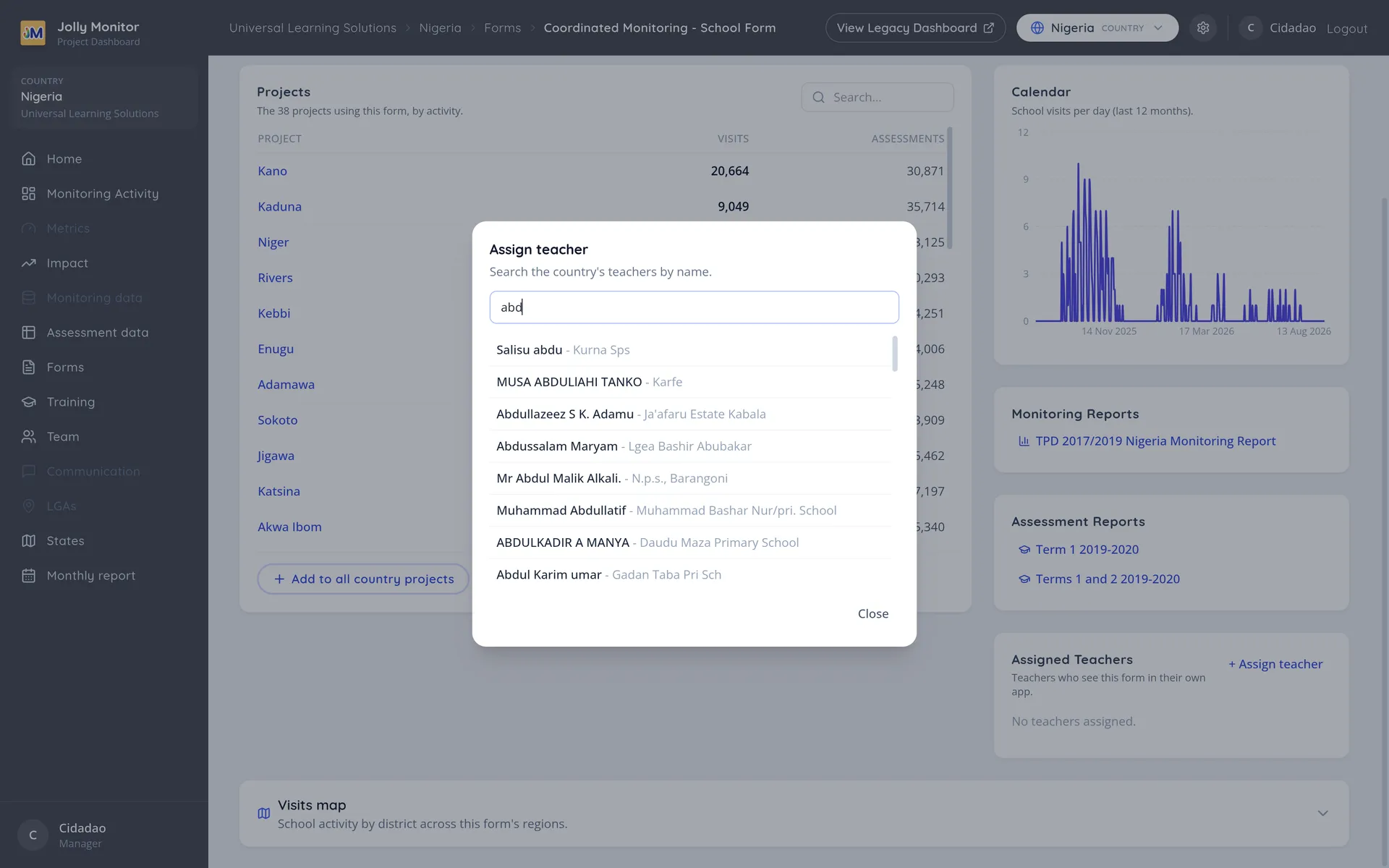
You assign teachers from the Assigned Teachers card on the School Form Specification view.
The Assigned Teachers card
Section titled “The Assigned Teachers card”The card lists who already has the form, each with the school they teach at. A teacher’s name links to their page.
If nobody has it yet, the card reads “No teachers assigned.”
Assigning a teacher
Section titled “Assigning a teacher”Assign teacher opens a dialog with a search box. Start typing a teacher’s name and the matching teachers appear below it, each shown as their name followed by their school. Click one to assign them; the dialog confirms and the teacher appears in the card.
The search has two deliberate limits:
- It needs at least two characters before it searches, and says so until you have typed them.
- It returns at most fifty matches at a time.
The search only offers teachers in the form’s own country who are not already assigned to it, so a teacher cannot be added twice and cannot be assigned across countries.
Removing an assignment
Section titled “Removing an assignment”Each teacher in the card has a delete control. Removing the assignment takes the form back out of that teacher’s app, after a confirmation.
Removing an assignment does not delete the teacher, and it does not affect any internal evaluations they already recorded with the form.
Who can do this
Section titled “Who can do this”Assigning and removing require a junior manager or above. Anyone else can see the card but not change it.
Next: Printing forms