
Pins and rollout
A pin is the code a staff member uses to sign in to the mobile monitoring app. Every project staff member and region official has one. Before somebody can start monitoring they need two things: their pin, and a link to download the app.
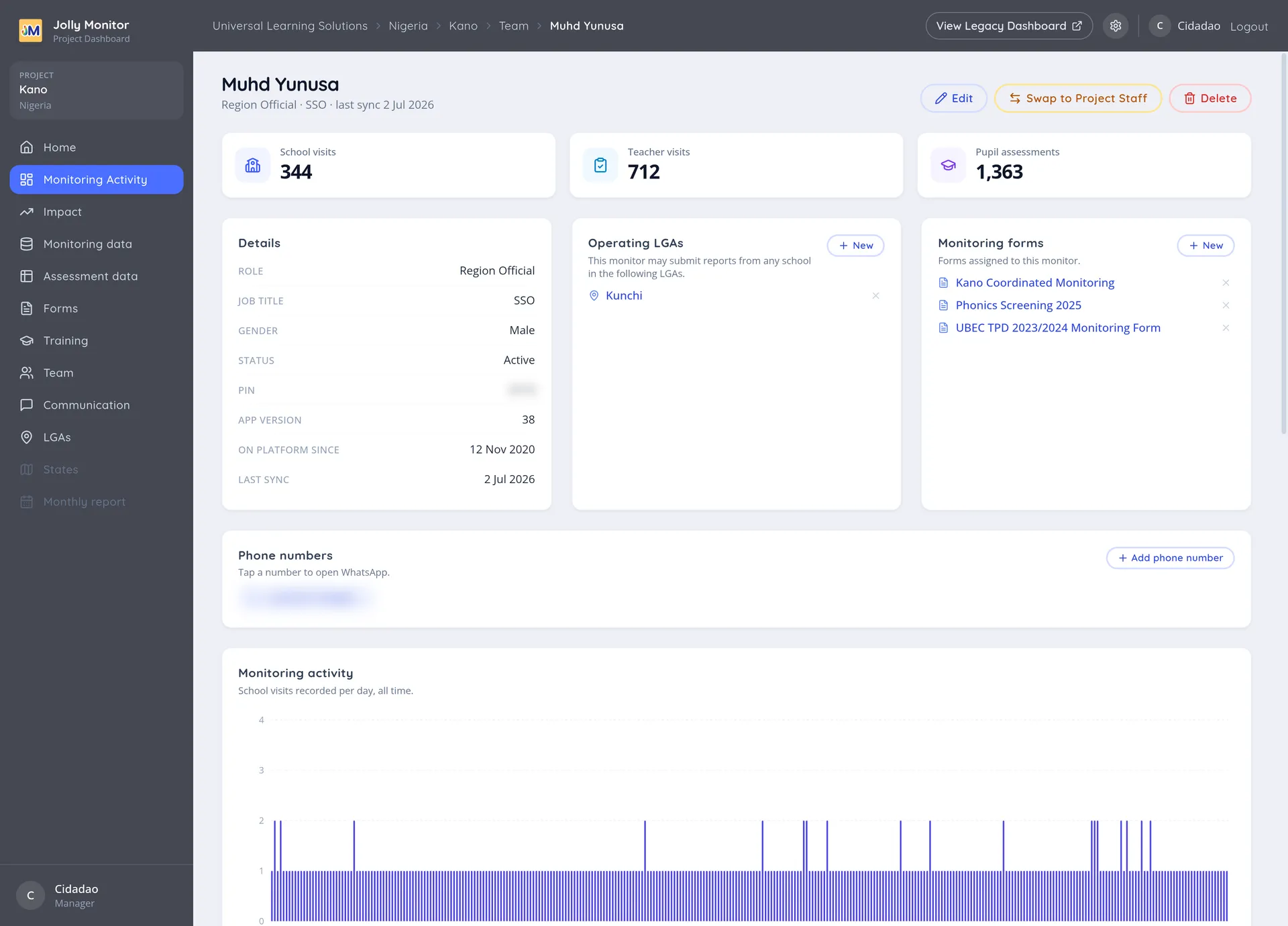
Where a pin lives
Section titled “Where a pin lives”A person’s pin is on their profile, in the Details card with their role and job title (the last sync sits in the heading line). See A staff member’s profile.
Edit on the profile (managers) changes it. That is the route to take when somebody has forgotten their pin, or when a pin has been shared and needs replacing.
Getting the app to a monitor
Section titled “Getting the app to a monitor”The app itself is served from a public Install App page, which anyone can open without signing in. Sharing that link is how a monitor gets the app onto a new device; the page stays live even though day-to-day updates now arrive through the app stores. See App versions.
Sending pins by SMS
Section titled “Sending pins by SMS”Sending pins out by SMS, person by person or to a whole project at once, is done from the legacy dashboard. Open it with View Legacy Dashboard in the header bar and use the project’s User Pins page.
There, pins and the app download link are sent to the phone numbers on record, either one at a time (each row has its send action) or to everybody on the project at once. The legacy page lists the same people as the Team section, so nothing needs setting up first.
What to do when somebody cannot sign in
Section titled “What to do when somebody cannot sign in”Work through it in this order:
- Check their pin on their profile, and that they are typing that one.
- Check the phone number on their profile if the pin was sent by SMS.
- Check they are active: a deactivated account will not sign in.
- Check the app version they are running. If a newer version has been made requisite, the app demands the update before it will sync again.
Next: The district dashboard