
Officials in Universal Learning Portal
In Universal Learning Portal an official signs in to the dashboard with their email address and a password they choose themselves. There are two kinds:
| Kind | What they see |
|---|---|
| Province official | The whole province |
| District official | Only the districts they have been given |
Adding one official
Section titled “Adding one official”Add official is on the Team page, and also at the top of a district’s page. It is there for managers.
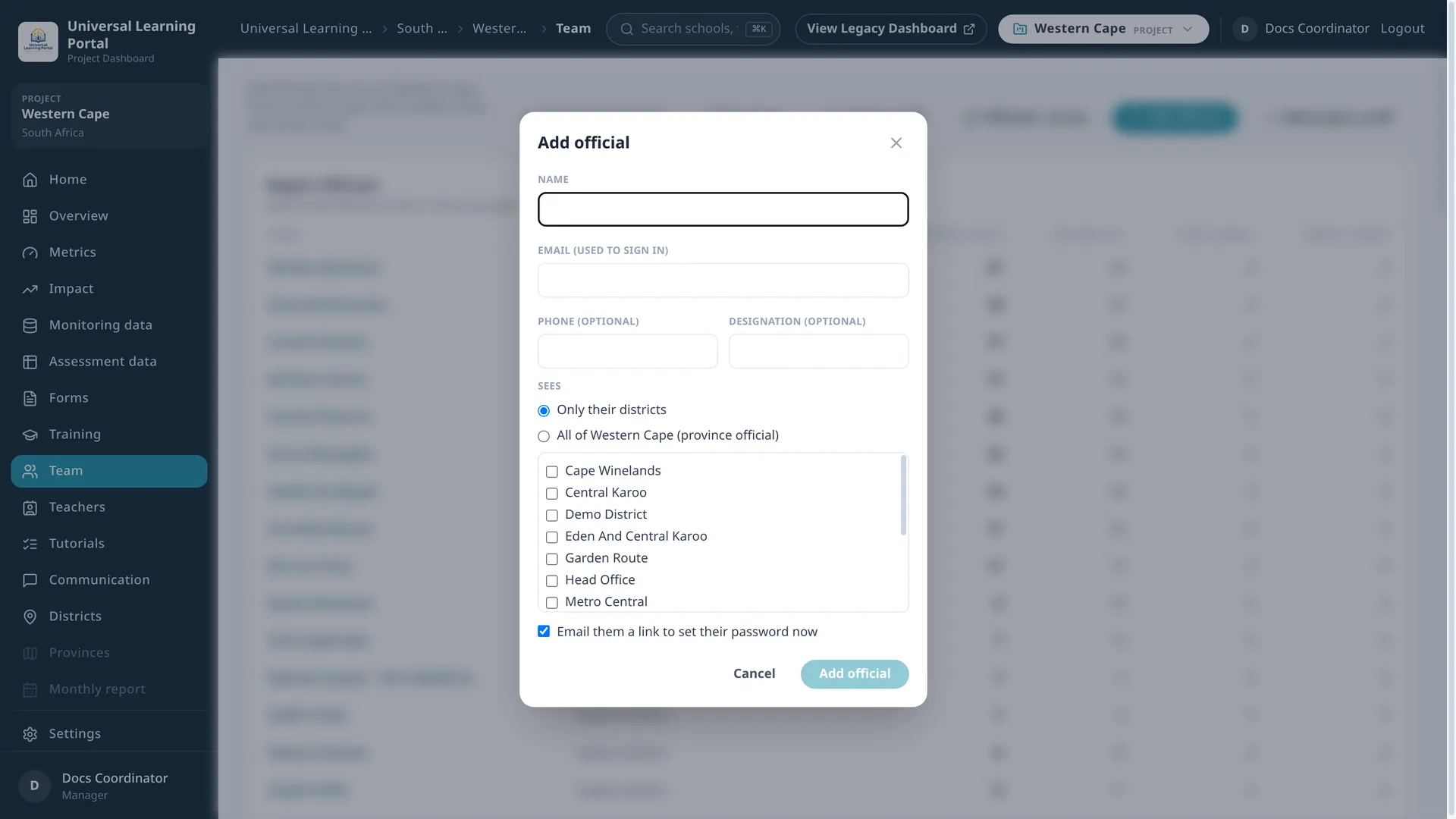
| Field | Notes |
|---|---|
| Name | Required |
| Required; it is what they sign in with | |
| Phone | Optional |
| Designation | Optional, for example Subject Adviser |
| Sees | Only their districts, ticking the districts, or All of the province |
Opened from a district’s page, the form has no Sees choice: the official is added to that district.
Senior managers and administrators also have Email them a link to set their password now, ticked to begin with. Leave it ticked and the official receives their invitation as soon as they are added.
Importing a spreadsheet
Section titled “Importing a spreadsheet”For many officials at once, senior managers and administrators can import a CSV file: open Team, then Officials’ access, then Import CSV.
The file needs a first line naming its columns. Template downloads an example to fill in.
| Column | Notes |
|---|---|
| Name | Required |
| Required | |
| Phone | Optional |
| District | The name of one district; leave it empty for an official who sees the whole province |
| Designation | Optional |
A file can hold up to 2,000 officials.
Check before importing
Section titled “Check before importing”Choosing the file changes nothing yet. Every line is checked first and shown with what the import would do:
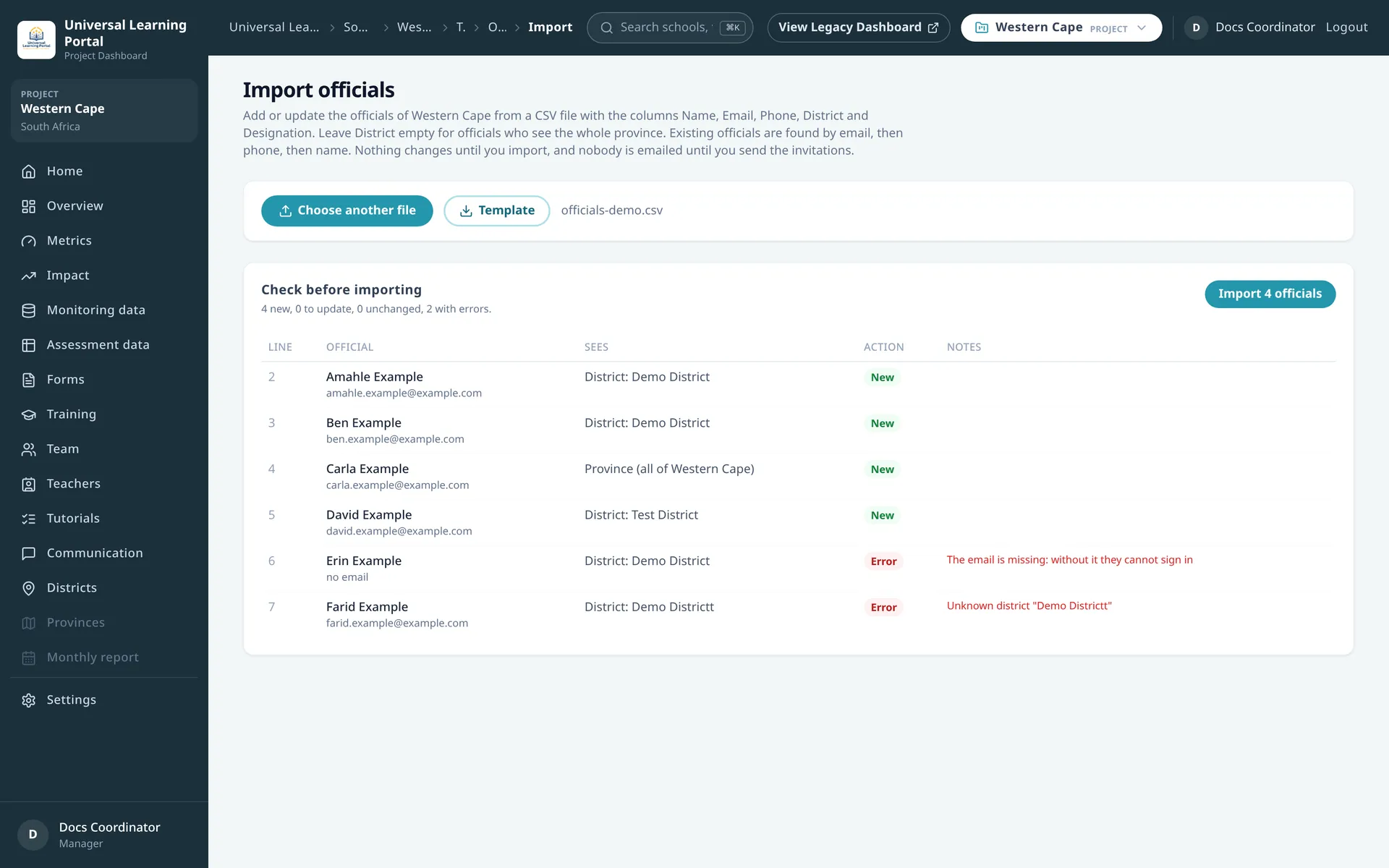
| Action | Meaning |
|---|---|
| New | An official who does not exist yet and will be added |
| Update | An existing official whose details will change; the notes say what changes |
| No change | An existing official who is already the same |
| Error | A line that cannot be imported; the notes say why |
An existing official is found by email first, then by phone number, then by name, among the officials of the province. If a line matches more than one official it is an error and is left for you to sort out, never guessed. The name of an existing official is kept as it is in the dashboard.
District names are matched without regard to capital letters, accents or punctuation, and ”&” counts as “and”. A district that is not found is an error, so a misspelling cannot create a new district.
The usual errors are a missing or invalid email address, an address used twice in the file, an address that already belongs to another account, and an unknown district.
Import, then invite
Section titled “Import, then invite”Import adds and updates the lines without errors and skips the rest. Nobody is emailed at this point.
Once the import is done, Send invitations emails the officials who have no password yet. You can also leave it for later: they stay listed as Not invited on the Officials page.
Following who can sign in
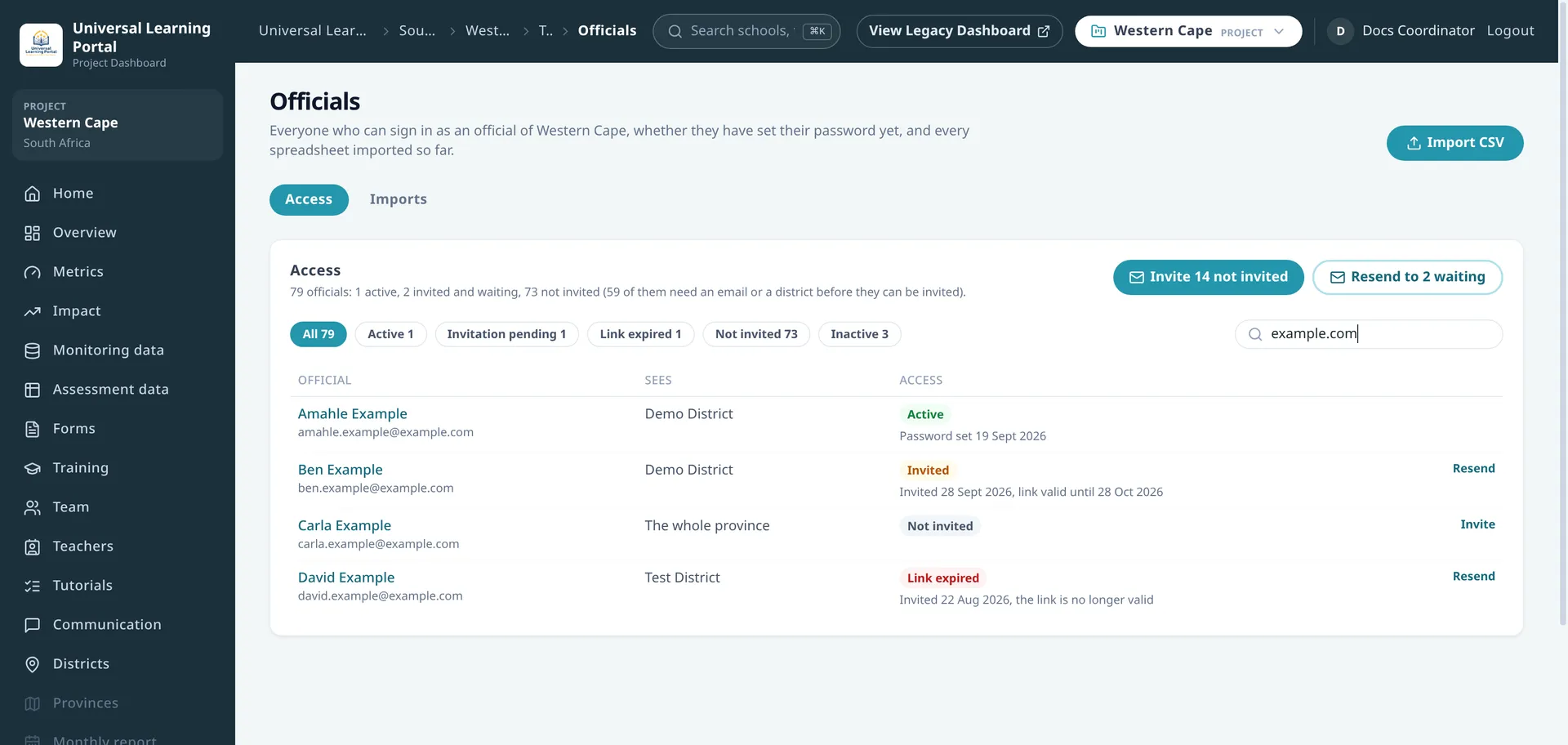
Section titled “Following who can sign in”Officials’ access, on the Team page, lists every official with what they see and where their access stands:
| Status | Meaning |
|---|---|
| Active | They have set their password, on the date shown |
| Invited | The invitation was sent and the link is still valid |
| Link expired | They were invited more than 30 days ago and never chose a password |
| Not invited | No invitation has been sent |
| Inactive | The account has been made inactive |
The buttons above the list filter by status, and the search box looks in the name, the email address and the district.
- Invite … not invited, which carries the number of officials, sends the invitation to everyone who has not had one.
- Resend to … waiting sends it again to those who were invited and have not chosen a password.
- Invite or Resend, at the end of a line, does the same for one official.
An official gets at most one invitation a day, so Resend appears from the day after the last one.
Some officials cannot be invited until something is fixed, and the line says what: No email address, No districts assigned yet or The account is inactive.
The history of imports
Section titled “The history of imports”The Imports tab lists every file imported, with who imported it and how many officials were added, updated, left unchanged, skipped and invited since. Opening one shows each of its lines. Skipped lines (CSV) downloads the lines that were not imported, with the reason, ready to correct and import again.
An official’s page
Section titled “An official’s page”Clicking an official’s name opens their page, which has an Access card:
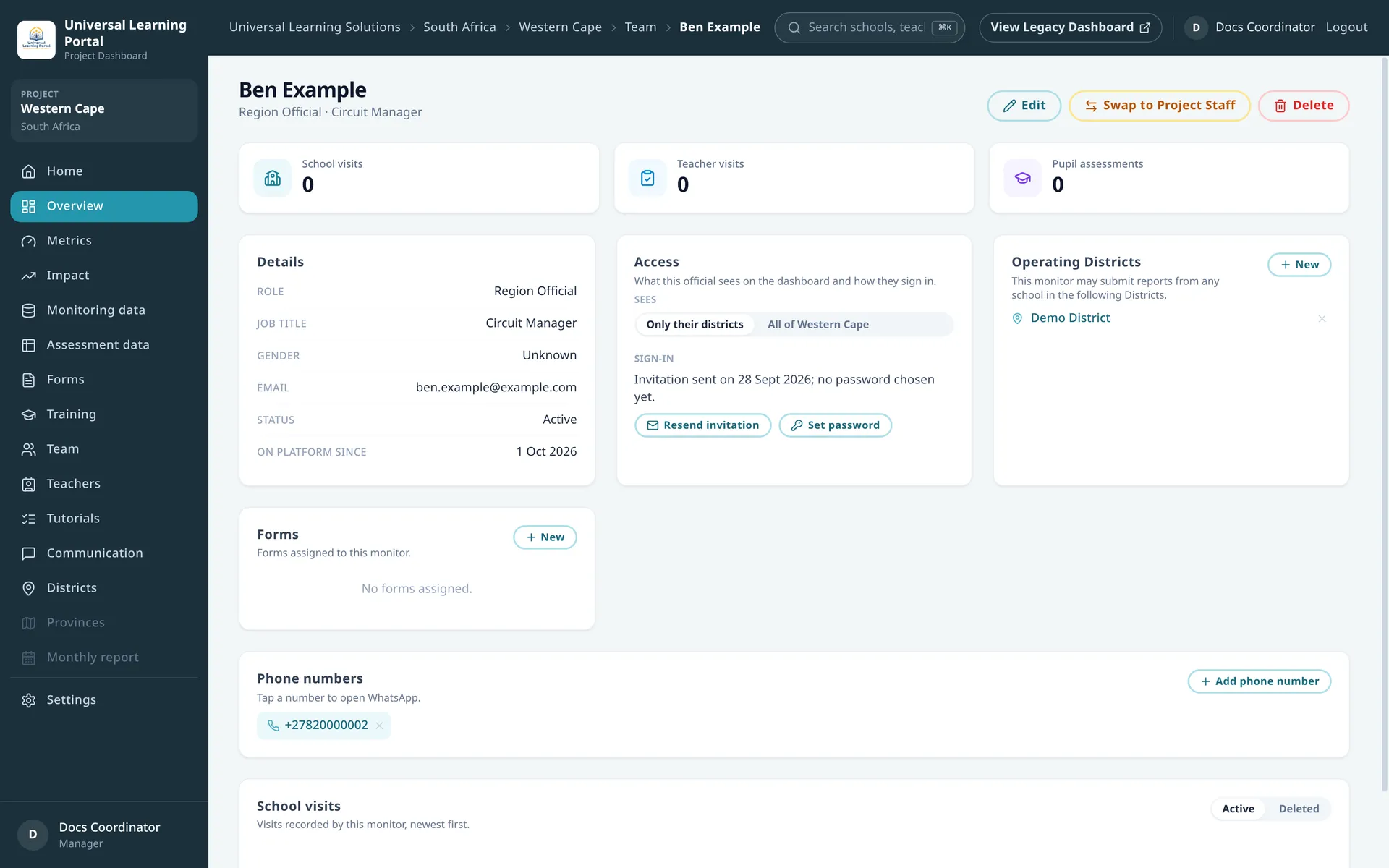
- Sees switches the official between Only their districts and the whole province. Their districts are listed, added and removed in Operating Districts, next to it.
- Sign-in says whether they have a password. Depending on that, the button is Send invitation, Resend invitation or Email a new password link.
- Set password lets a manager set one directly, for an official who cannot receive the email. Type one, or choose Generate one for me: the generated password is shown only once, to pass on privately. A password needs at least 8 characters, with a capital letter and a number.
What a district official sees
Section titled “What a district official sees”A district official’s dashboard is a smaller one:
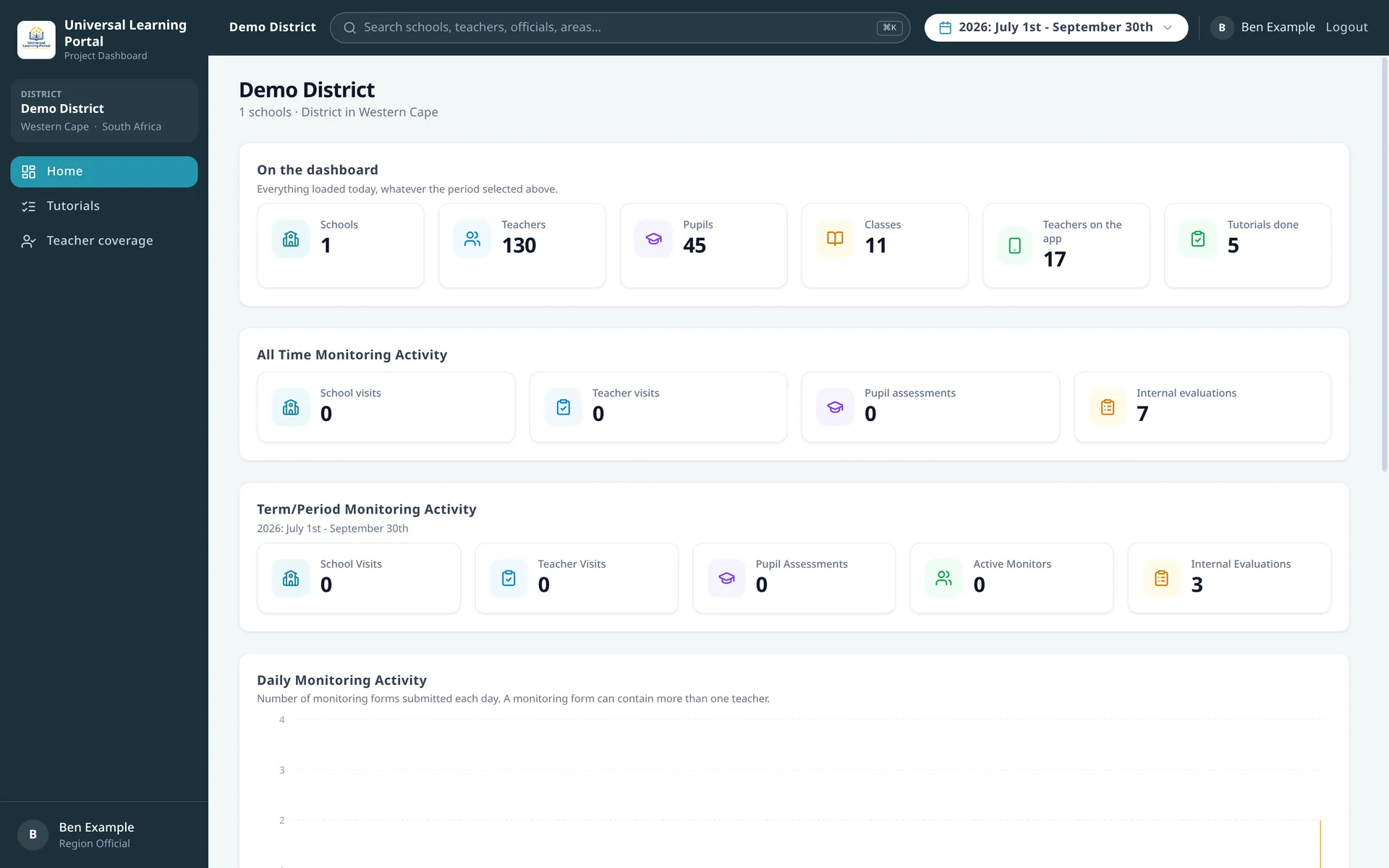
- Home opens their district. With several districts, it lists them to choose from.
- Tutorials shows which teachers of their districts have finished the app tutorials. See Tutorial completion.
- Teacher coverage lists the district’s teachers with and without a visit.
From there they can open the schools, teachers and classes of their districts, and the search at the top finds only what is in them. A page that covers the whole province does not open for them: it says so and offers the way back to their home.
A province official sees the full project dashboard, without the settings.
Next: The district dashboard