
Pupil questions
Pupil Questions contains the pupil information assigned to the form. The fields can vary; do not assume the name is the only question. Check and complete every required field before choosing Complete Questions.
Complete the information
Section titled “Complete the information”Open Pupil Questions from the pupil assessment. Check the pupil name and the saved answers, fill any missing required information, then complete the questions. Use Review to check completed answers while the assessment is editable.
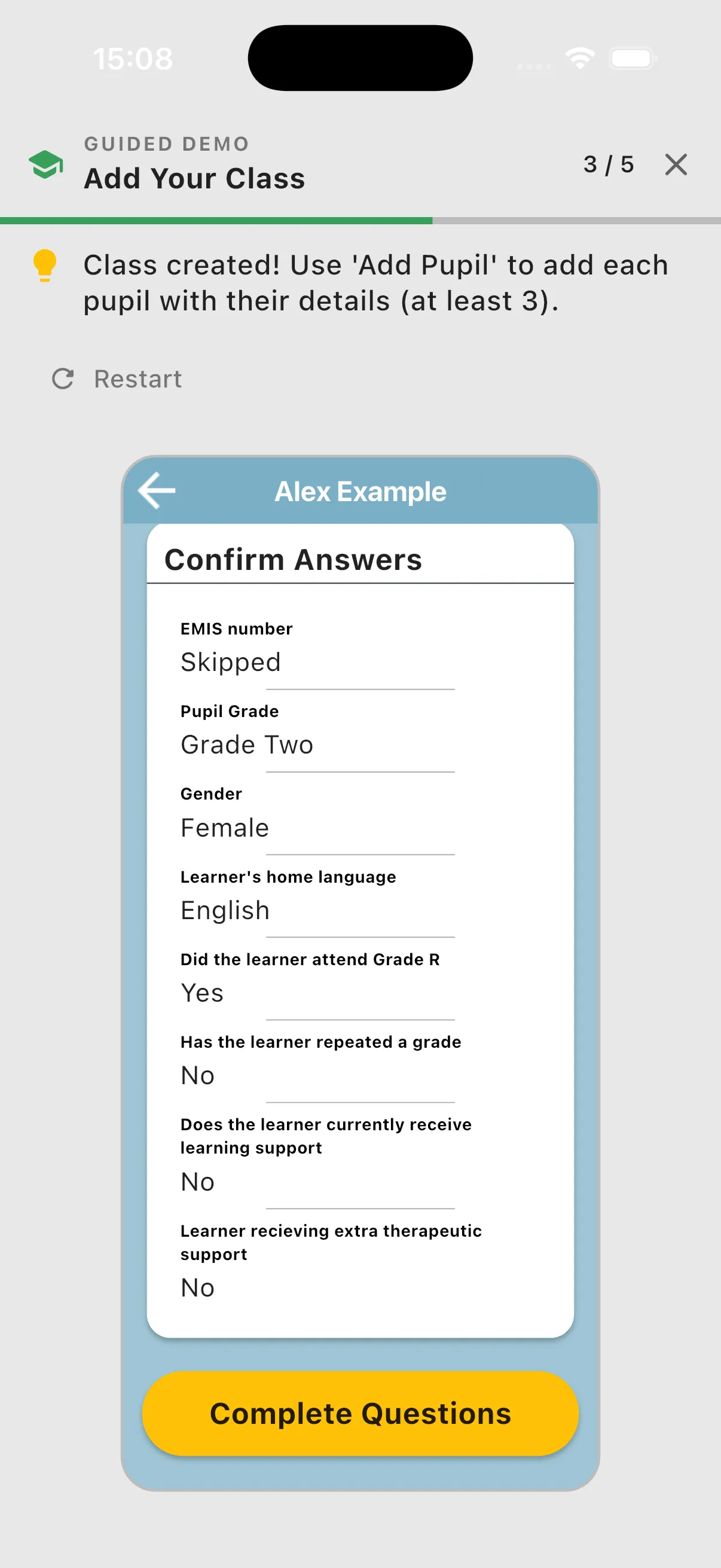
This tutorial example uses illustrative answers. Complete the questions assigned to your own form.
Reuse and update pupil details
Section titled “Reuse and update pupil details”Pupil information is stored on the pupil record and reused in later assessments. Open the pupil through CLASSES, select their class and then their name to review or edit their details. Questions such as age or other background information appear only when assigned; your form may ask for different information.
Changes to pupil information can update linked in-progress assessments. Completed assessments preserve the information recorded for that assessment, so changing today’s pupil details does not rewrite completed historical records. Sync after editing so the updated pupil information reaches the server.