
Configuring a form
The Configure page is where you decide which questions a form asks. Reach it from the Configure Form button on the School Form Specification view.
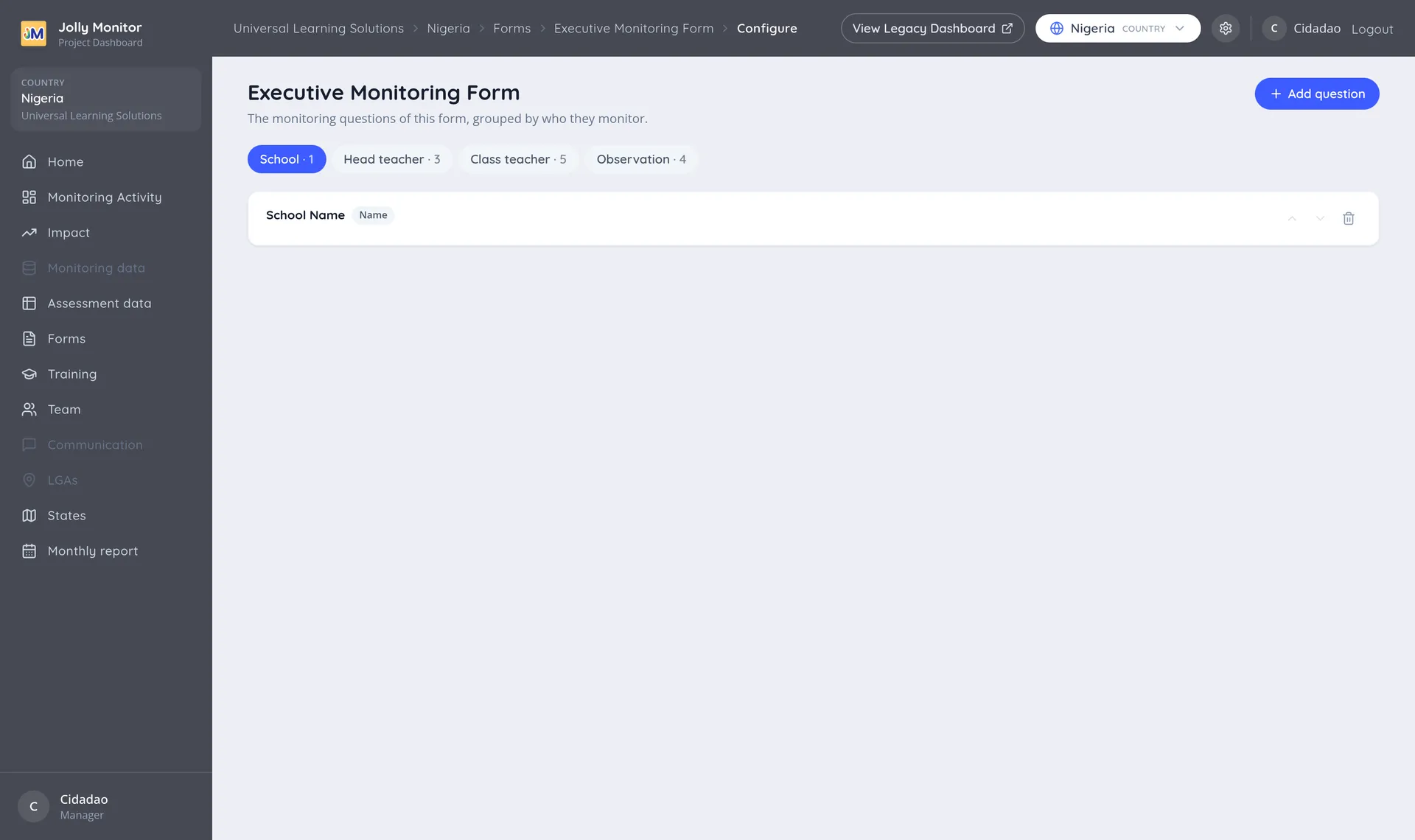
The subject groups
Section titled “The subject groups”The form’s questions are grouped by who they are about, and each group carries a count of the questions in it:
| Group | What it covers |
|---|---|
| School | Questions about the school itself |
| Head teacher | Questions about the head teacher |
| Class teacher | Questions about the teacher being observed |
| Observation | The lesson observation questions |
| Pupil | The questions asked for a pupil assessment |
These groups are the same divisions the monitor works through on the tablet during a visit. A question’s group comes from its subject, which is why a question with the wrong subject appears at the wrong moment in the field.
Only groups that already hold questions get a tab; a brand-new form with nothing on it at all reads “No questions on this form yet.”
Adding a question
Section titled “Adding a question”Add question offers the questions available for that subject, drawn from your question banks and excluding the ones already on the form. If there is nothing left to add, the page says “No more questions available for this subject.”
Questions come from your banks, so if the one you need is not listed, add it to a bank first. See Question banks.
Arranging and removing
Section titled “Arranging and removing”Each question in a group has three controls:
- Move up and Move down: change the order the questions are asked in.
- Remove from form: takes the question off this form.
Removing a question from a form does not delete it. It stays in its bank and on any other form that uses it, and the answers already collected with it are kept.
What is managed elsewhere
Section titled “What is managed elsewhere”The old dashboard put several form-level actions on this page: renaming the form, deleting it, duplicating it, copying it to another country, and printing it. In the new dashboard those live where the form itself does:
| Action | Where it is now |
|---|---|
| Rename or delete the form | The form specification list, under Monitoring forms in the country settings |
| Print the form | The Print button on the School Form Specification view |
| Add the form to every project | Add to all country projects, also on the specification view |
| Assign teachers to the form | The Assigned Teachers card, see Assigning teachers to forms |
This page is now only about the questions, which is why it opens straight into them.
Required questions
Section titled “Required questions”Some questions carry a Required badge here: they have to be answered before the monitor can finish that part of the visit. The flag comes with the question (it is part of the original question set) and is not editable from the dashboard.
Next: Monitoring questions