
Tutorials and your certificate
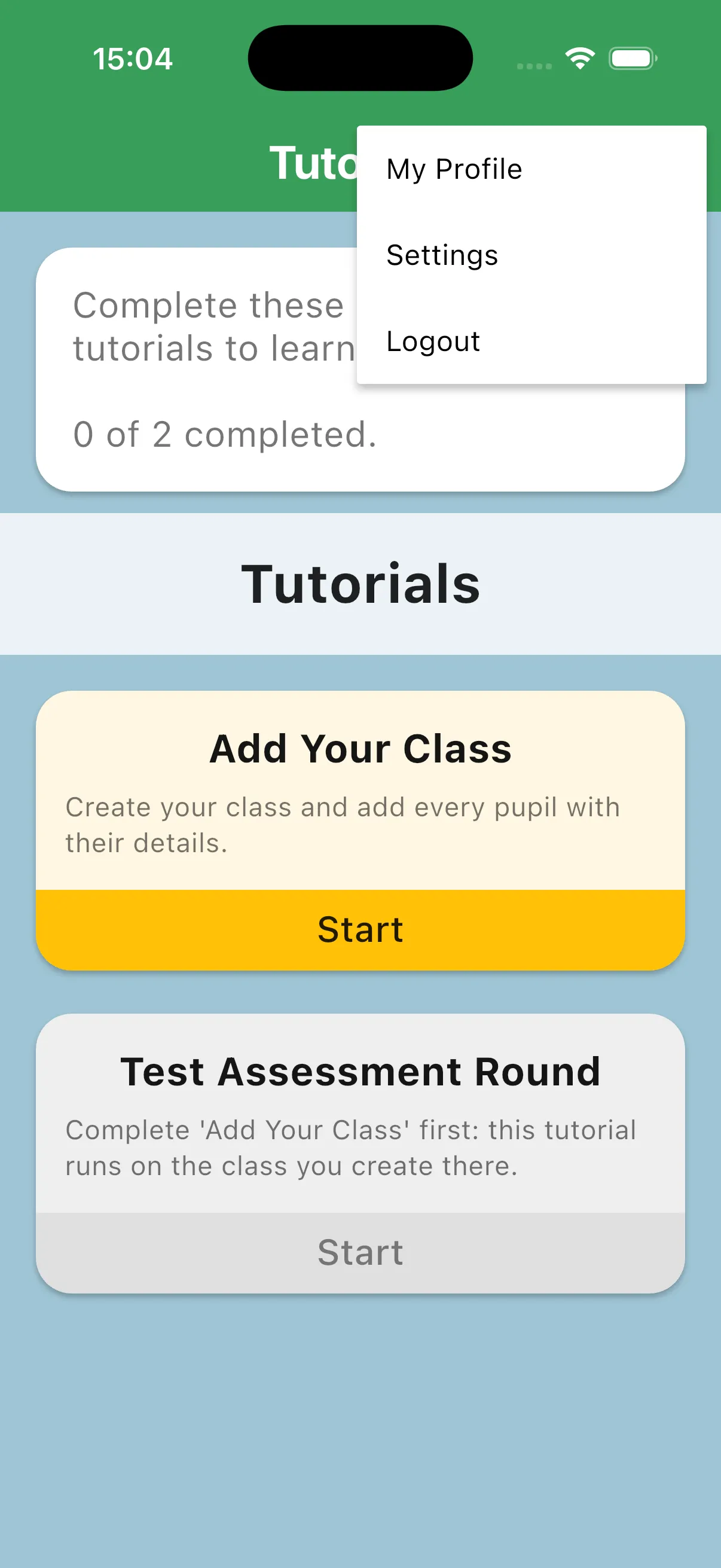
If you still have required tutorials to complete, the app opens Tutorials before you can work with real classes and assessments. Later, use the tutorial card on your home screen to return or replay a tutorial.
Choose the interface language
Section titled “Choose the interface language”On the Tutorials screen, open the three-dot menu and choose Settings. Under Language, select English, Afrikaans or isiXhosa, then go back to the tutorials. Your choice is saved and changing it does not clear your tutorial progress.
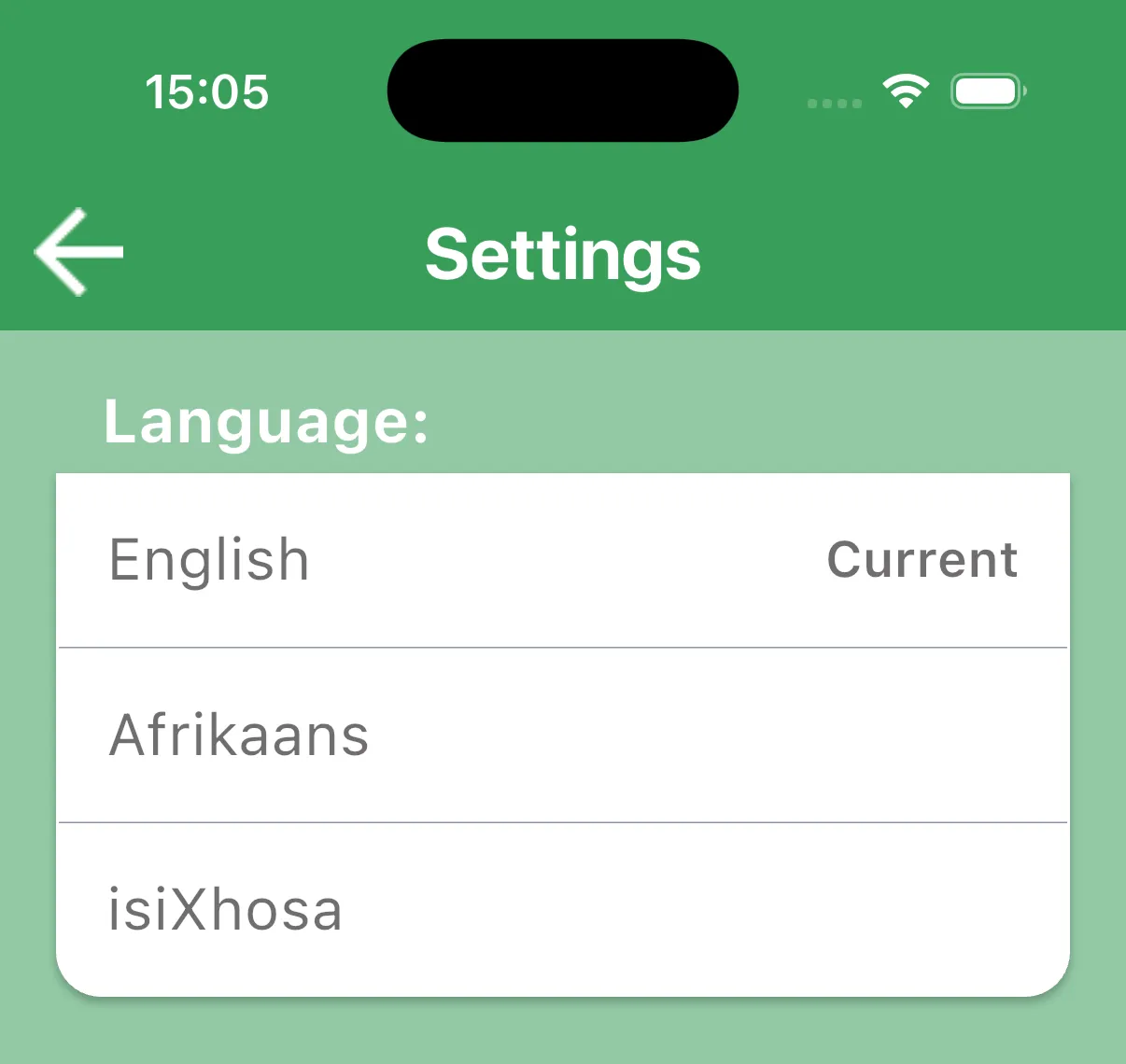
This changes the app interface; it does not translate the assessment material. Use the form and language assigned for the pupil’s assessment.
Complete the practice in order
Section titled “Complete the practice in order”- Start Add Your Class. Read the practice notice and use made-up pupil names.
- Follow the instructions above the app preview. Tap Show me if you need help finding the current control.
- Tap Finish when the tutorial reaches its final step.
- Complete Test Assessment Round using the practice class you just created.
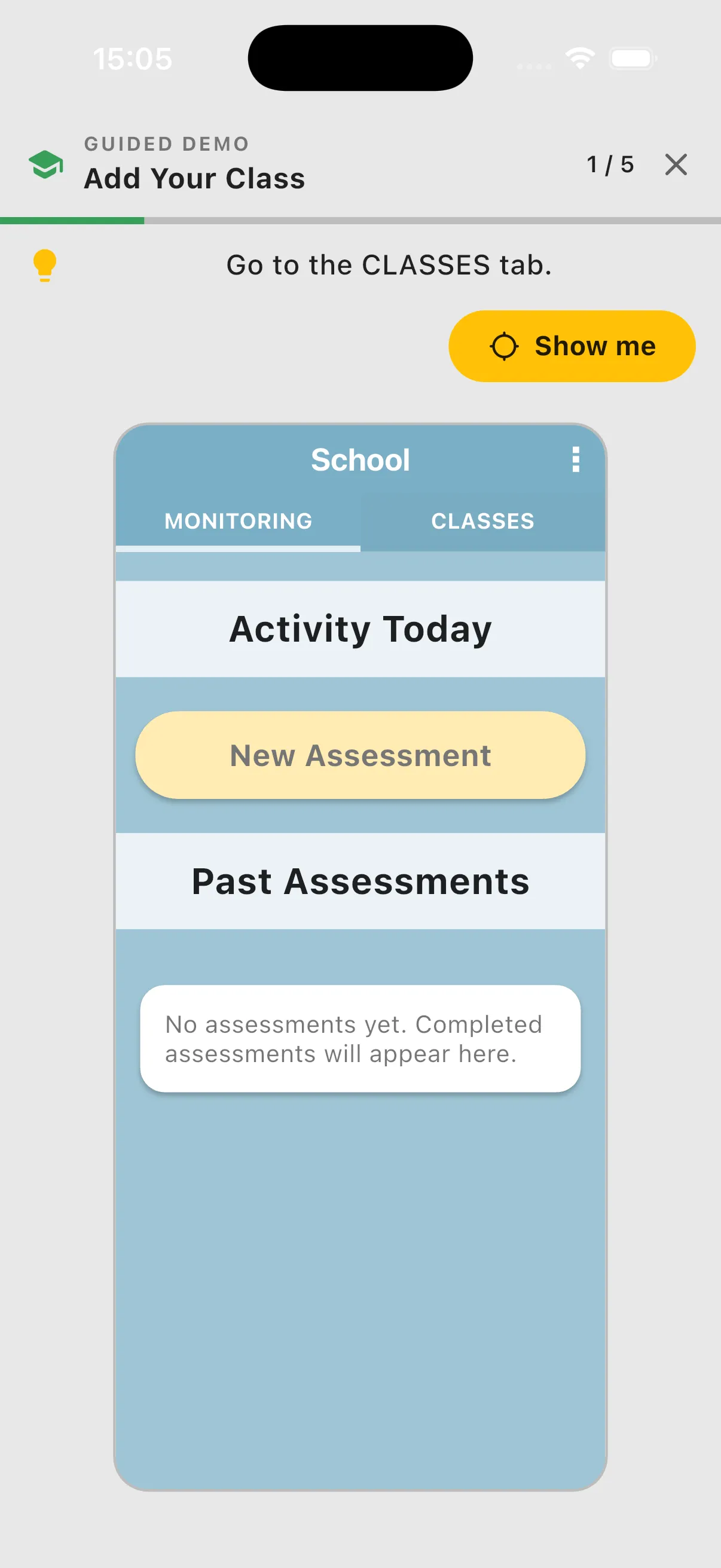
The practice class and answers are for training and are kept separate from your real work. If the app asks you to recreate the practice class, replay Add Your Class before the assessment round. Restart begins the current tutorial again.
Download your certificate
Section titled “Download your certificate”After both required tutorials are complete and your completion has synced, the Certified card shows your completion date.
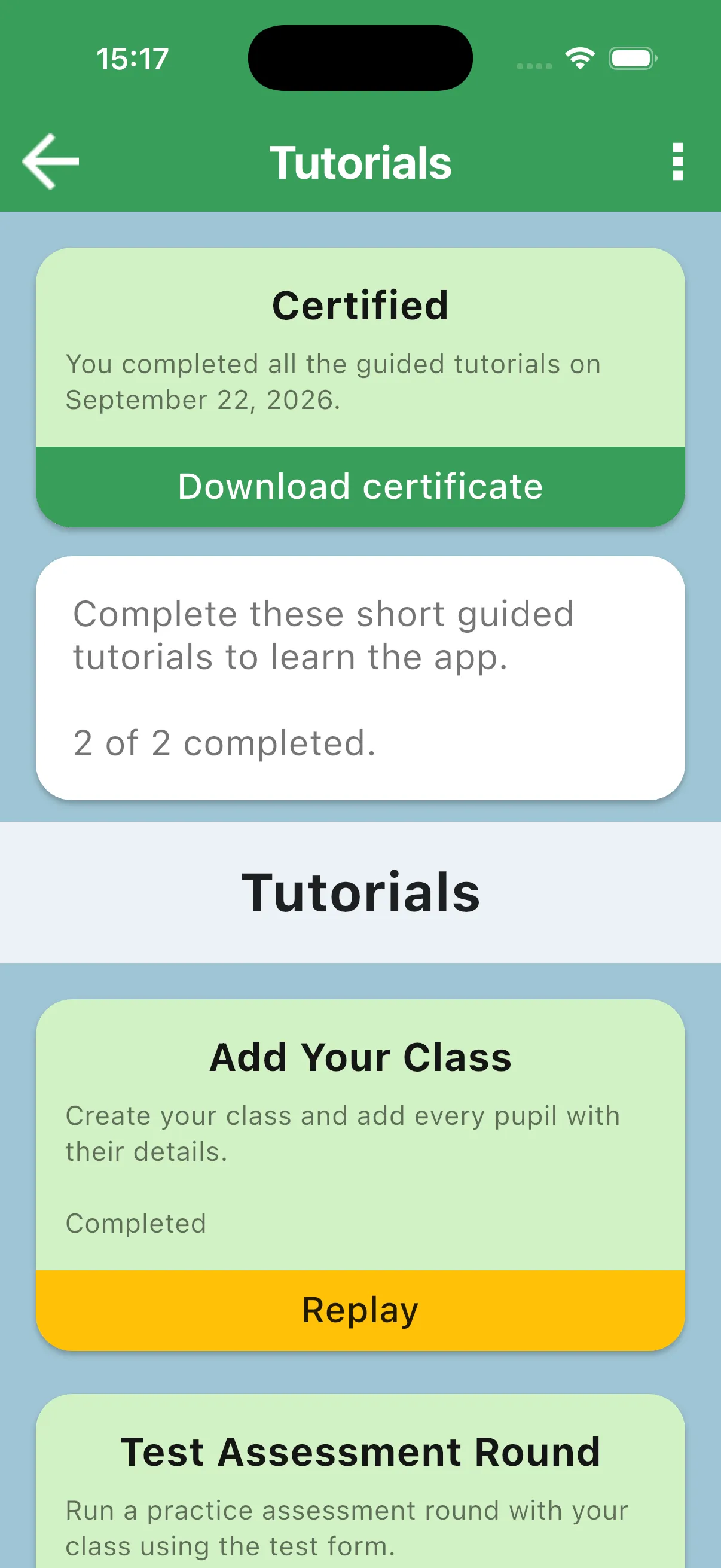
- Open Tutorials from your home screen.
- Tap Download certificate on the Certified card.
- Choose where to save or share the PDF using your device’s share sheet. On iPad, Save to Files saves a copy; printing and sharing options depend on the apps installed on the device.
The A4 certificate contains your name, completion date, and the Universal Learning Solutions (ULS) and Western Cape Education Department (WCED) logos. It records completion of the Jolly Monitor guided tutorials. The logos are bundled with the app, so certificate generation does not need an internet connection once the Certified card is available.
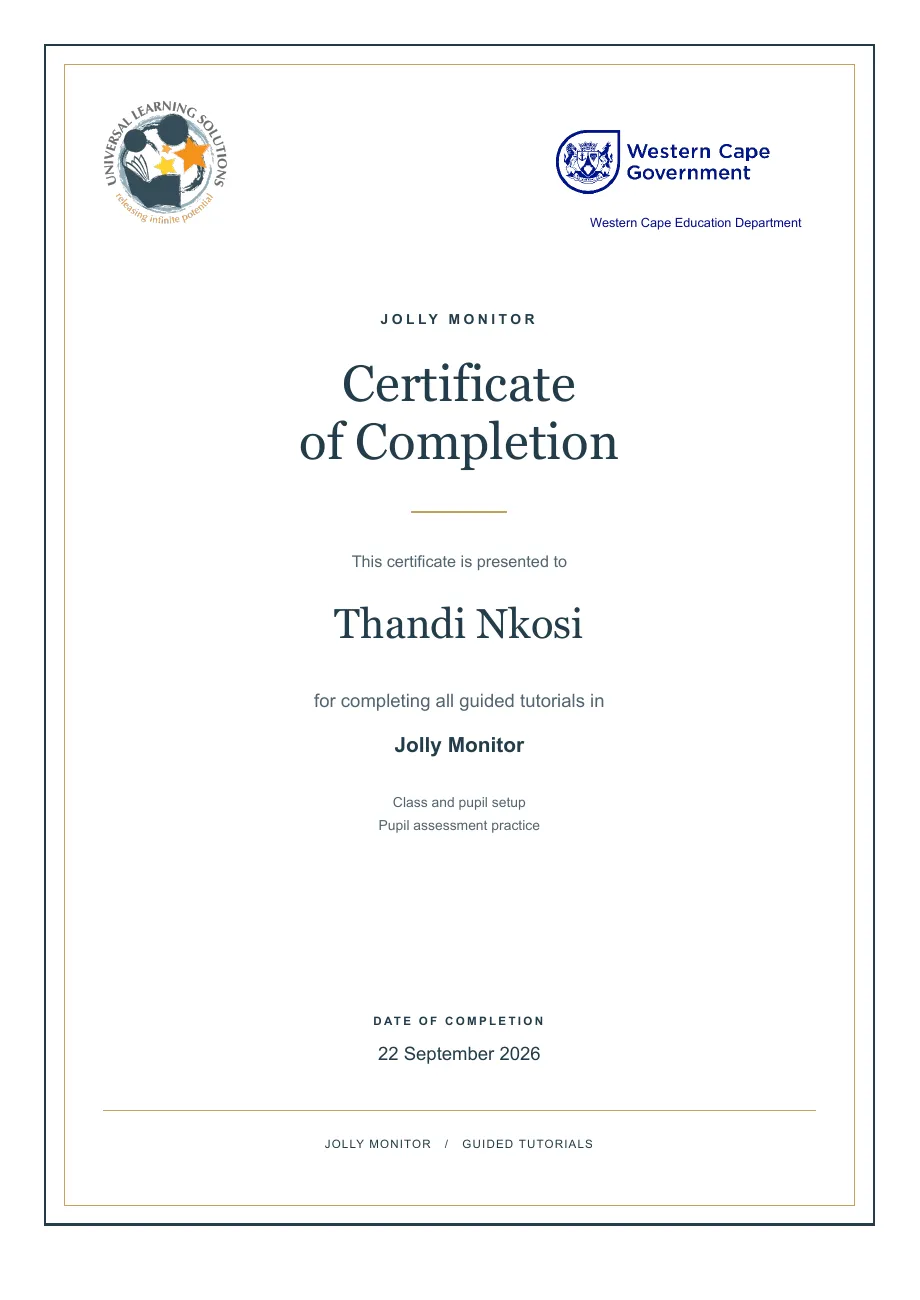
Example certificate; your PDF uses your own name and completion date.
If the card has not appeared, check that both tutorials show completed and sync again. If the PDF cannot be created, try the download again.