
What the dashboard is
The dashboard is the website where coordinators, officials and administrators work with the data that monitors and teachers collect in the field. The mobile apps record school visits, teacher observations and pupil assessments; the dashboard is where that information is reviewed, reported on, and where the system itself is set up.
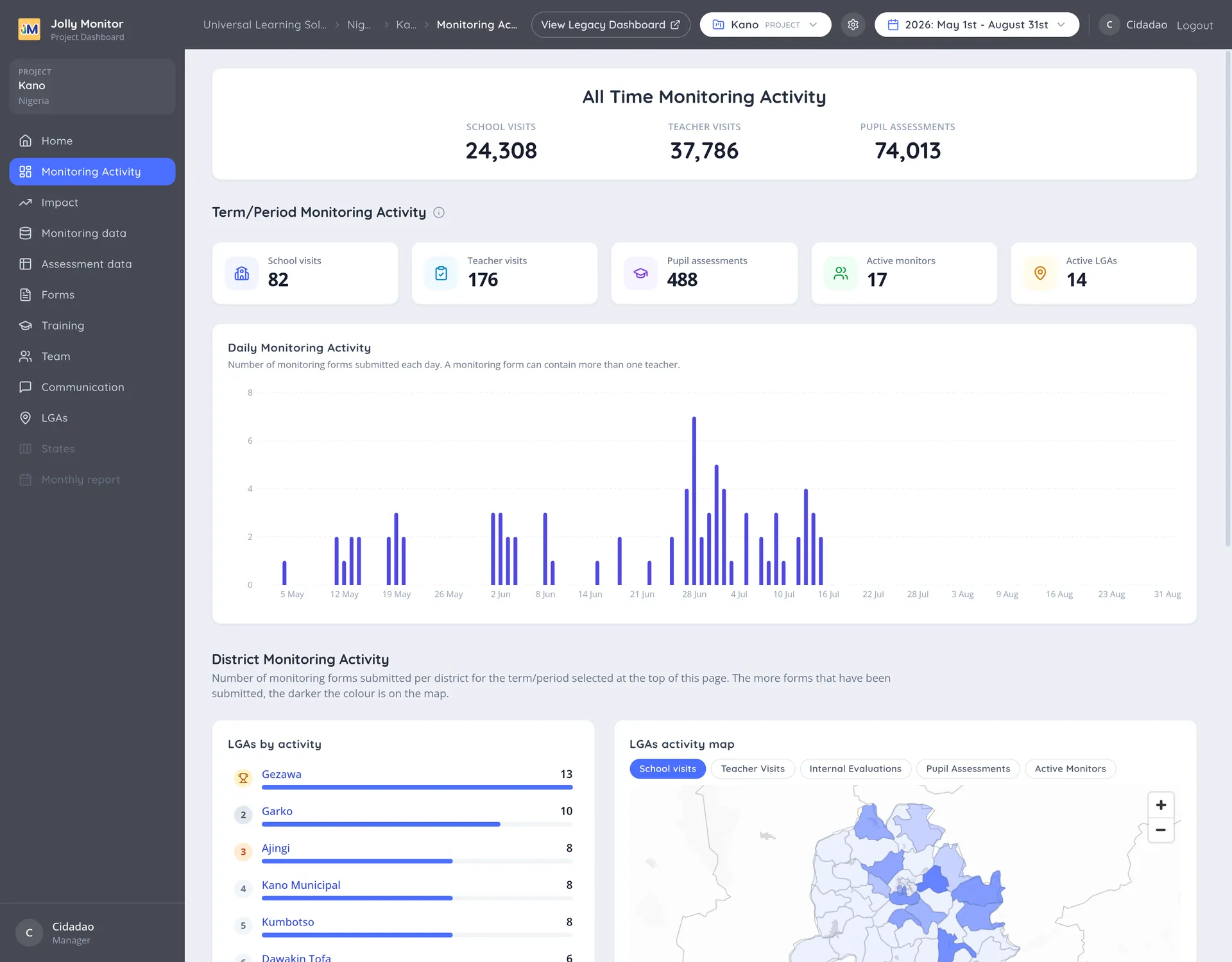
When you sign in, the sidebar on the left shows the Jolly Monitor logo and the sections available at your current level, while the header bar across the top carries your breadcrumbs, the period selector and, for managers, the scope selector.
Who uses it
Section titled “Who uses it”Different people see different things. Your account has a role, and the role decides which pages and buttons you get. There are four kinds of account:
- Managers work across the organisation. Their level (administrator, senior, finance or junior) decides what they can change; administrators are the managers who set the whole system up: countries, projects, monitoring forms, questions, metrics and app versions.
- Country officials oversee a whole country: its projects, monitoring forms and impact.
- Project staff (coordinators) run a single project: they watch monitoring activity and drill into schools, teachers and results. Team management needs a manager, and creating staff an administrator.
- Region officials are field monitors with a narrower view, focused on monitoring activity and training.
See Roles and what each one sees for the full breakdown.
How everything is organised
Section titled “How everything is organised”The dashboard mirrors the real structure of a monitoring programme. Each level contains the next:
Most of your time is spent moving up and down this chain: open a country, open one of its projects, open a district, open a school, and so on down to a single pupil assessment.
The last two links of that chain are optional. A teacher visit is always tied to the teacher who was observed, and it may also be tied to one of that school’s classes, but it does not have to be. In some monitor workflows and historical records, a pupil assessment can record a pupil name without a linked pupil record. Current teacher class rounds require a registered pupil for each assessment.
What you can do here
Section titled “What you can do here”Depending on your role, the dashboard lets you:
- See dashboards of monitoring activity, training and impact, by country, project and district.
- Drill into individual schools, teachers, visits and pupil assessments, and correct their details.
- Build and run reports, explore data, and export to CSV or Excel.
- Send SMS and manage messaging groups.
- Find and merge duplicate records, so the figures stay honest.
- Set up the monitoring forms, questions and assessments that the apps use, and manage user accounts and app versions.
This guide is split the same way your access is. Start with Getting Started, then read the Administration sections if you set the system up, or jump to the country and project sections if you run one.
Supported browsers
Section titled “Supported browsers”The dashboard supports recent versions of the major browsers (Chrome, Firefox, Safari and similar). On older or uncommon browsers some pages may not work correctly.
Next: Logging in