
Head teacher vs regular teacher
Jolly Monitor has two teacher experiences. The app reads your role from your account and adjusts the home screen, the menus and the evaluation flow accordingly. If you ever feel that another colleague “sees a different app”, this page explains why.
The short version
Section titled “The short version”| Area | Regular teacher | Head teacher |
|---|---|---|
| Home tabs | MONITORING, CLASSES | MONITORING, TEACHERS, CLASSES |
| CLASSES tab | Only your own classes, with New Class at the bottom | Every class in the school, grouped by teacher, plus the same New Class button |
| TEACHERS tab | Not visible | List of every teacher at the school |
| New Assessment | Fullscreen flow: pick the form, then the class. Always a Self Assessment | Fullscreen flow: pick the form, then the teacher (Self Assessment or any colleague), then the class |
| Evaluator on the evaluation card | Always you | You for self evaluations, your name for colleague evaluations |
Home tabs
Section titled “Home tabs”Regular teachers have MONITORING and CLASSES tabs. Head teachers also have TEACHERS between them.
The extra TEACHERS tab lets head teachers open any colleague’s profile and review their assessments and evaluations.
The CLASSES tab
Section titled “The CLASSES tab”A regular teacher sees only the classes they teach, plus a New Class button to add another one.
A head teacher sees every class at the school, grouped by teacher, with the same New Class button at the bottom. A class you create from here is assigned to you.
Assessment rounds
Section titled “Assessment rounds”The only difference is whether the Select Teacher step is shown.
Regular teacher flow
Section titled “Regular teacher flow”-
Tap New Assessment on the MONITORING tab.
-
The Select Assessment screen lists the pupil assessment forms available for the round. Tap the form you want to use.
-
The Select Class screen lists the classes you teach. Choose the required class, or create it if it is missing.
-
The evaluation opens with you as the Evaluator and the Evaluated Teacher.
If the project has a single assessment form, the flow skips the Select Assessment screen.
Head teacher difference
Section titled “Head teacher difference”A head teacher sees an extra Select Teacher step inserted between Select Assessment and Select Class, with a Self Assessment card on top and the full list of colleagues below.
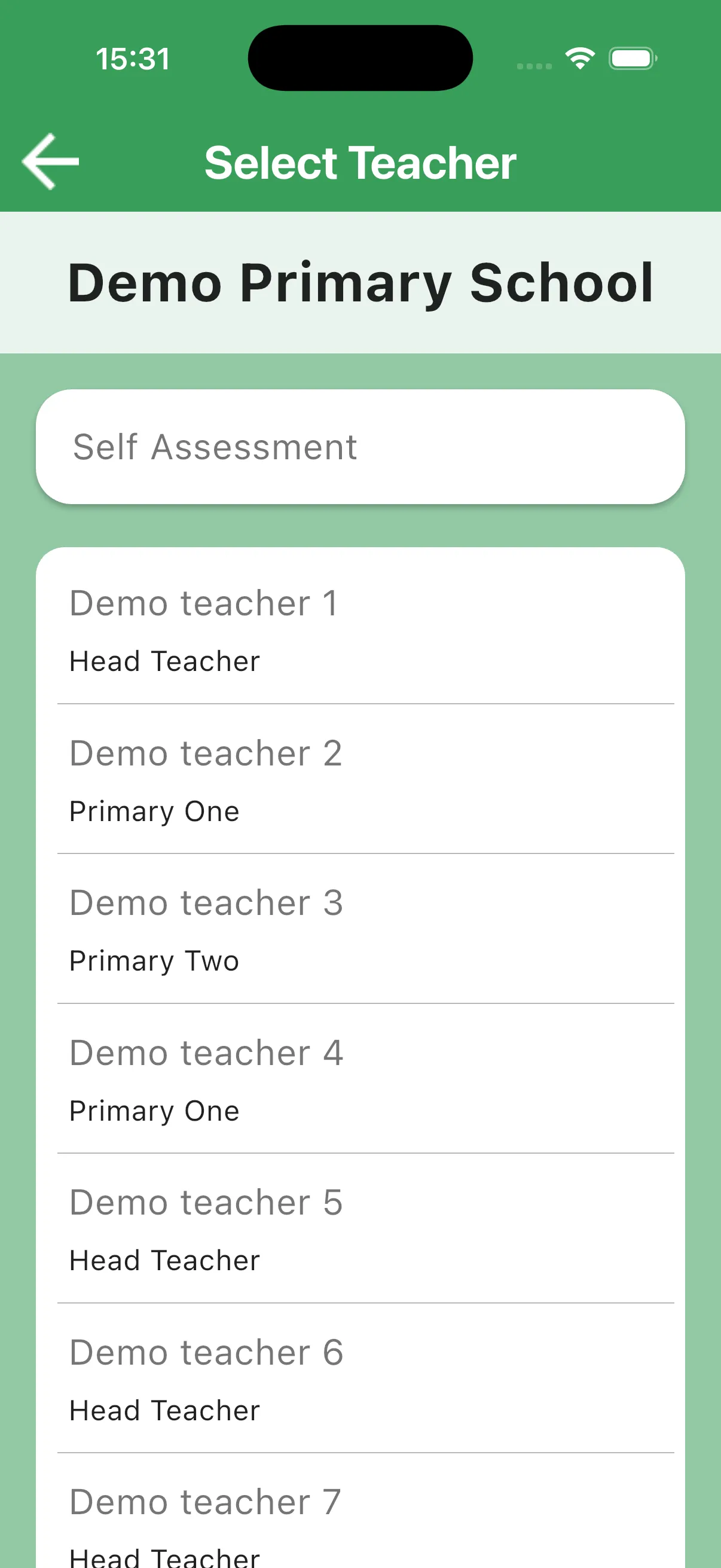
Tap Self Assessment to evaluate yourself, or tap a colleague to run the evaluation as their evaluator. After picking, the head teacher continues to Select Class as above.
Why the difference
Section titled “Why the difference”- Regular teachers only evaluate their own practice and only manage their own classes. The app hides anything that does not apply to them.
- Head teachers are responsible for the whole school: they review every colleague, see every class and confirm head teacher questions on evaluations submitted by their team.
If your role changes (for example, you are promoted to head teacher), ask the monitoring team to update your account. The app will start showing the head teacher views as soon as the next sync runs.
Things that look identical
Section titled “Things that look identical”- The login screen, the splash screen, and the logout flow work the same way for both roles.
- The three-dot menu in the top right is the same in both views: Sync, Edit Name, My Profile, Settings, Help & Support, App Details, Logout.
- The sync indicators look the same.
Next: Starting an assessment round
The chosen assessment form and language are reused for all pupils in the round. Interface language in Settings is a separate choice.