
The CLASSES tab
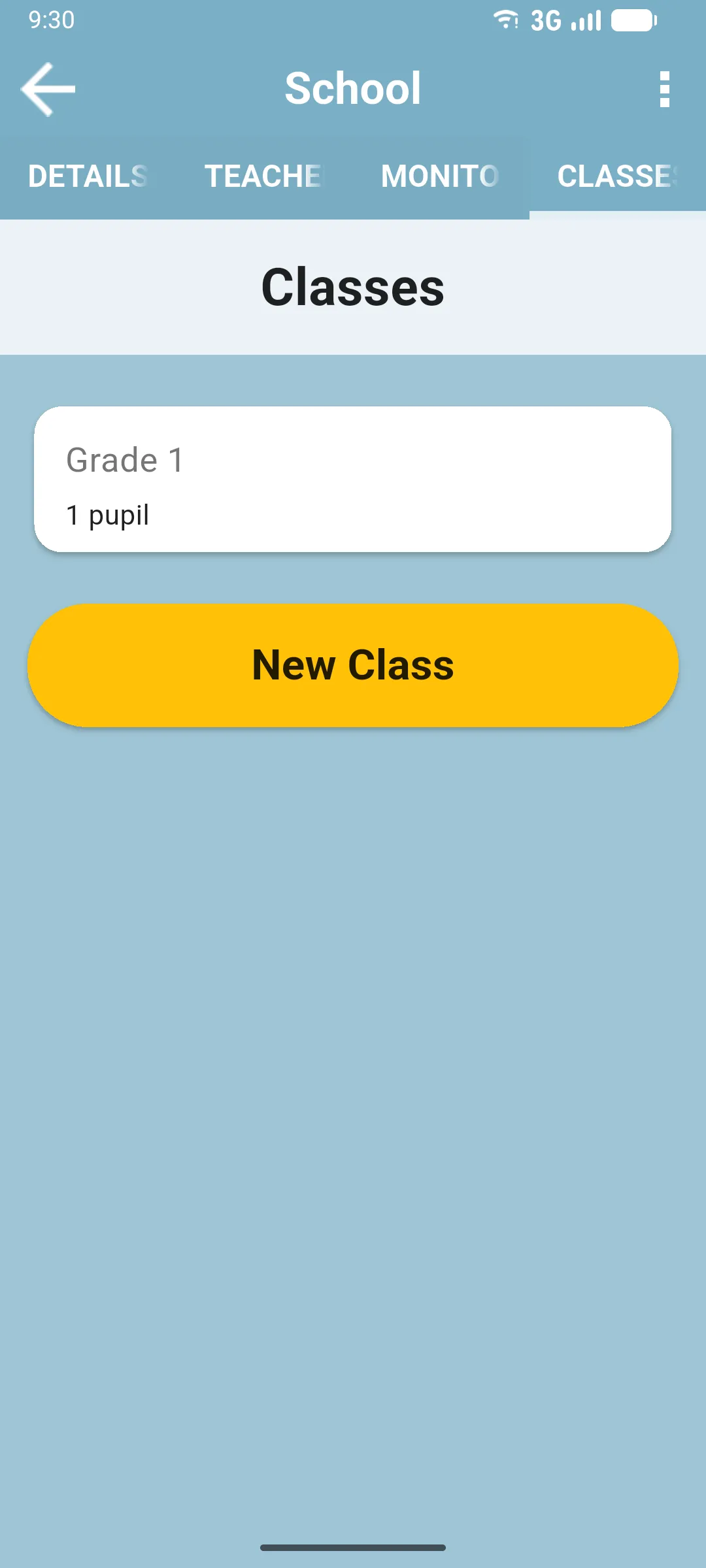
The CLASSES tab is the last tab on the school detail screen. It holds the classes registered at that school. Each class card shows the name and pupil count.
Inside a class
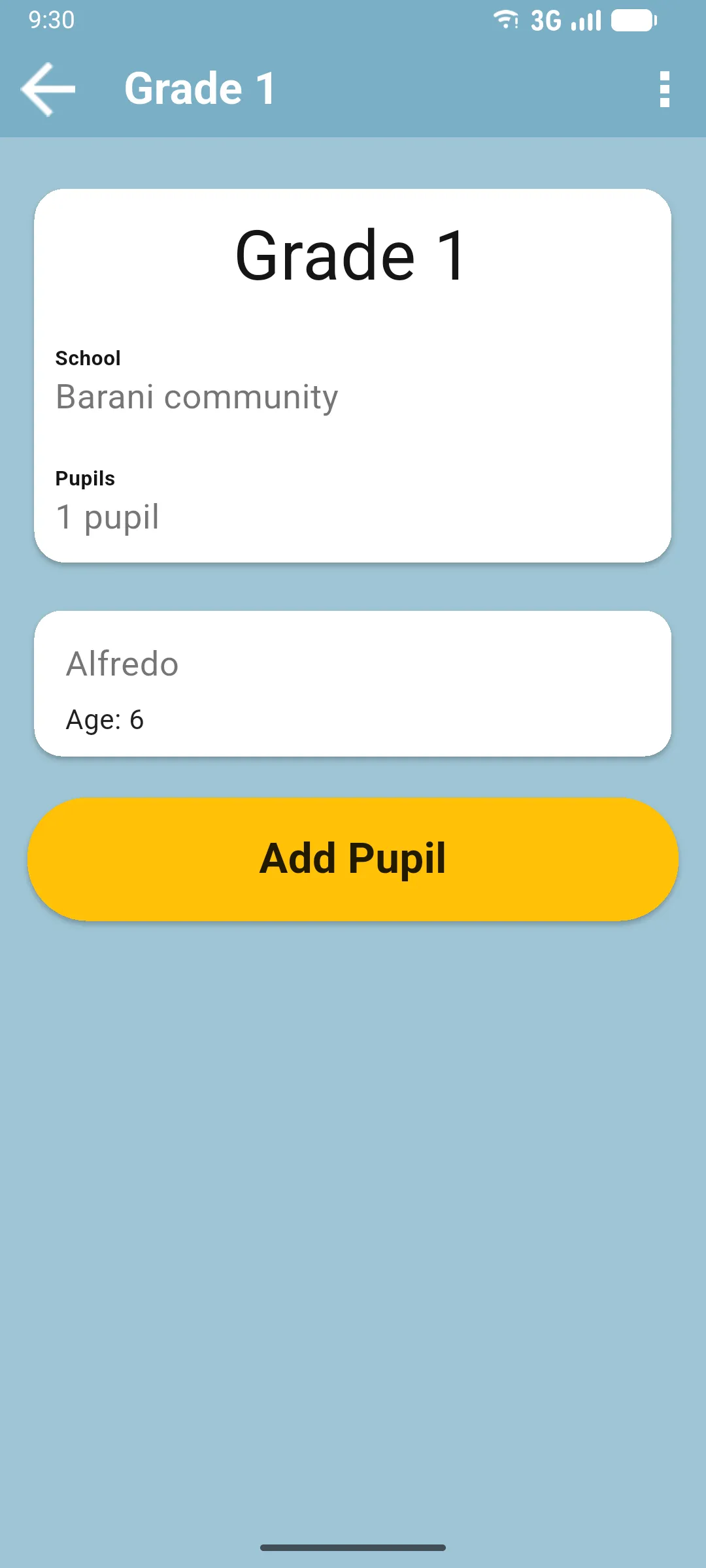
Section titled “Inside a class”Tap a class card to open its detail screen: the class name, the school it belongs to, the pupil count and a card per pupil with their name and age. The yellow Add Pupil button at the bottom adds a new pupil to the class.
Adding a class
Section titled “Adding a class”Tap New Class at the bottom of the CLASSES tab, enter the name and save. The class is sent to the server on the next sync.
Editing or deleting a class
Section titled “Editing or deleting a class”Open the class, then tap the three-dot menu in the top right. The menu offers Edit Name (rename the class) and Delete (remove it). Both are pushed to the server on the next sync.
Next: Pupils inside a class