
Countries and projects
Below the organisation sit your countries, and inside each country are its projects. One project maps to one region. This page covers how administrators create and manage both.
The Countries & projects entry in the settings menu opens the countries list.
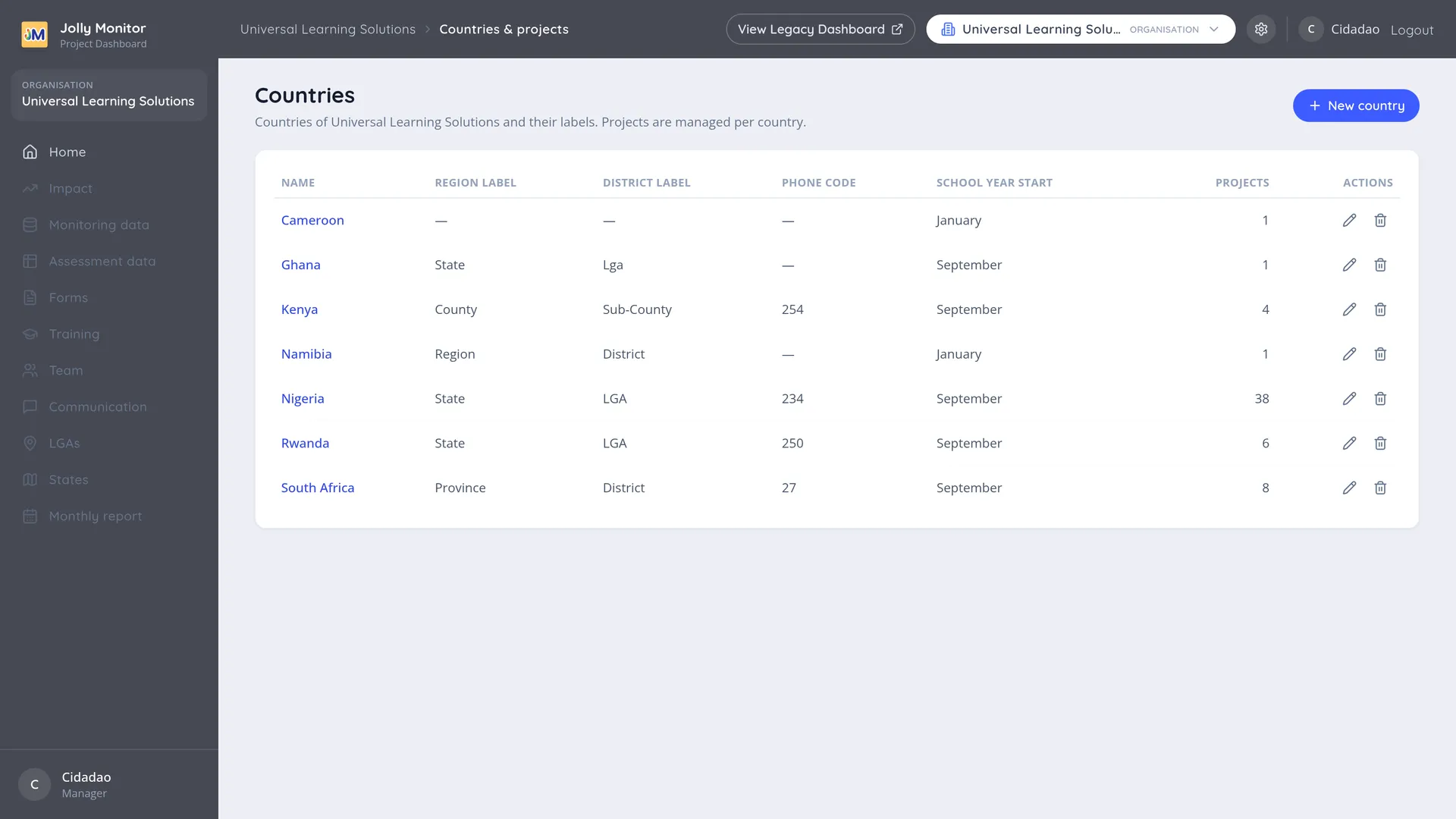
The Countries page
Section titled “The Countries page”The page shows a table of every country in your organisation. Each country name is a link, there is a delete control on each row, and a New country button above the table.
The columns record what the rest of the dashboard depends on:
| Column | What it shows |
|---|---|
| Name | The country name, used everywhere else in the dashboard |
| Region label | What this country calls the level below itself, for example States |
| District label | What it calls the level below that, for example LGAs |
| Phone code | The dialling code, used when sending messages |
| School year start | The month the school year begins |
| Projects | How many projects the country has |
Creating a country
Section titled “Creating a country”Click New country to open the new-country form, which is a four-step wizard.
- Step 1 captures the country details: Country name, Region label, District label, Phone country code and School year start month. All of them are required before you can continue.
- Step 2 adds one or more regions and their districts. Enter a region name and add the region; it appears in the list, where you then type its districts. Repeat for each region. A project is created for each region.
- Step 3 lets you copy an existing school form spec. For each existing country that has form specs, the page offers its school forms so you can reuse one or more as the starting point for the new country, rather than building the monitoring form from scratch. There is a Preview form option so you can check a form before choosing it.
- Step 4 records the current or last term dates, with a Start date and an End date.
Projects setup
Section titled “Projects setup”Each country’s projects are managed from the country’s settings menu, under Projects (see The settings menu). One project is created per region.
On the Projects page you can:
- Add a project, which creates the region behind it automatically.
- Edit a project: its Name and the class-size settings, the Avg. P1 class size and the Avg. early years class size.
- Delete a project.
Deleting a country
Section titled “Deleting a country”Deleting a country is permanent: it cannot be undone. The dashboard asks you to confirm before it goes ahead.
A country can only be deleted when it has no projects left: the dashboard refuses otherwise and tells you how many projects remain. Delete its projects first, which in turn requires emptying them.
Next: App versions