
Your home screen
After you log in, you land on the Jolly Monitor Home screen. The screen has three tabs: HOME, Districts and TEAM.
Home tab
Section titled “Home tab”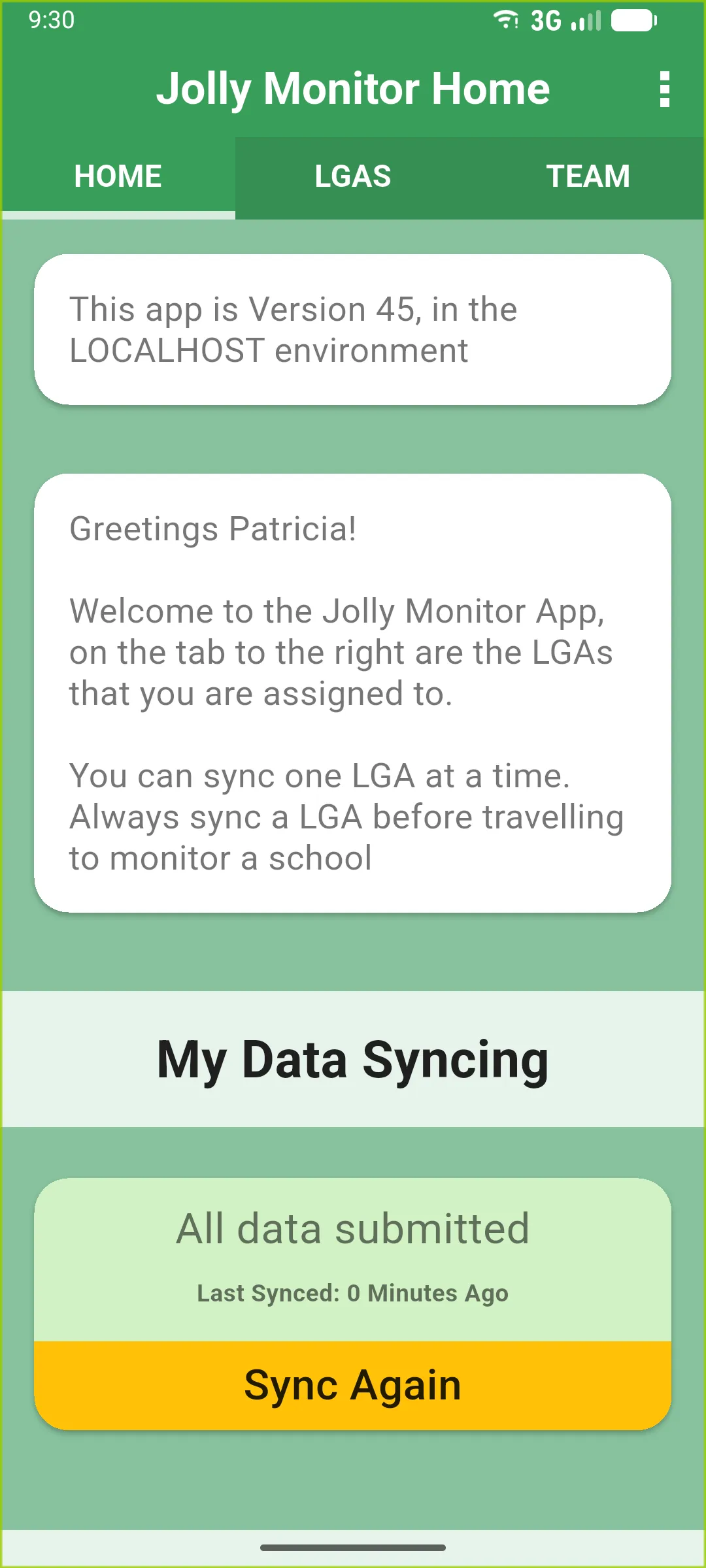
- App version and environment.
- Greeting with your name.
- My Data Syncing card: All data submitted in green, or Sync Needed if you have unsent changes.
- Sync Again button for a manual sync.
Districts tab
Section titled “Districts tab”Your assigned districts.
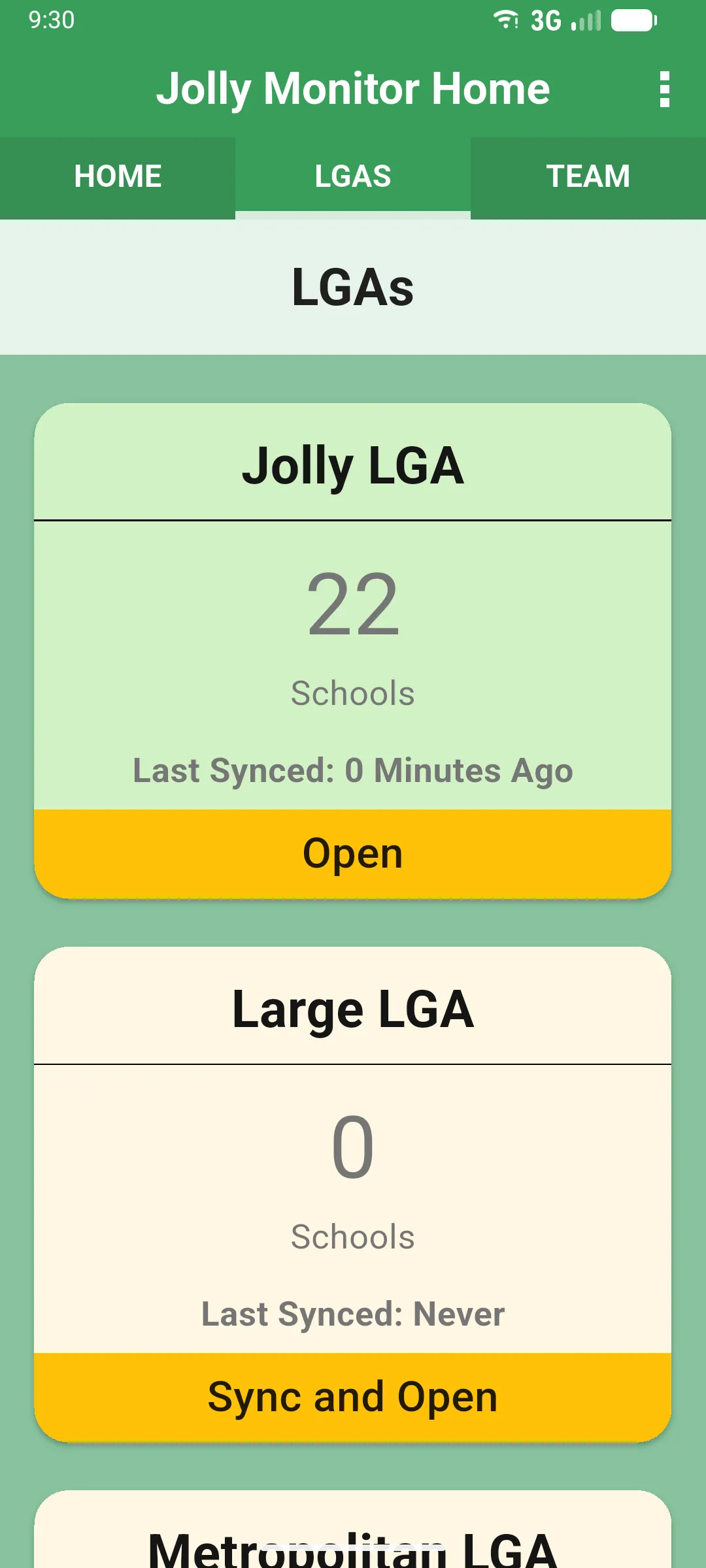
- One card per district with name and Schools count.
- Date of the last sync for that district.
- Yellow button: Open if synced, Sync and Open if not.
Tap a district card to drill down into its schools.
Team tab
Section titled “Team tab”Other monitors working in your project. From here you can pull each teammate’s data to review what they’ve been doing or to enter a paper visit one of them gave you.
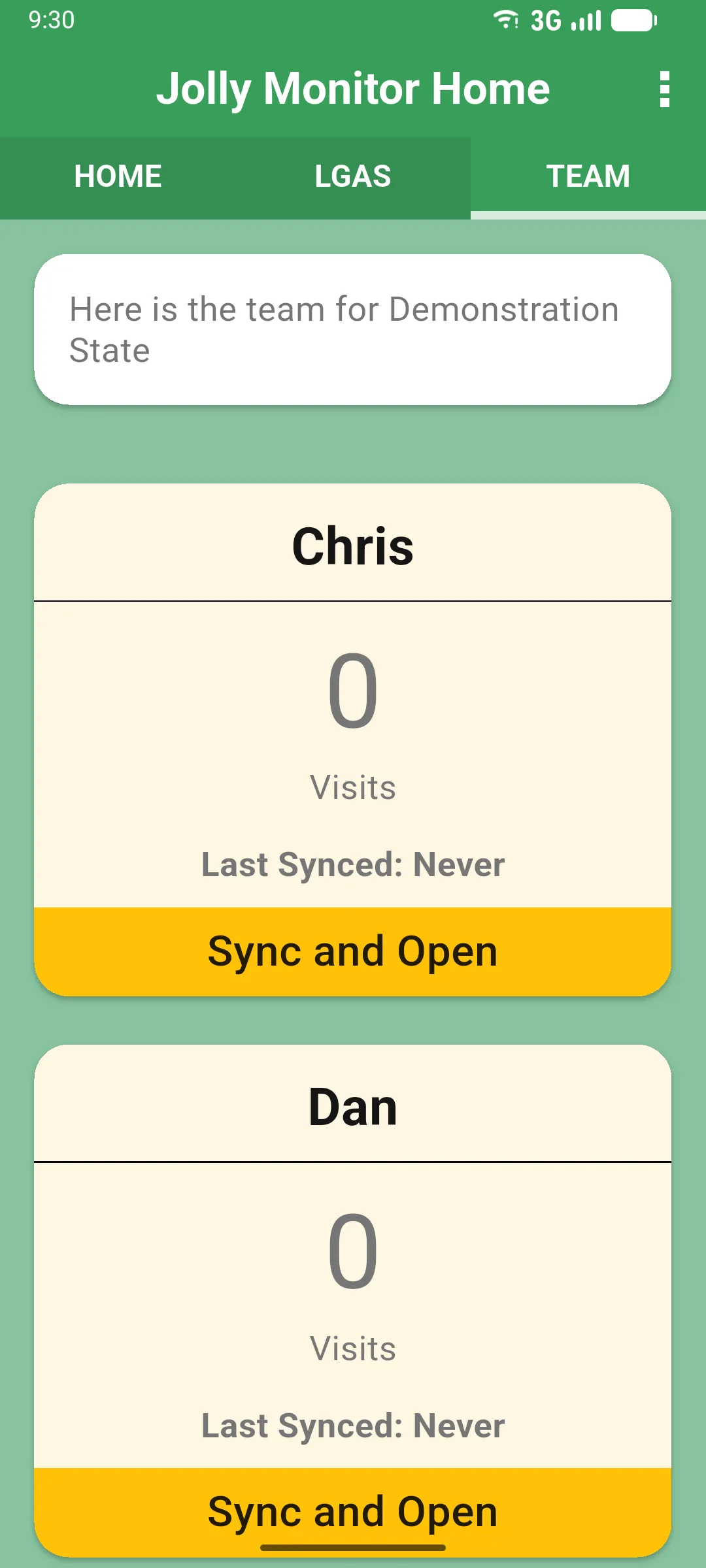
- One card per teammate with their name and number of Visits.
- Date of the last sync for that teammate.
- Yellow button: Open if you already synced their data today, Sync and Open otherwise.
Tap a teammate card to open their profile (read-only). See Opening a monitor’s profile for what you can do from there, including entering a paper visit on their behalf.
Next: Browsing districts and schools