
Logging in
First time using Jolly Monitor? Install it from the App Store (iOS) or Google Play (Android), then tap the Jolly Monitor icon on your phone to open it.
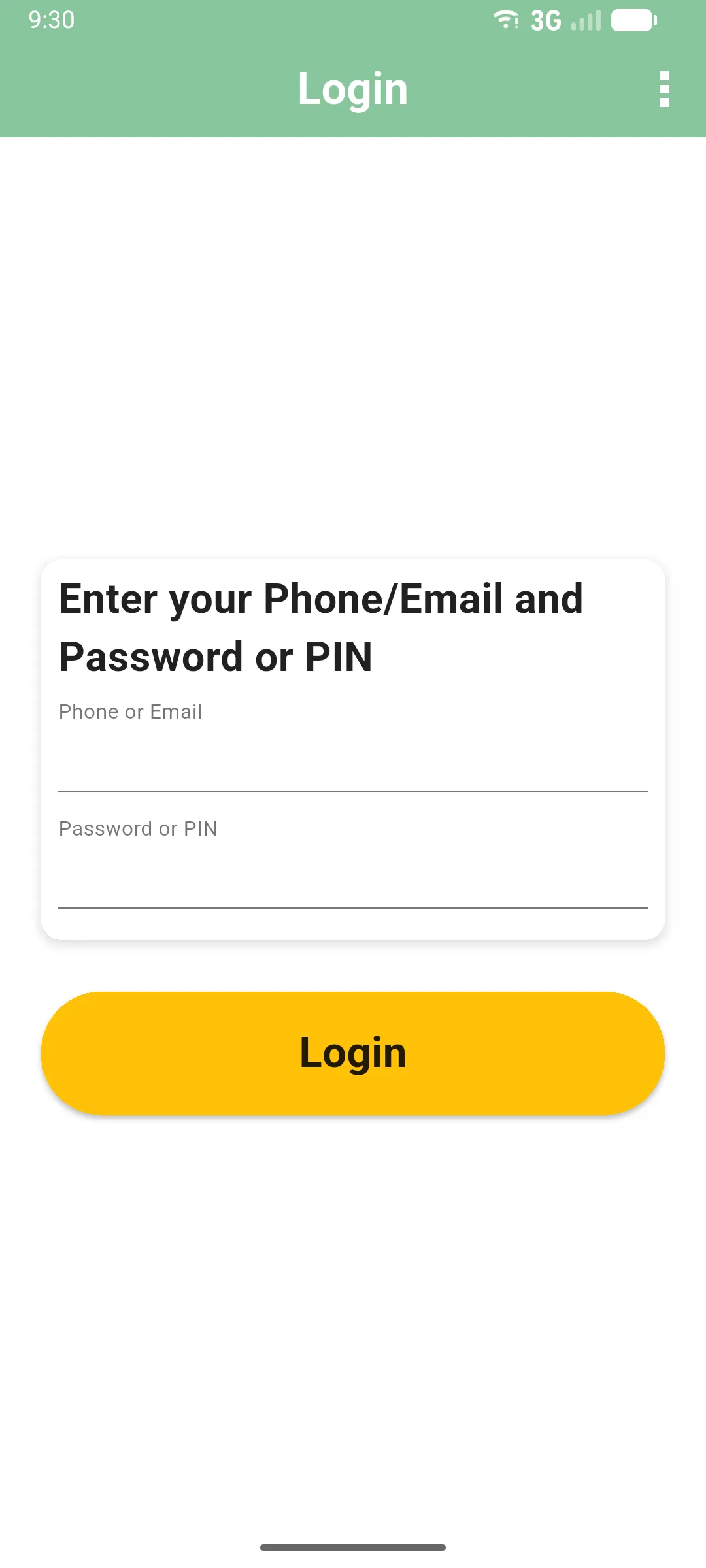
When the app opens, you’ll see the Login screen. Sign in to start working.
What you’ll need
Section titled “What you’ll need”- Your phone number or email registered for the app.
- Your password or PIN.
If you don’t have these, contact the person who set up your account.
- In Phone or Email, type your registered phone number or email address.
- In Password or PIN, type your password or PIN.
- Tap the yellow Login button.
The app syncs your data. If required tutorials are pending, it opens Tutorials first; otherwise it takes you to the home screen. See Tutorials and your certificate for guided practice and language settings. The first sign-in needs an internet connection. After that, the app works offline. You will need an internet connection again later to sync back to the server.
After a password change
Section titled “After a password change”If the app asks you to sign in again because your password changed, use the same account with the updated password. That recovery flow preserves pending work; sync it after signing back in. Keep the app installed and contact support if you cannot regain access. See account help.
Next: Your home screen