
The School page
The School page brings together everything recorded about one school. Reach it from the Schools table of a district, or from the breadcrumbs after a drill-down. The school’s name is the heading.
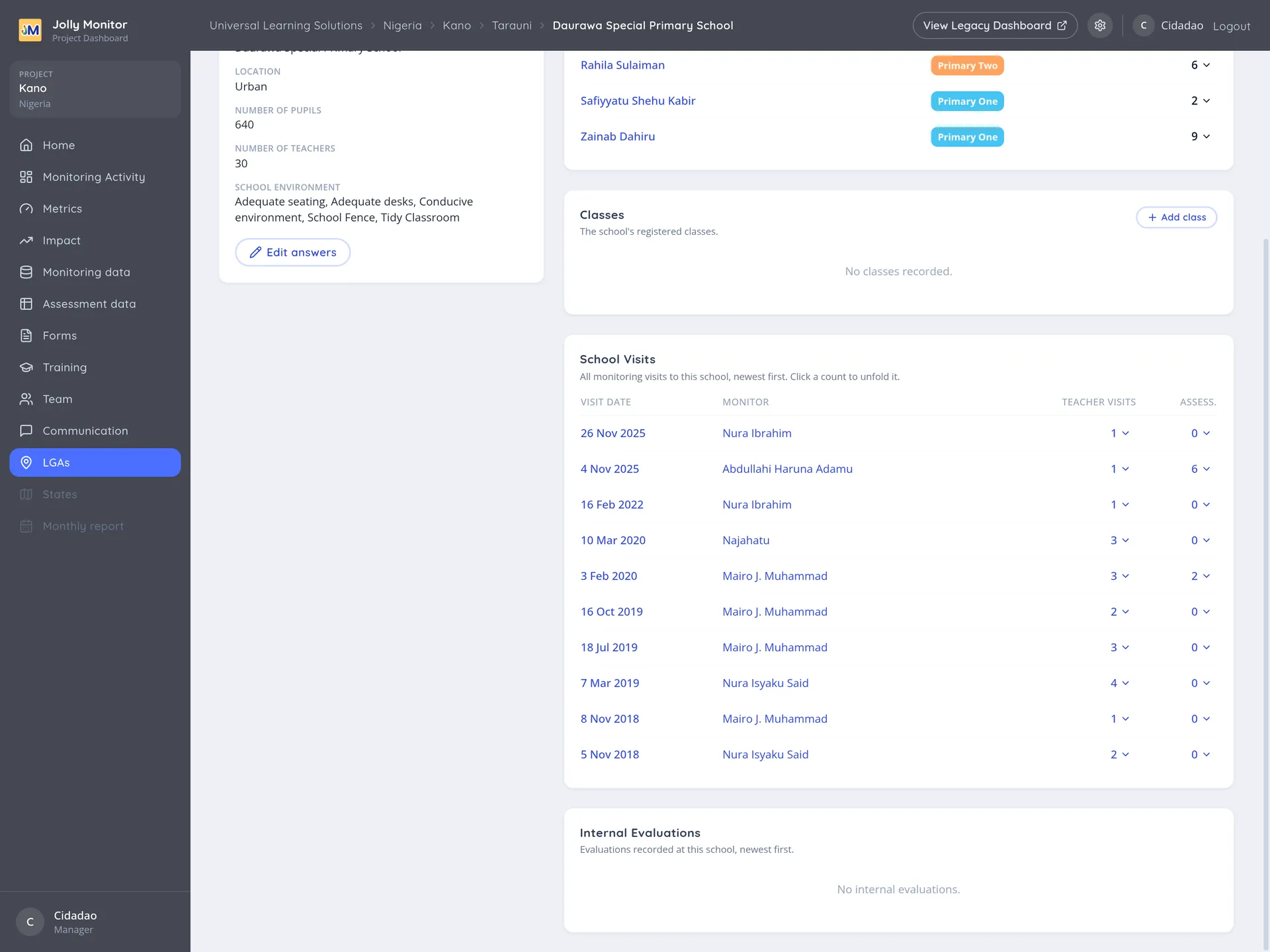
The school’s details
Section titled “The school’s details”The School record card holds what has been collected about the school: the district it belongs to, and whatever else the monitoring form asks, such as its location, its number of pupils and teachers, and the condition of its buildings.
Edit answers changes those collected answers, as opposed to Edit, which changes the school’s name.
The four tables
Section titled “The four tables”- Teachers: each teacher with their Role and their Teacher visits count. The name links to the teacher.
- Classes: the school’s classes with their teacher and year. A dash appears where a class has no teacher or year set.
- School Visits: Visit date (a link to the visit), the Monitor who made it, and counts of teacher visits and assessments.
- Internal Evaluations: evaluations carried out by the school itself rather than by a visiting monitor. Each one opens its own page, with the evaluator, the class and the assessments taken.
Actions
Section titled “Actions”- Edit: change the school’s name.
- Merge: combine this school with another in the same district, for when the same school was recorded twice.
- Delete: remove the school, after a confirmation.
- Add teacher and Add class: add to the tables directly. These two are administrator actions; the rest need a manager or project staff.
Reading a school in one pass
Section titled “Reading a school in one pass”The four tables answer four different questions, and read in order they give a picture of the school quickly:
- Teachers tells you how big the school is and who is there.
- Classes tells you whether the registers are being kept up to date, because empty teacher or year cells show here first.
- School Visits tells you how much external monitoring the school receives, and when it last did.
- Internal Evaluations tells you whether the school is doing its own quality assurance.
A school with many teachers, few visits and no internal evaluations is one nobody is watching, from either direction.
Next: The Teacher page