
School visits and teacher visits
A school visit is one trip a monitor made to one school on one day. Inside it sit the teacher visits: the individual lessons observed during that trip.
That nesting explains a difference you see all over the dashboard. School visits and teacher visits are counted separately, and the second number is usually larger, because one trip to a school normally means observing several teachers.
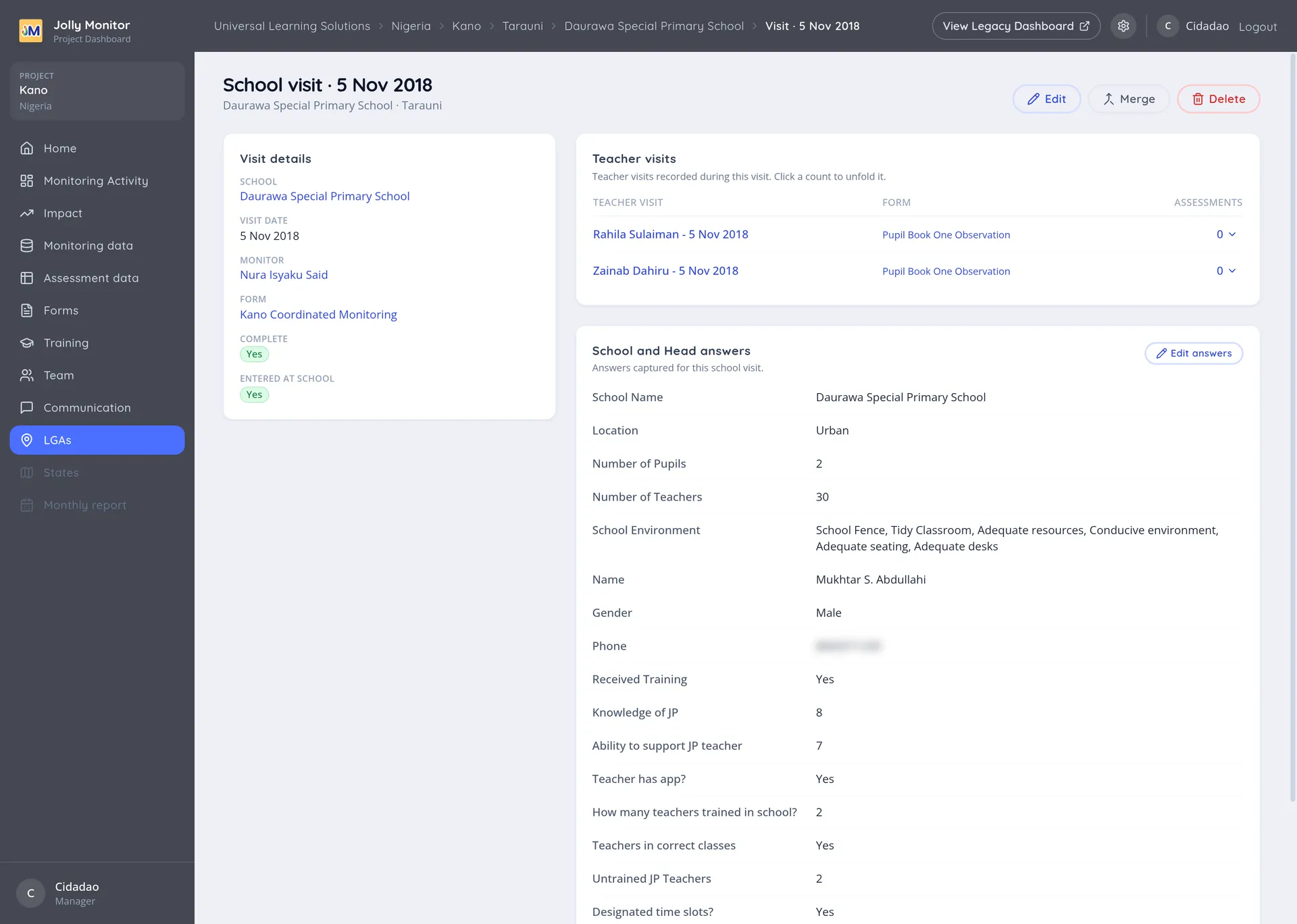
The School Visit page
Section titled “The School Visit page”The page is titled with the date of the visit.
Visit details
Section titled “Visit details”Who made the visit and when, and the form they used.
Teacher visits
Section titled “Teacher visits”The teachers observed during that visit, each with the Form used and the number of Assessments taken. Each row opens the teacher visit itself.
School and Head answers
Section titled “School and Head answers”The answers collected about the school and its head teacher during the visit, as opposed to the answers about individual lessons. Edit answers (managers) changes them.
Actions
Section titled “Actions”For managers: Edit changes the date and monitor, Merge combines this visit with a duplicate, and Delete removes it after a confirmation.
The Teacher Visit page
Section titled “The Teacher Visit page”A teacher visit is one observed lesson. Its page holds:
- Teacher visit details: who was observed, when, by whom, and the answers the monitor recorded during the lesson.
- Pupil assessments taken during it, each opening its own page.
These recorded answers are the raw material behind most metrics: whether the teacher was attempting Jolly Phonics, whether pupils had books, how many lessons a week were being taught.
Teachers with and without visits
Section titled “Teachers with and without visits”From a district, a link opens the coverage view. It answers the question the activity counts cannot: not how many visits happened, but who was missed.
- A Visited and To visit toggle switches between the teachers seen in the period and those not.
- Counts by category show, for example, Head Teachers 0/188: how many of that category have been visited out of how many exist.
- Print produces a version to take into a meeting or out to the field.
Next: Pupil assessments