
Adding a pupil assessment
Pupil assessments in the teacher workflow belong to a class assessment round. Start the round and choose its form and class first.
1. Check the class roster
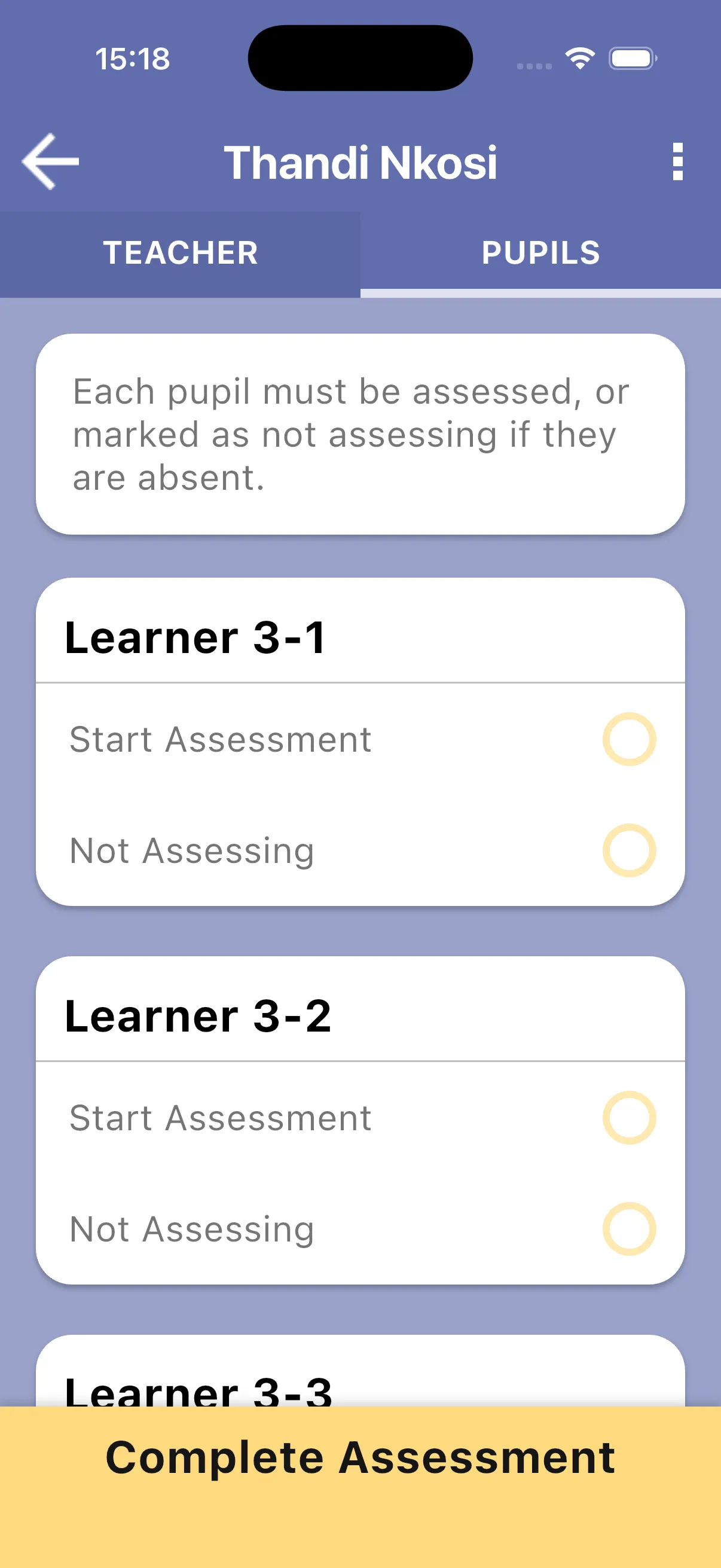
Section titled “1. Check the class roster”Open the round’s pupil list. It contains the pupils registered in the assigned class. If the class is empty, register pupils in Classes & Pupils before assessing them.
2. Choose the pupil
Section titled “2. Choose the pupil”Tap the pupil’s assessment action to start. If you already began that pupil’s assessment, resume it from their card. The assessment stays linked to their pupil record. Teacher rounds do not offer Continue Without Selecting Pupil.
The app reuses the assessment form selected for this round. You do not choose another form each time you assess a pupil.
3. Complete the assessment sections
Section titled “3. Complete the assessment sections”Complete the assigned Pupil Questions, then use Start or the available resume action on each assessment section. Finished sections can be reviewed. Follow Running a pupil assessment for scoring and timing.
Pupils you are not assessing
Section titled “Pupils you are not assessing”Choose Not assessing on the roster card for an absent pupil or anyone who will not be assessed in this round. Their record remains in the class. Tap Reset to undo the choice if you need to assess them after all.
Before you can complete the round, every pupil in the assigned class must have a completed assessment or be marked Not assessing.
Next: Pupil questions