
Teachers and invitations
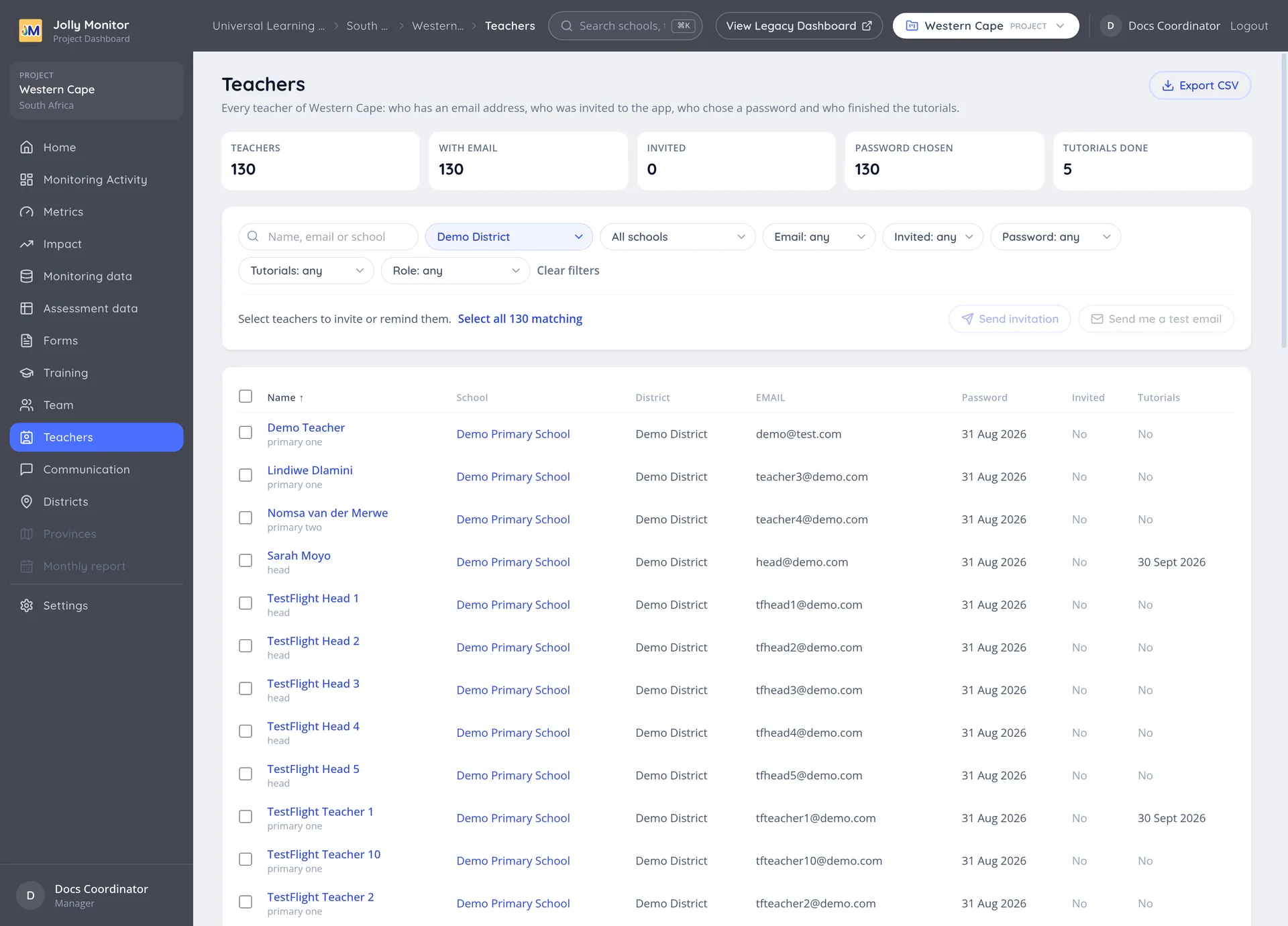
Teachers, in the sidebar, lists every teacher of the organisation, the country or the project you are in. It is where you see how far each teacher has got with the app, and where you send them their invitation.
The figures
Section titled “The figures”Five figures sit above the list and follow the filters:
| Figure | What it counts |
|---|---|
| Teachers | The teachers that match the filters |
| With email | Those with an email address, the only ones an invitation can reach |
| Invited | Those who have been sent an invitation |
| Password chosen | Those who have chosen their password |
| Tutorials done | Those who have finished the app tutorials |
Finding teachers
Section titled “Finding teachers”The search box looks in the name, the email address and the school. The filters next to it narrow the list by place and by progress:
- by place: country and project when you are above them, then district, and school once a district is chosen
- Email: with or without an email address
- Invited: invited or not invited
- Password: chosen or not yet
- Tutorials: done or not done
- Role
Clear filters removes them all. The filters are kept in the address of the page, so a filtered view can be bookmarked or sent to a colleague as a link.
The columns
Section titled “The columns”| Column | What it shows |
|---|---|
| Name | The teacher, with their roles underneath; it opens the Teacher page |
| School and district | Where they teach; above project level the project is shown too |
| The address for managers; other roles only see whether there is one | |
| Password | The date they chose it, or No |
| Invited | The date of the invitation, with the date of the last reminder underneath |
| Tutorials | The date they finished them, or No |
Click the heading of a column to sort by it (every column except Email). Export CSV, for managers, downloads the list as it is filtered, with phone numbers included.
Inviting teachers to the app
Section titled “Inviting teachers to the app”An invitation is an email with the teacher’s own link to choose a password and the links to download the app. Senior managers and administrators can send it.
- Filter the list to the teachers you mean, for example Not invited in one district.
- Tick the teachers, or tick the box in the heading to take the whole page. Select all … matching, which carries the number of teachers, takes everyone the filters match, on every page.
- Choose Send invitation.
- Check the summary and confirm.
The summary says how many teachers will get the email and who is left out:
- teachers without an email address
- teachers who have already chosen a password
- teachers who were invited in the last 7 days
- teachers already waiting in another send
A send to more than 10 teachers starts 15 minutes after you confirm, and can be cancelled until then. For more than 100 you type the number of emails to confirm, and more than 500 need an administrator. There is also a limit on how many of these emails an organisation can send in a day.
Reminders about the tutorials are sent from Tutorial completion.
Next: Custom reports