
A staff member's profile
Every monitor has a profile. It is the page to open both when you want to see somebody’s work and when somebody reports that the app is not behaving.
What the profile shows
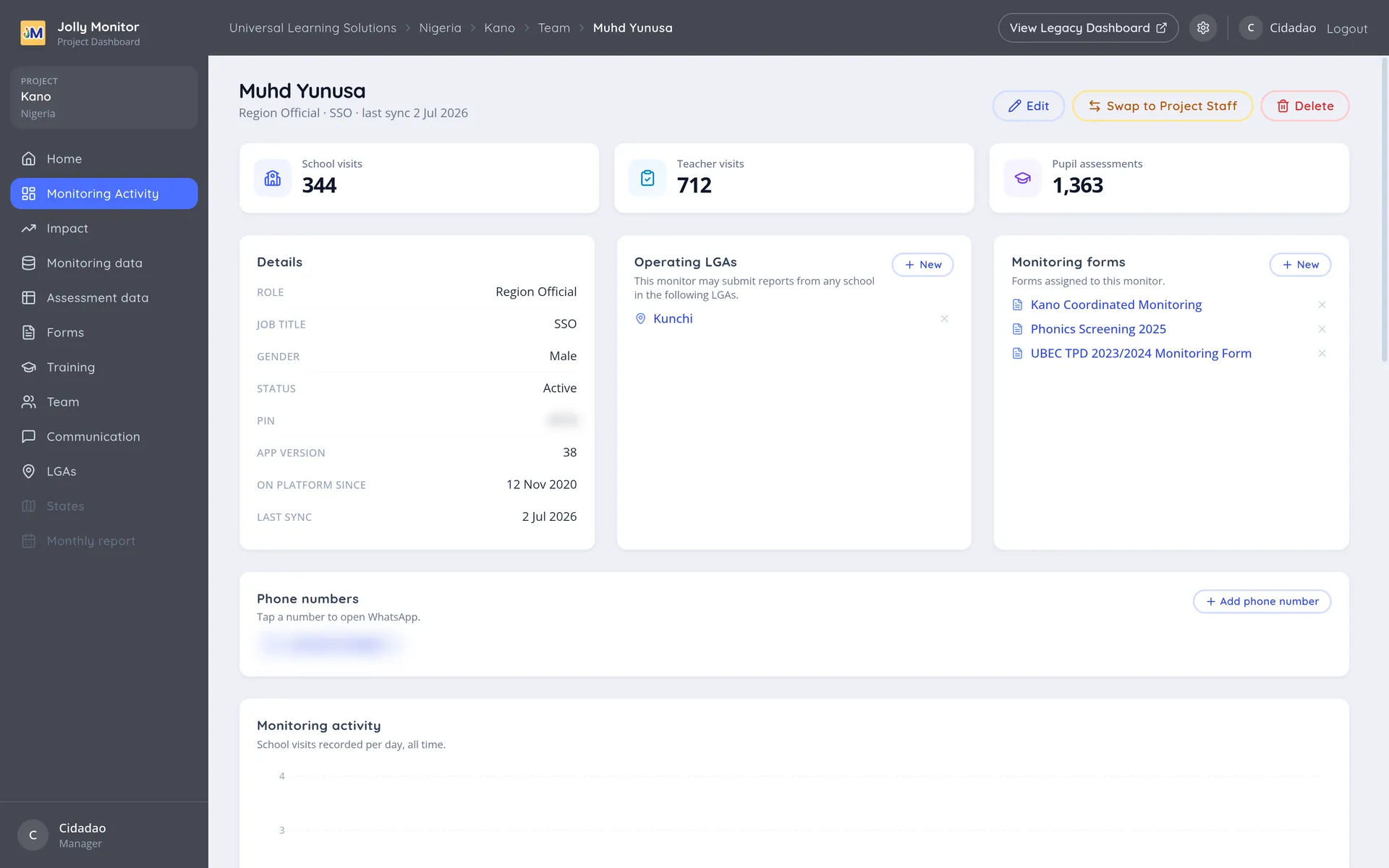
Section titled “What the profile shows”The heading is the person’s name, and beneath it a line giving their role, their job title and their last sync.
Three figures summarise their work: School visits, Teacher visits and Pupil assessments.
The Details card holds their role, job title, gender, their status (Active, or deactivated so the account cannot sign in) and their pin.
Below that you find the districts they operate in (region officials only) and the forms assigned to them, each card carrying a New button for managers, plus their recent visits.
Actions
Section titled “Actions”- Edit: change their details, including their pin.
- Swap: move them between region official and project staff.
- Delete: remove the person.
Which actions you see depends on your role. Editing and deleting need a junior manager or above (the manager levels are covered in Roles and what each one sees).
Forms assigned
Section titled “Forms assigned”The forms listed on a profile are the ones that monitor can open on their tablet. If somebody cannot find the right form in the field, this is where to look: a manager assigning it here puts it on their device at the next sync.
Districts assigned
Section titled “Districts assigned”The districts on a profile decide which schools appear in their app. A monitor who cannot find a school is usually missing that district.
When somebody leaves
Section titled “When somebody leaves”Deleting a monitor keeps their recorded work. The visits, observations and assessments stay attached to the schools and teachers they were made at, so the history of a school stays complete even after the person who built it has gone.
Next: Pins and rollout