
Printing forms
The dashboard can produce a printable, paper version of a form for monitors who need to work offline. It is a read-only view laid out for printing; nothing on it can be edited.
You reach it with the Print button on the School Form Specification view. It opens in a new tab, headed Printable form, with its own Print button.
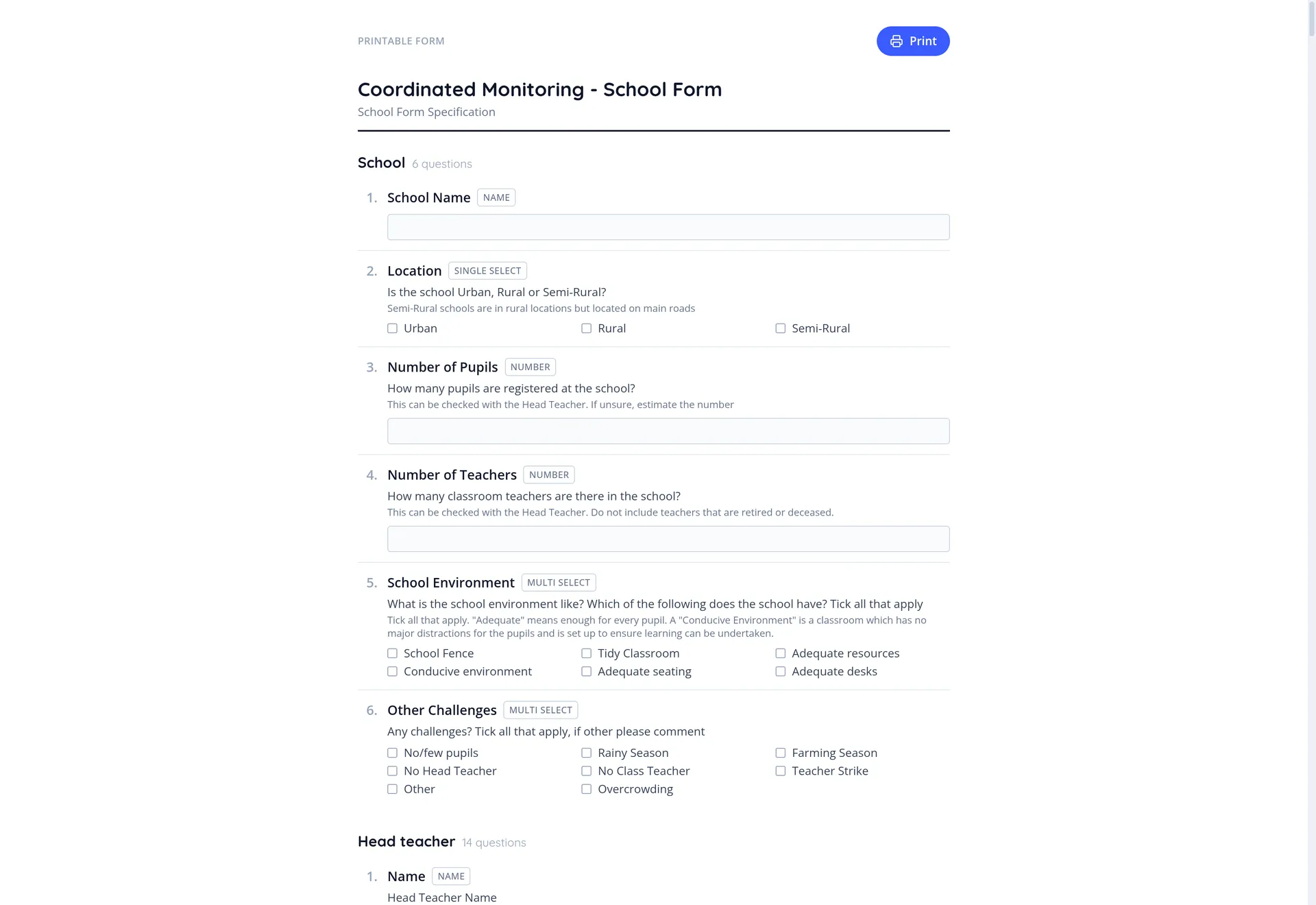
One document, every section
Section titled “One document, every section”The printable form covers the whole specification in a single document, with a heading for each subject and the number of questions in it:
- School
- Head teacher
- Class teacher
- Class teacher observation
- Pupil
How questions appear on paper
Section titled “How questions appear on paper”Each question prints numbered within its section, with its text, its answer type, and any guidance underneath. How the answer area looks depends on the question’s answer type:
- Name, Text, Number, Date and Phone Number print a blank space to write the answer in.
- Teacher Role prints the country’s list of teacher roles to choose from.
- Single Select and Multi Select print their list of options, so the monitor can tick what applies.
- Section Header and Photo questions print no answer area.
Any guidance attached to a question is printed with it, which matters on paper more than on screen: there is no tapping through to help when you are standing in a classroom.
Keeping paper and app in step
Section titled “Keeping paper and app in step”The printable view is generated from the form itself, so it is always current and its questions follow the same order as the tablet. To change what appears on it, edit the underlying form in Form Configuration and print again.
Next: What metrics are