
Finding your way around
Every page shares the same frame: a sidebar on the left and a header bar across the top. What sits inside them changes with your role and your current level, but the layout is always the same.
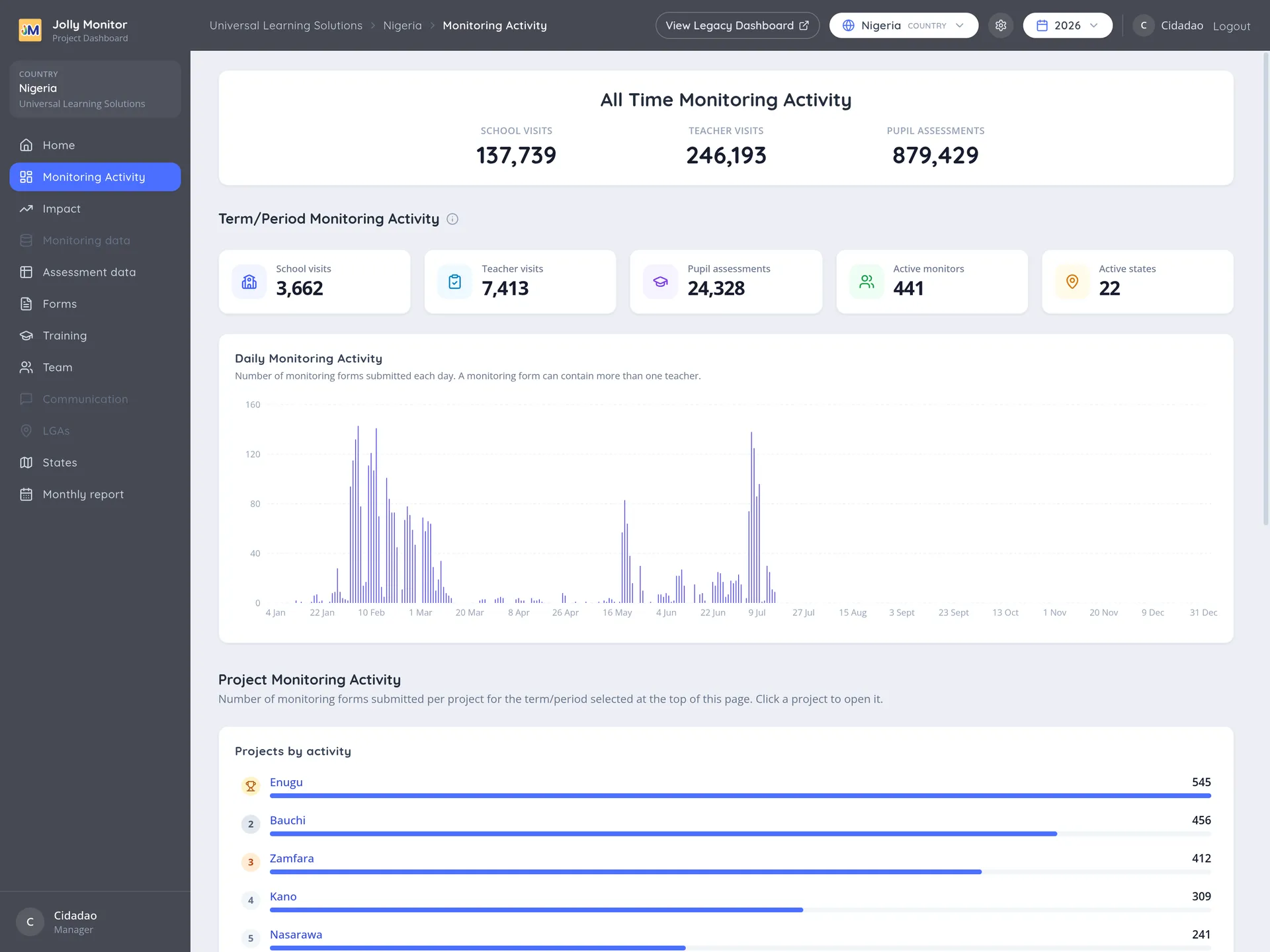
The header bar
Section titled “The header bar”Across the top of every page you have:
- Breadcrumbs showing where you are, for example Universal Learning Solutions › Nigeria › Kano. Click a step to jump back up to it (levels above your own scope stay plain text).
- View Legacy Dashboard, which opens the previous interface.
- The scope selector (managers only; it steps aside while you are on an entity’s detail page), showing your current organisation, country or project.
- The period selector, on the pages whose figures follow a period (the activity overviews, Training, the country Team and the district pages).
- The settings icon, for those whose role includes it.
- Your name and the Logout button.
Breadcrumbs are the quickest way back up the chain after drilling into a school or a visit.
The sidebar
Section titled “The sidebar”The sidebar is your main menu, and it lists the sections of wherever you currently are. Its contents change with the level:
- At organisation level, only Home is active. Everything else appears greyed out, with a tooltip saying where it lives, because those sections need a country or a project to report on.
- At country level there are eight sections, ending with the country’s regions and the Monthly report.
- At project level all ten sections are active; Metrics, Monitoring data, Communication and the districts are the ones that only work here, while the regions entry and the Monthly report stay at country level. The project overview lists all ten.
Some entries take their name from your country’s own vocabulary, so the same section reads States in one country and Regions in another.
The scope selector
Section titled “The scope selector”This is how managers move sideways rather than up and down: from one project to another, or from a project up to its country. It lists the whole organisation, with a search box at the top and the projects assigned to you grouped first. Other roles do not have it: they already live inside their own country or project.
Choosing a time period
Section titled “Choosing a time period”The period selector starts on the current term on most pages (the organisation overview and the Training pages start on All time instead, where the long view is the point). It offers the country’s school years and terms, plus All time and Custom dates pinned at the bottom. Your choice is remembered as you move between pages of the same scope.
Almost every figure in the dashboard follows it.
The settings menu
Section titled “The settings menu”The gear opens the setup pages for your current level, and its contents change with the scope: countries and managers at organisation level, terms and officials at country level, forms and metrics at project level.
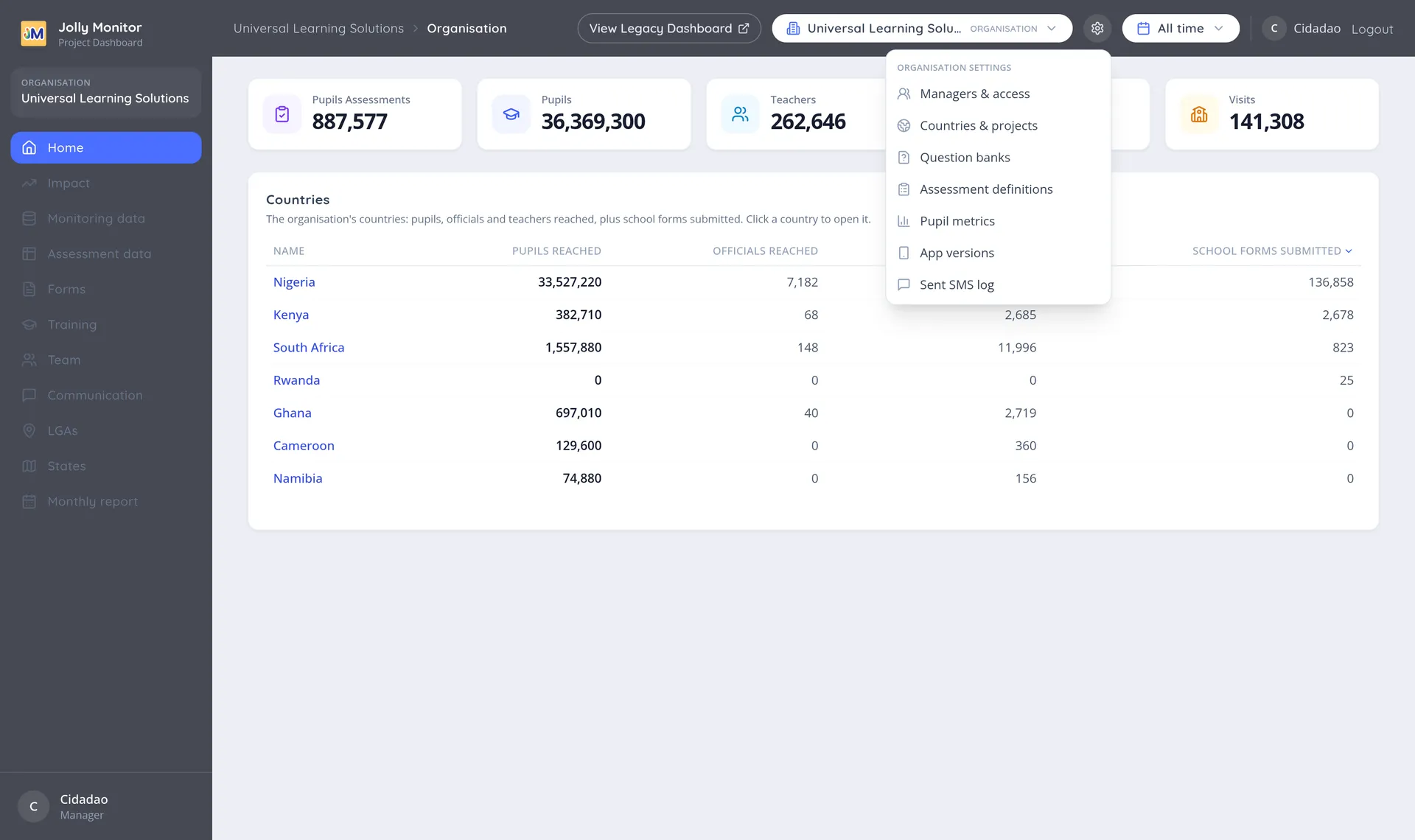
It appears for administrators at organisation level, and for senior managers and administrators inside a country or project. If your role is not high enough it does not appear, and those pages are blocked even by direct link.
See The settings menu for what each entry does.