
The Organisation overview
When you log in as a full administrator, you land on the Organisation overview. This is your home page: at the top of the sidebar is the Jolly Monitor logo, and the Home item always brings you back to this page. It gives you a single view of every country in your organisation and is the starting point for almost everything you set up.
What is on the page
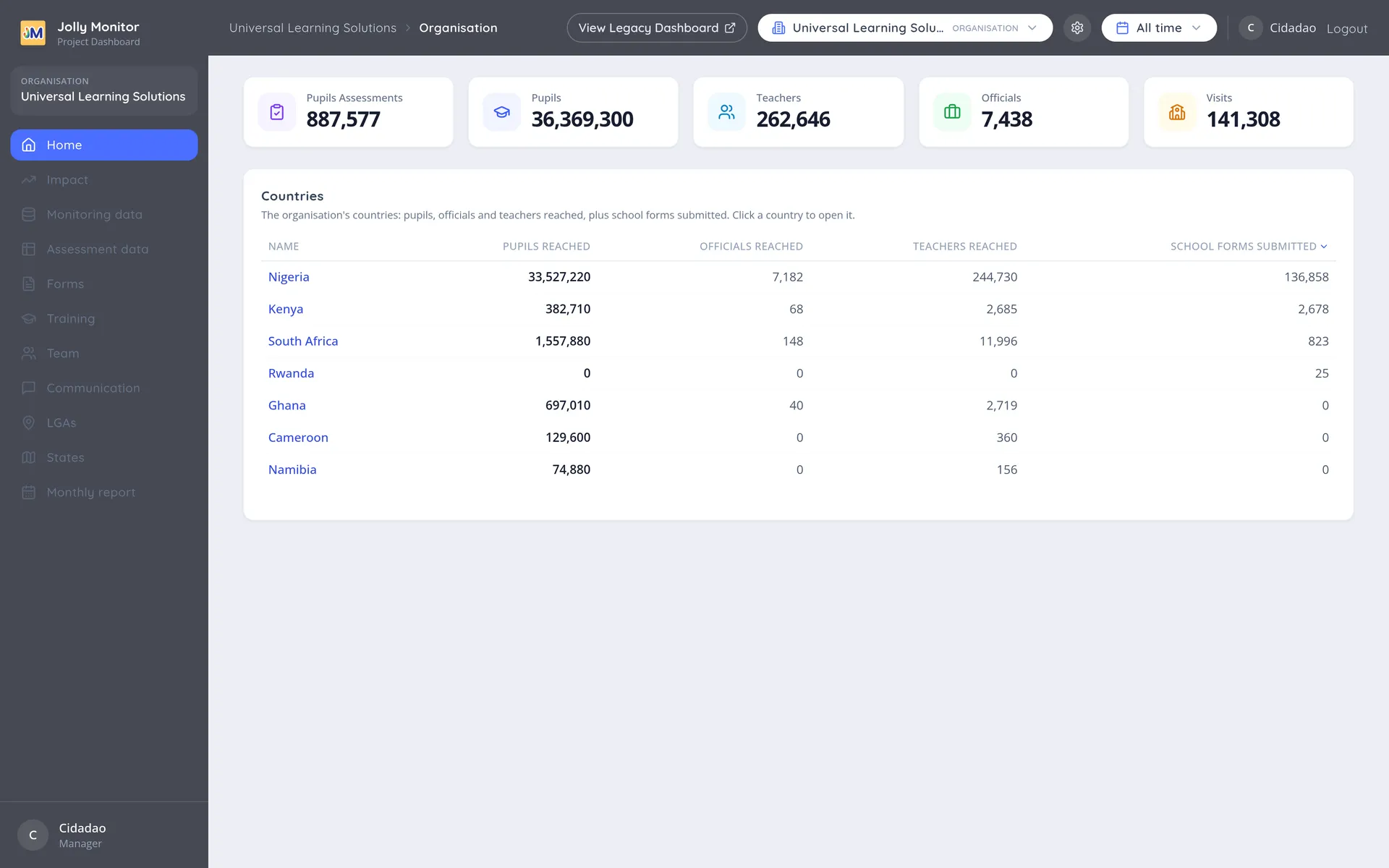
Section titled “What is on the page”From the top down, the Organisation overview shows:
- The header bar, with the breadcrumbs, a View Legacy Dashboard link, the scope selector, the period selector, and a settings icon (the gear). The gear is the administrator setup menu, covered in The settings menu. It only appears for full administrators.
- A Key figures block with organisation-wide totals (Pupils Assessments, Pupils, Teachers, Officials and Visits).
- The Countries table.
The period selector
Section titled “The period selector”In the header bar there is a period selector that defaults to All time. It controls the date range used by the key figures and the Countries table. Open it to pick a school year or a term. The figures and the table reload for the period you choose.
Key figures
Section titled “Key figures”The Key figures block shows organisation-wide totals: Pupils Assessments, Pupils, Teachers, Officials and Visits.
The Countries table
Section titled “The Countries table”The Countries table lists every country in your organisation, one row each. It has these columns:
| Column | What it shows |
|---|---|
| Name | The country name, which is a link into that country |
| Pupils Reached | Pupils reached in that country |
| Officials Reached | Officials reached |
| Teachers Reached | Teachers reached |
| School Forms Submitted | Number of school monitoring forms submitted |
The table is sorted by School Forms Submitted, highest first, so the most active country is at the top. Click any column heading to sort by it instead; long lists shorten to the top ten with a View all link.
Drilling into a country
Section titled “Drilling into a country”Click a Name to open that country’s dashboard. From there you move down the structure: country, then a project, then a district, then a school, and so on. The breadcrumbs across the top of each page let you climb back up at any time.
The Total Reached calculation
Section titled “The Total Reached calculation”The figures in the Pupils Reached column are driven by a metric you can inspect and edit. Open the settings menu and choose Pupil metrics to reach the page where the “Total Reached” calculation is defined, per country and per project. It holds the average class sizes that pupils reached is worked out from; the page lives in the organisation settings, so administrators are the ones who reach and edit it.
Next: Managers