
Deduplication overview
Field data is never perfectly tidy. The same school can be registered twice under slightly different names, a teacher can be entered once by each of two monitors, and a single visit can be recorded more than once. Deduplication is the tool that finds these suspected duplicates so a reviewer can confirm and tidy them.
The system looks for suspected duplicates of five kinds:
- Schools
- Teachers
- School visits
- Teacher visits
- Pupil assessments
It does not delete or merge anything on its own. It flags candidates, and a person decides what happens to each one.
Why duplicates matter
Section titled “Why duplicates matter”A duplicate is not just untidy, it distorts the figures in both directions at once. Two records for one school split its visits in half, so the school looks under-visited and the district looks worse than it is. Two records for one teacher break their rating history in two, so progress over time disappears. A visit recorded twice inflates a monitor’s activity and makes a district look better covered than it is.
Clearing duplicates is what keeps the activity counts and the impact tables honest.
The country summary
Section titled “The country summary”Open Deduplication from the country settings menu. The page lists every district in the country, grouped by region, with each district’s counts taken from its latest evaluation.
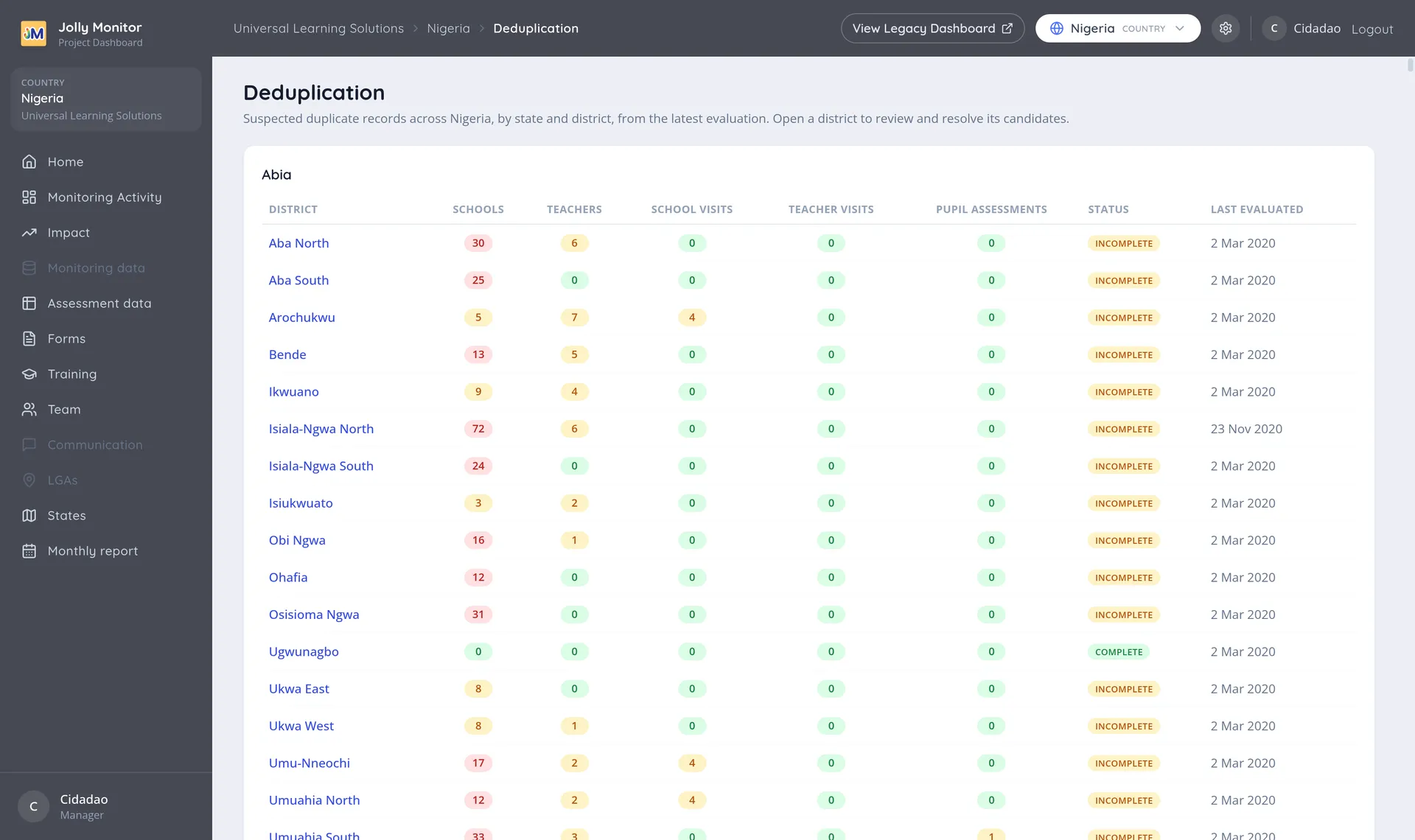
Each row shows one district with:
| Column | What it shows |
|---|---|
| District | The district, a link into its own deduplication page |
| Schools, Teachers, School visits, Teacher visits, Pupil assessments | How many candidates of each kind were found (pairs; for visits, groups) |
| Status | Complete, Incomplete or Not evaluated |
| Last evaluated | The date of the last evaluation |
Reading the status and the dates
Section titled “Reading the status and the dates”Incomplete means the district still has candidates waiting for a decision. Complete means every candidate found has been resolved. Not evaluated means the district has never been evaluated at all, which is where every district starts.
The Last evaluated date is as important as the counts. A district evaluated years ago with zero candidates is not clean, it is simply stale: everything recorded since then has never been checked. Sort your attention by the date first, and by the counts second.
The project summary
Section titled “The project summary”The same page at project level, under Deduplication in the project settings menu, shows only that project’s districts, with an Evaluate for duplicates action for the whole project, shown to administrators.
Where duplicates come from
Section titled “Where duplicates come from”Knowing the causes helps you predict when to run an evaluation:
- Two monitors, one school. Two people visit the same school in the same week and each registers it, spelling the name differently. This is the most common source by far, and it is why the school lists are usually the longest.
- A bulk import. The import matches rows against existing teachers by name or phone number, so a teacher whose name is written differently, with no phone number to rescue the match, comes in as a copy. A misspelled school name is worse: it creates a whole new school. See Teacher import.
- A failed sync. A monitor’s app fails to sync, they record the visit again, and later both copies arrive.
- A transferred teacher. A teacher moves school and is entered afresh at the new one, leaving their history split across two records.
The first three produce pairs that should be merged. The last one is a judgement call: merging keeps one continuous history, which is usually what you want for tracking a teacher’s progress.
What merging actually does
Section titled “What merging actually does”Merging keeps one record and moves the other’s teachers, visits (with their assessments) and registered classes onto it. A class the survivor already has, with the same name and year, is not duplicated: the absorbed class’s pupils and internal evaluations join it instead. Nothing else is deleted except the empty shell of the absorbed record.
This is why merging is almost always preferable to deleting. Deleting a duplicate school would take its visits with it, and those visits really happened.
Getting to the review
Section titled “Getting to the review”Click a district to open its own page, which is where the candidates actually live and where an evaluation can be run for just that district. See Evaluating a district.
Next: Evaluating a district