
Pupil questions
The Pupil Questions section is the first section listed on the pupil assessment home. It collects general information about the pupil before the actual reading sections begin.
1. Open the questions
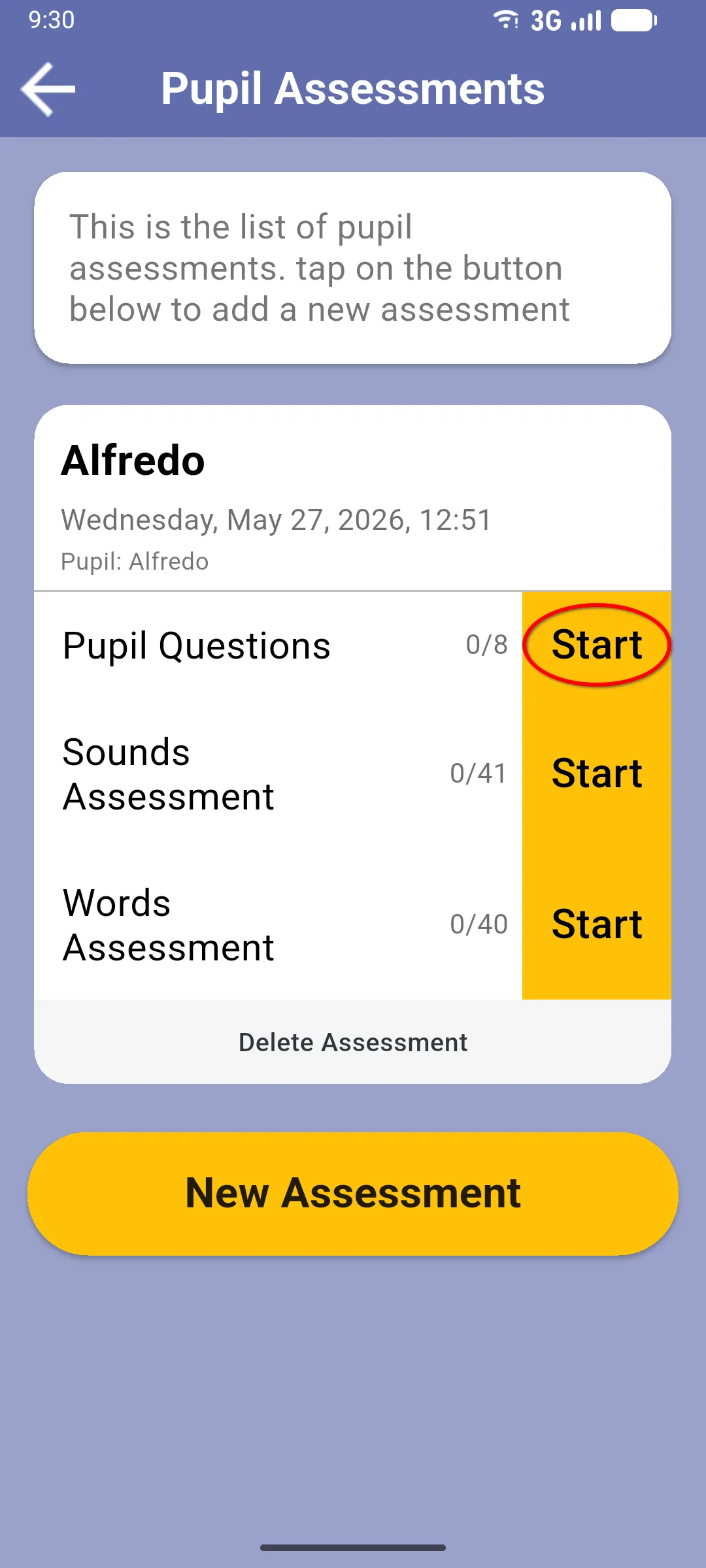
Section titled “1. Open the questions”From the pupil assessment home, tap the yellow Start button under Pupil Questions.
2. Answer the questions
Section titled “2. Answer the questions”Work through the questions one by one. The exact list depends on the form your project has configured.
The pupil’s name and age sit at the top of the screen with an Edit button next to them. If the name or age is wrong, tap Edit to fix them before continuing. In the normal case they’re already correct and you can leave them alone.
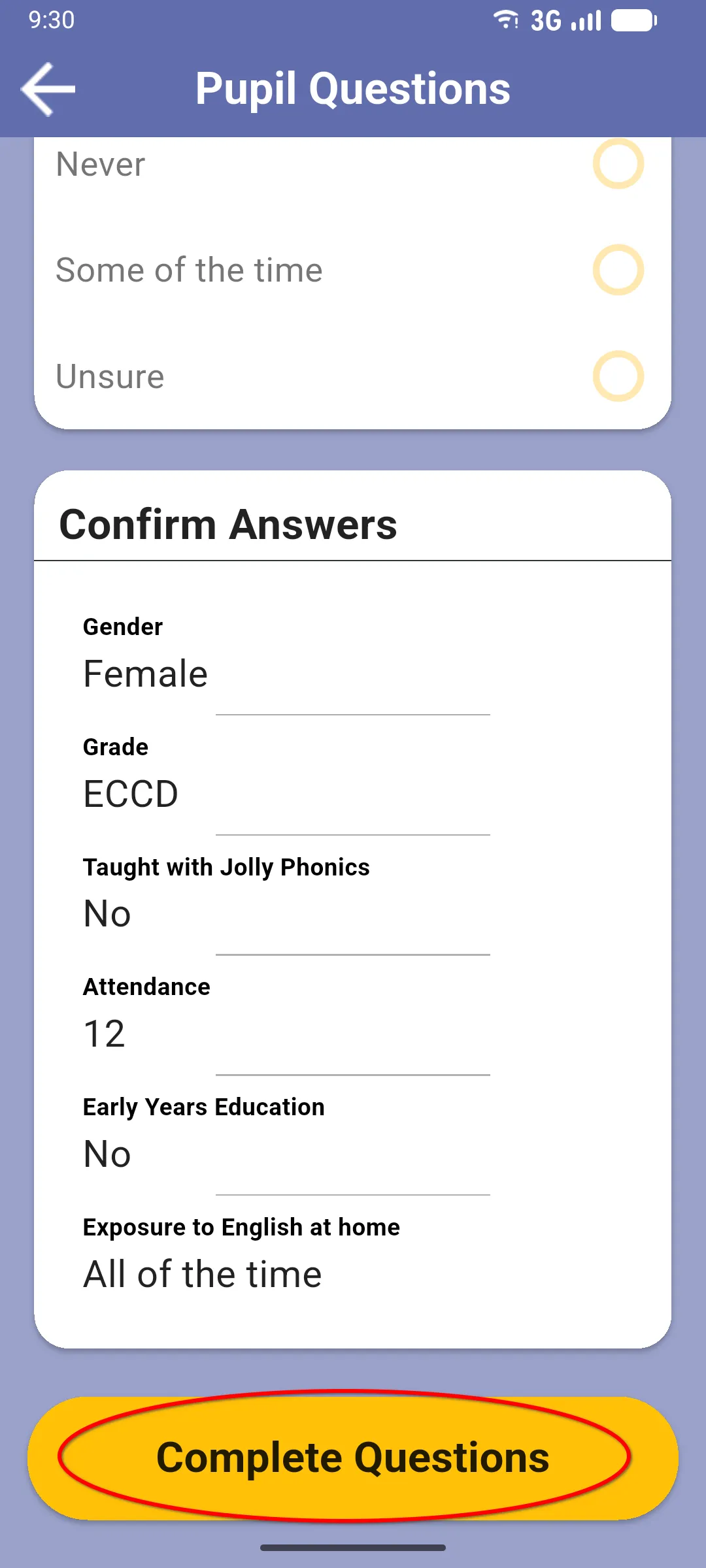
When every question is answered, tap the yellow Complete Questions button at the bottom.
3. Confirm completion
Section titled “3. Confirm completion”You go back to the pupil assessment home. The Pupil Questions row now shows the count in green (e.g. 5/5) and the button changes to Review.
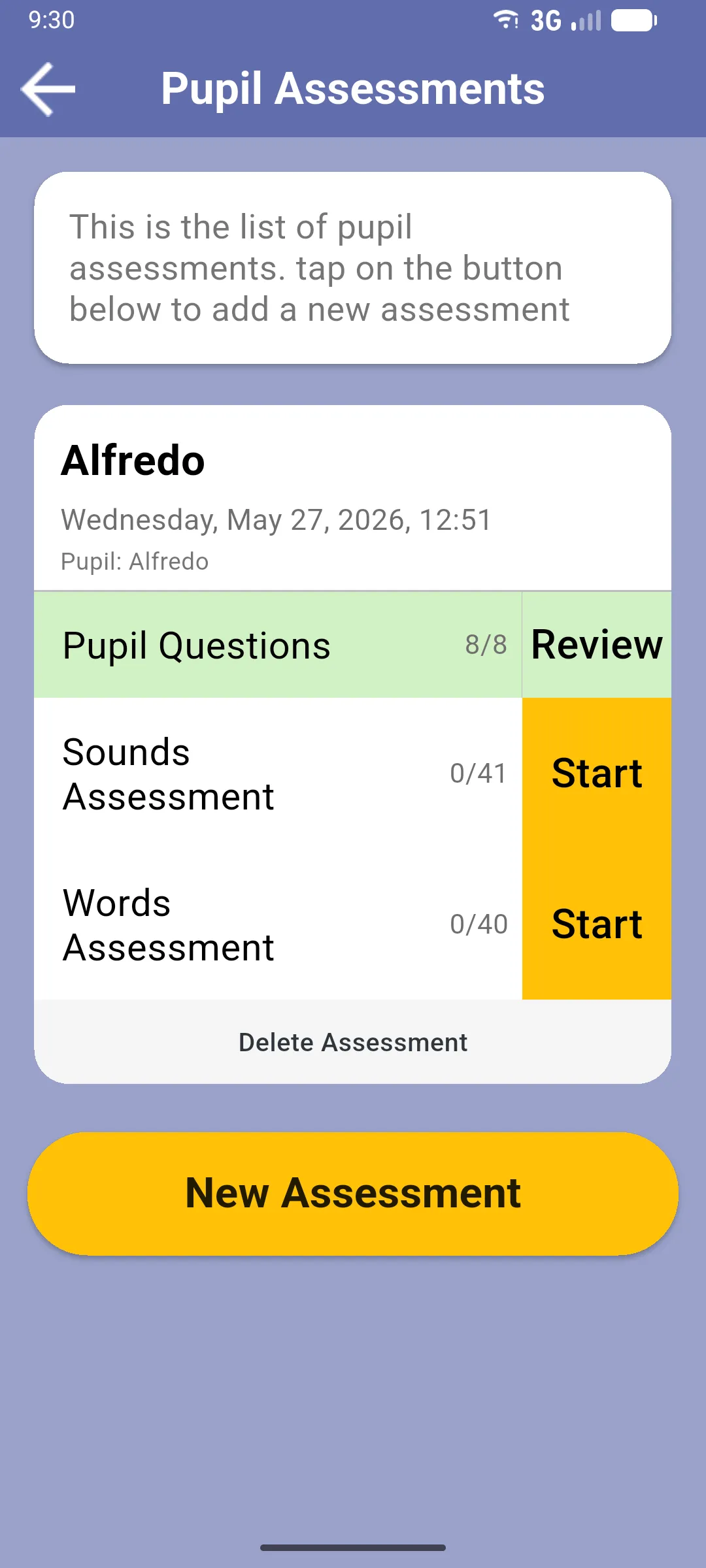
You can tap Review anytime to revisit your answers and edit them, in case you change your mind or something is incorrect.
Next: Running a pupil assessment