
Completing an assessment round
1. Check every pupil
Section titled “1. Check every pupil”On the class roster, make sure every registered pupil has a completed assessment or is marked Not assessing for this round. Finish any partly completed pupil assessments. Use Not assessing for pupils who will not be assessed, such as pupils who are absent; tap Reset to undo it if they return.
2. Check teacher questions, if present
Section titled “2. Check teacher questions, if present”If the round has a TEACHER tab, finish its required questions. A round without teacher questions does not show this tab.
3. Tap Complete Assessment
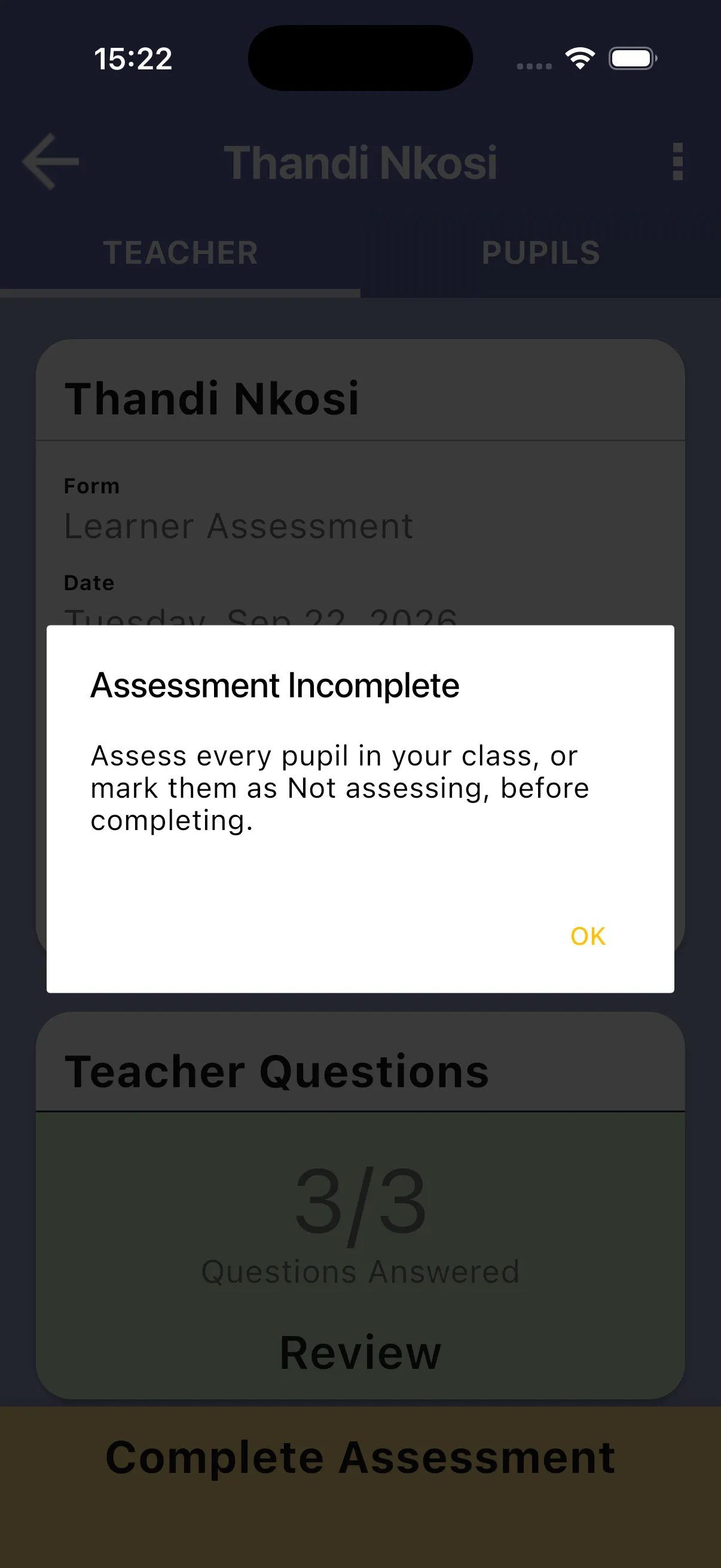
Section titled “3. Tap Complete Assessment”Tap Complete Assessment at the bottom of the round. If required questions or roster entries are outstanding, the app explains what remains. Return to those items, finish them and try again.
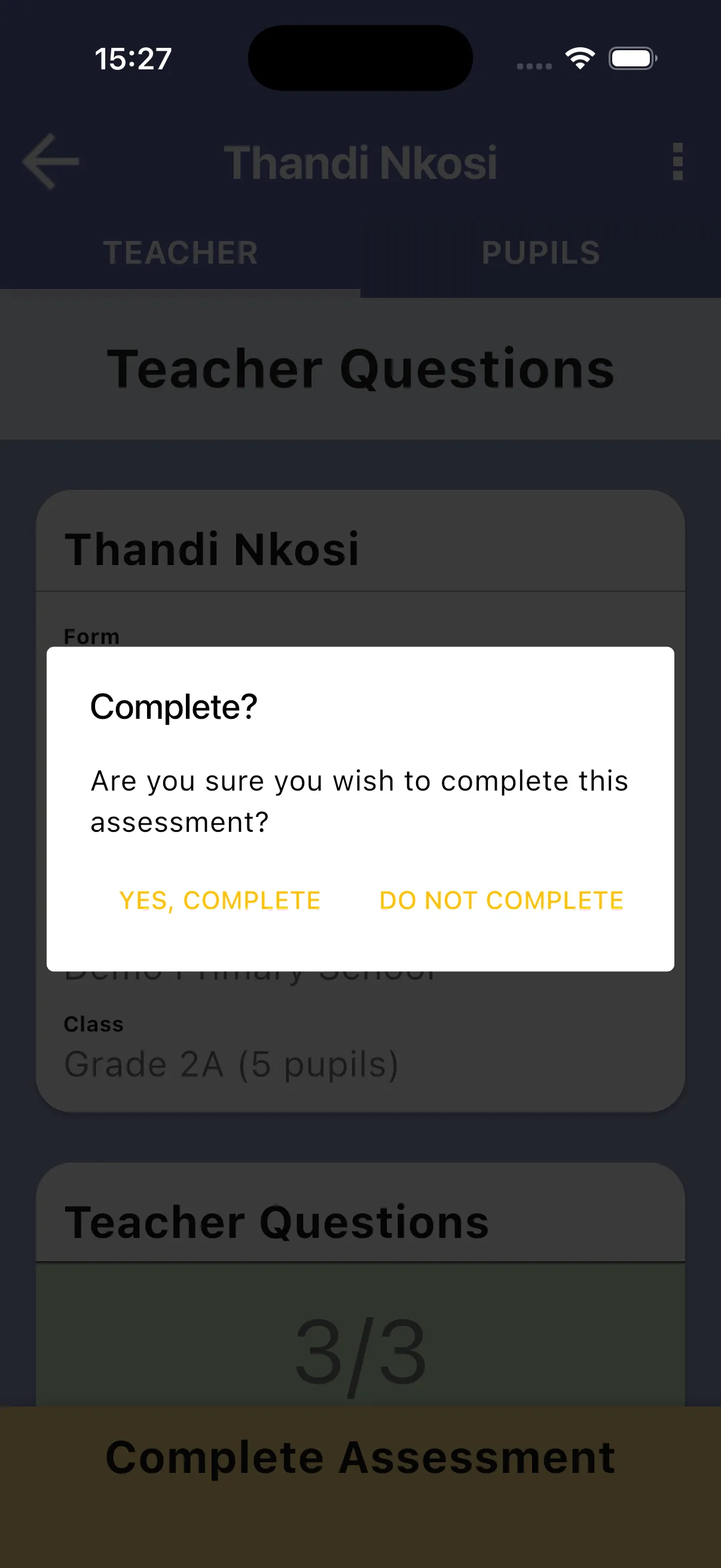
The confirmation gives you Yes, complete and Do not complete. Choose Yes, complete only when the round is ready. Dismiss the success message to return to the school home screen.
4. Sync the completed work
Section titled “4. Sync the completed work”Completion saves the round locally; it does not itself upload it. Tap Sync on the sync banner or in the school menu and wait for success. The round is available under Past Assessments. See past assessments for reviewing or reopening your own work.