
Classes & Pupils
Open CLASSES on the school home screen. Regular teachers see their own classes. Head teachers see the school’s classes grouped by teacher.
Create or edit a class
Section titled “Create or edit a class”Tap New Class, enter its Name, and enter Total learners if available. Save the class. A class created from your Classes tab is assigned to you for the current year. Open a class and use its menu to edit its details later.
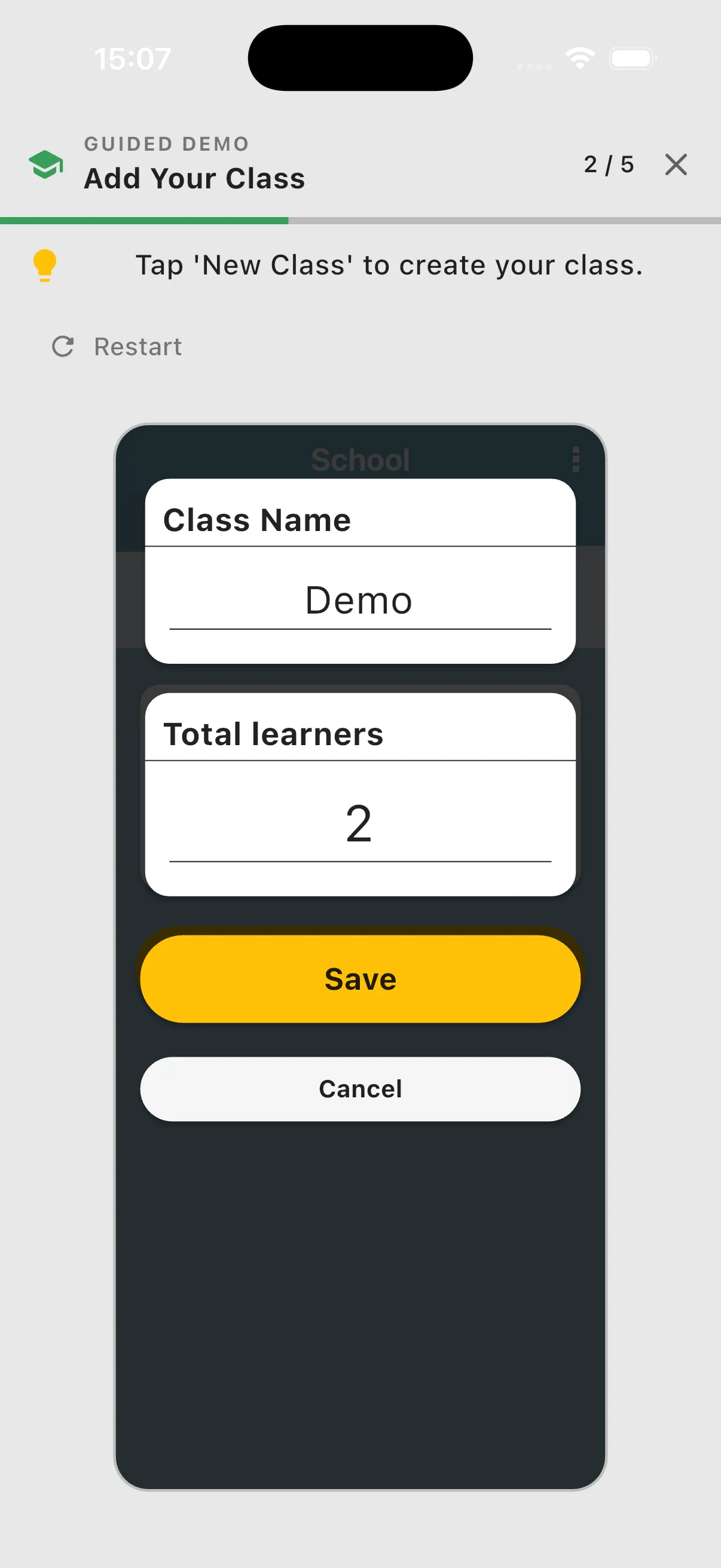
Total learners describes the size of the class. It is separate from the number of individual pupil records registered in the app. Entering a total does not create pupil records: add each pupil who needs to be on the assessment roster.
Register pupils
Section titled “Register pupils”Open the class and tap Add Pupil. Enter the pupil’s Name and save, then complete the assigned pupil-information questions. Use the full name needed to identify the pupil. Additional fields depend on the form; age and other example questions are not universal requirements.
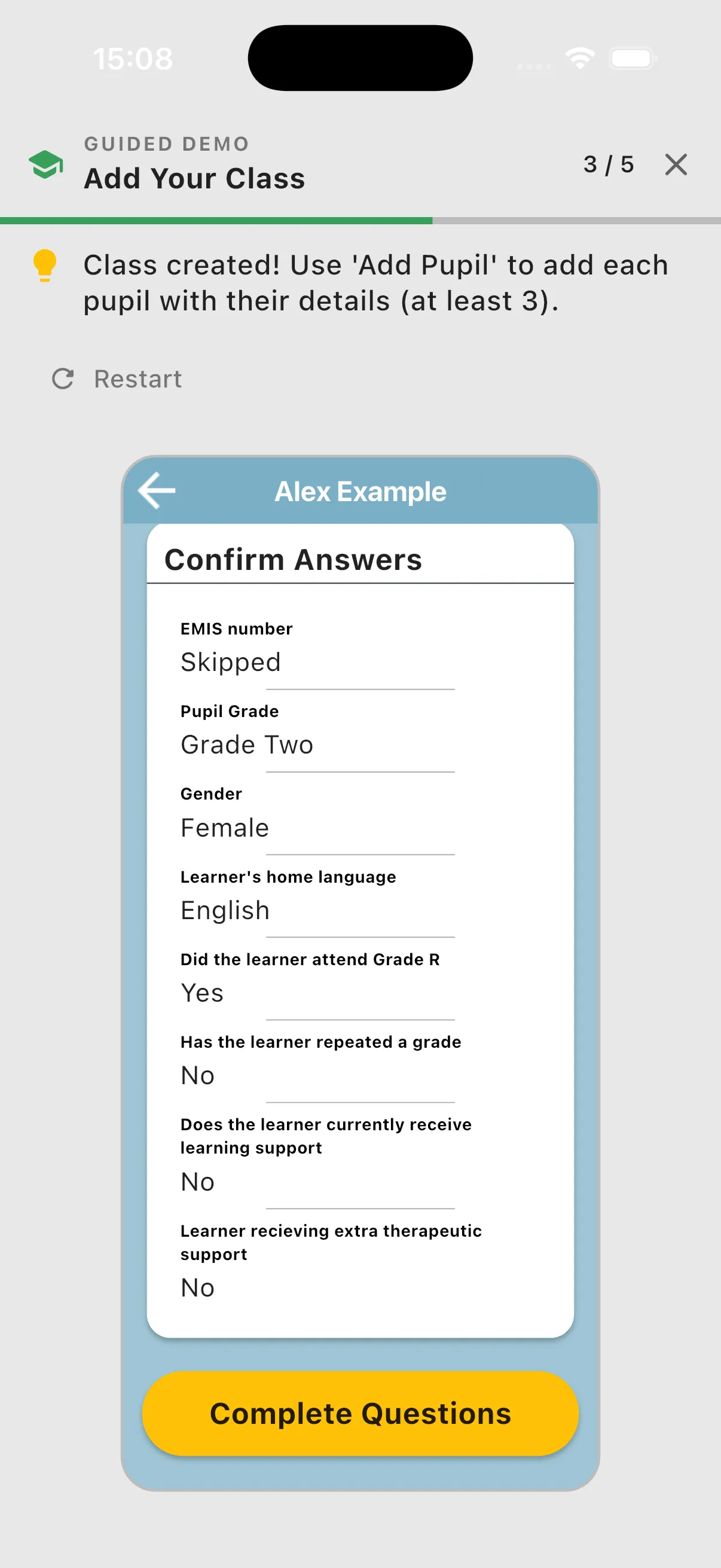
The screenshots show tutorial practice with made-up pupil details; your assigned questions may differ.
Repeat for the class’s pupils. Check the roster before starting an assessment round so everyone who should be assessed is listed.
View and update a pupil
Section titled “View and update a pupil”Tap a pupil in the class list to open their details and assessment history. Use the available edit controls to correct their name or pupil information. Saved pupil information is reused when you assess the pupil again. Updates can flow into in-progress assessments; completed assessment records retain their historical information.
Deleting records
Section titled “Deleting records”Use a class or pupil’s menu only when you intend to remove that record. Marking a pupil Not assessing in an assessment round is the appropriate choice for an absence; it does not remove them from the class.
Class and pupil changes save locally first. Sync to upload them.