
The Teacher Detail screen
Tap any teacher card (in a school’s TEACHERS tab, in a teacher list inside a visit, or anywhere else the app shows a teacher) and you land on the Teacher Detail screen.
Top right menu
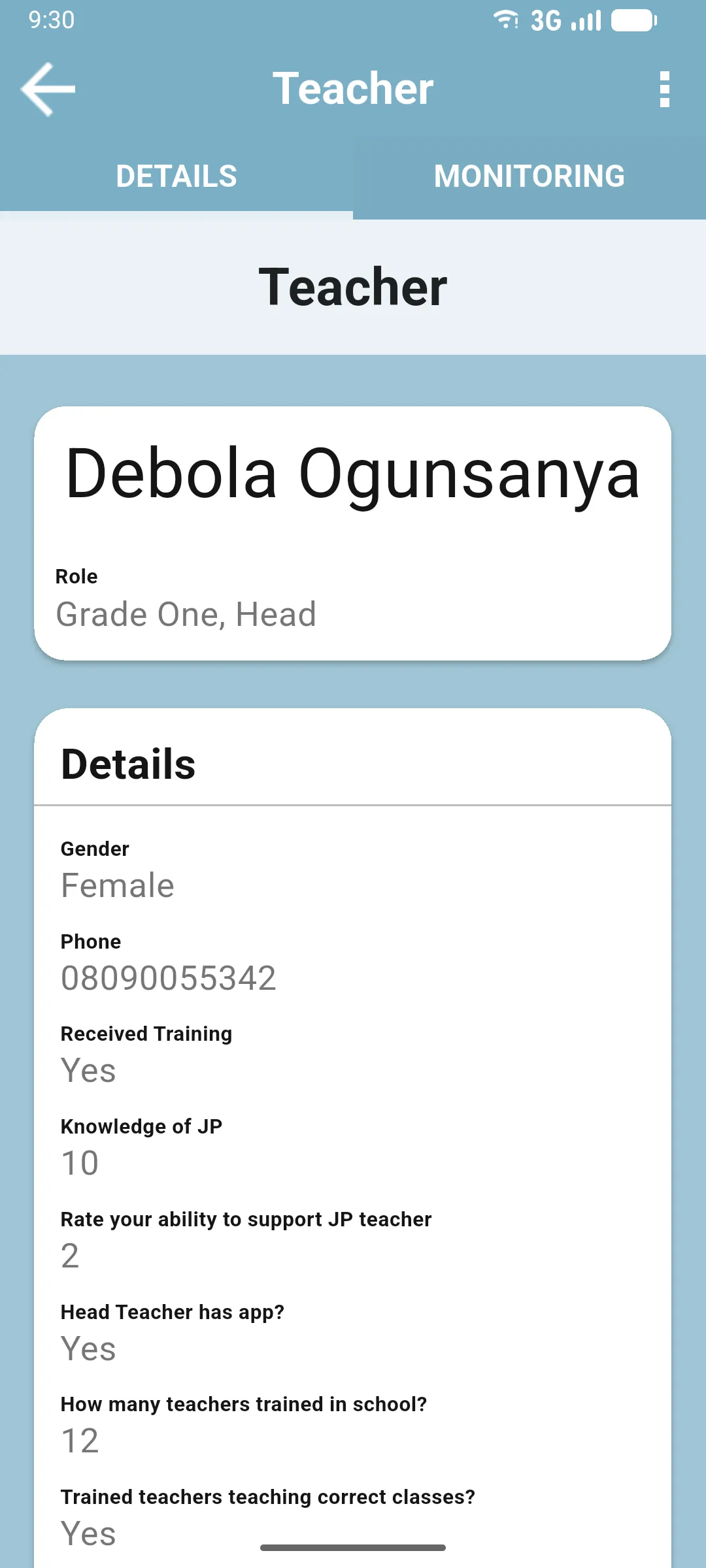
Section titled “Top right menu”The three-dot menu in the top bar gives you three actions:
- Sync: trigger a sync.
- Edit Name: rename this teacher. Their role isn’t editable here; if you also need to change the role, do it from inside a visit using the Edit button on the teacher card.
- Delete: remove this teacher. A confirmation dialog appears first.
DETAILS tab
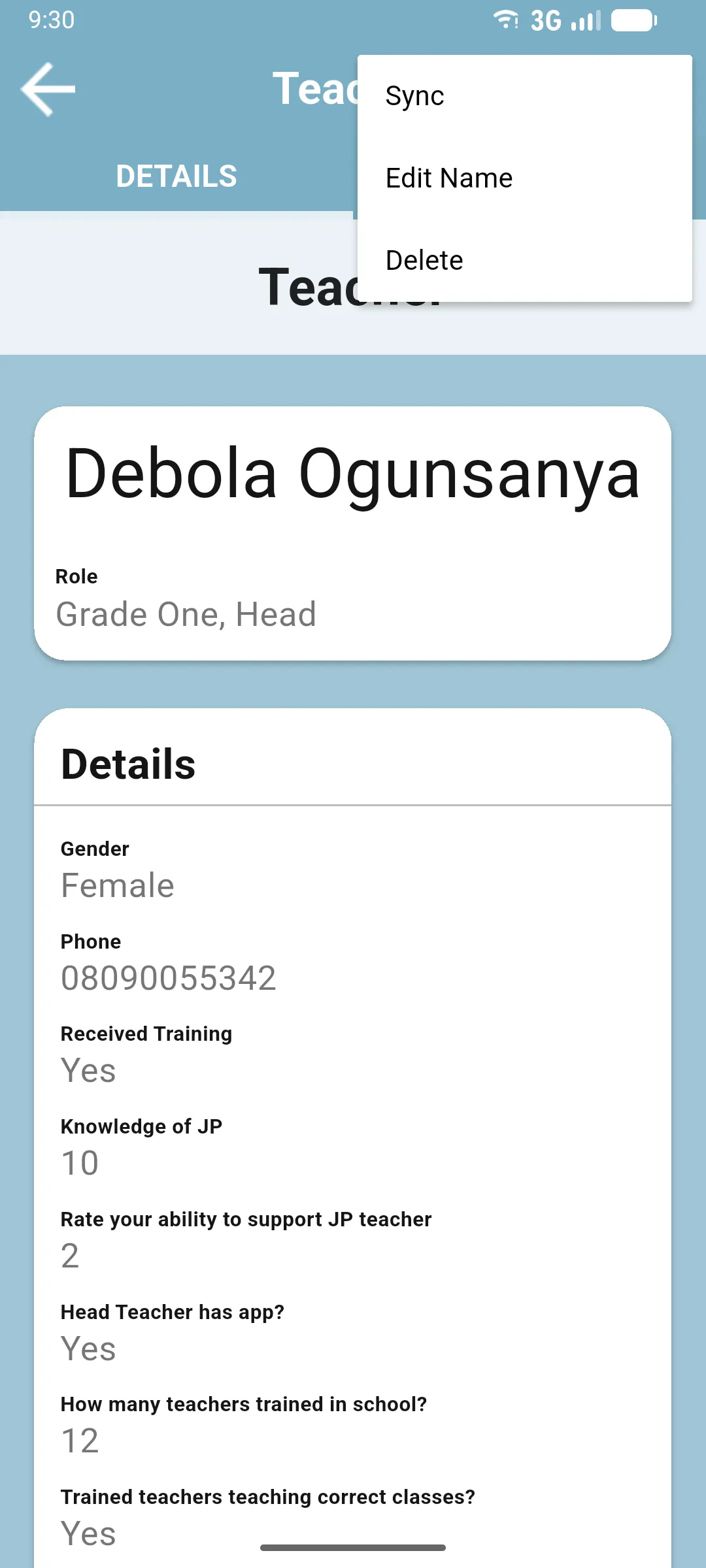
Section titled “DETAILS tab”The default tab. Shows a header card with the teacher’s name and role, followed by a Details card with every property the form has configured for teachers. Which properties appear depends on your project. Fields are read-only here.
MONITORING tab
Section titled “MONITORING tab”Lists every completed monitoring evaluation of this teacher, newest first.
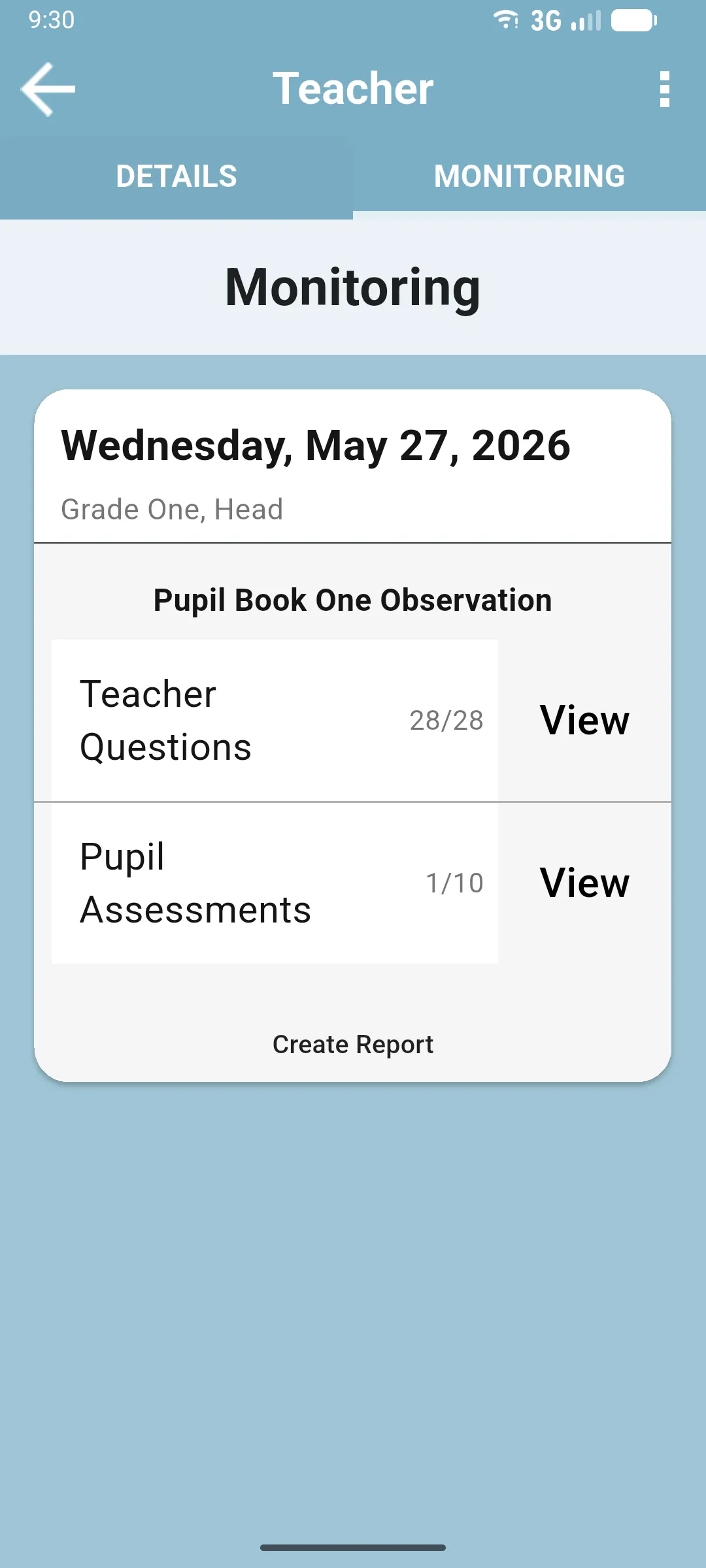
Each card shows:
- The visit date.
- The teacher’s role on that visit (it can change over time).
- The project / form used (e.g. Pupil Book One Observation).
- A Teacher Questions row with the answered count and a View button.
- A Pupil Assessments row with the done count and a View button.
- A Create Report button at the bottom of the card.
If the teacher has never been monitored, the tab shows There are no completed monitoring reports to display.
Next section: Pupil Assessments