
App versions
The App versions page is where administrators register builds of the mobile monitoring app and control which version users are required to upgrade to. It is reached from the settings menu at organisation level.
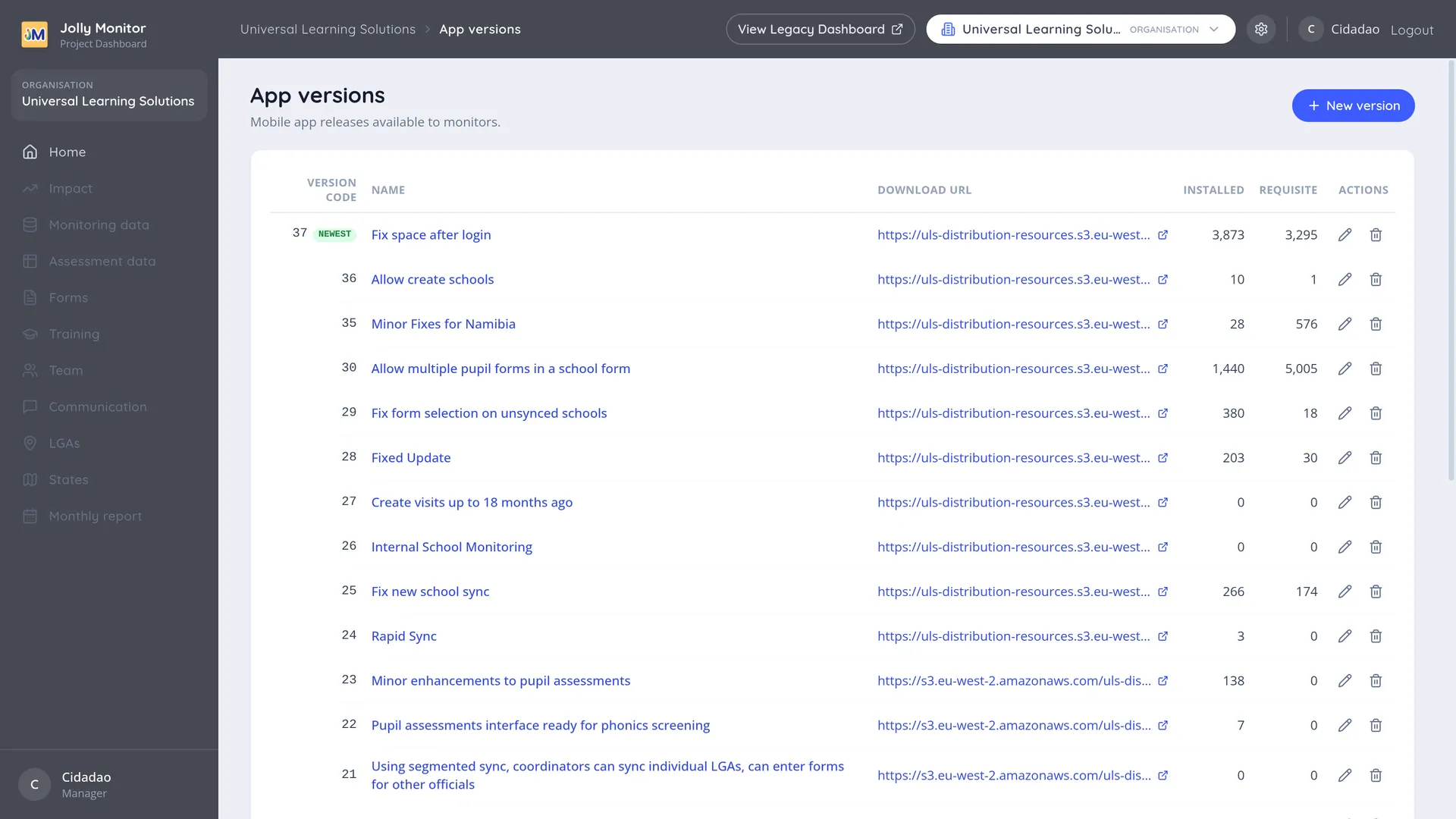
The App versions list
Section titled “The App versions list”The page shows a table of versions. Its columns are:
| Column | What it shows |
|---|---|
| Version code | The version code (a number) |
| Name | The version name |
| Download URL | A link to the build |
| Installed | How many monitors are on that version |
| Requisite | How many users are required to upgrade to it |
| Actions | Edit and delete controls |
Adding a version
Section titled “Adding a version”Click New version to open the dialog. Its fields are:
- Version code: a whole number greater than zero.
- Name.
- Download URL: the link to the build.
All three are required.
The version detail page
Section titled “The version detail page”Clicking a version’s name takes you to its detail page. It shows the version’s code, name and a link to the build, a list of the monitors currently on this version with their Last synced time, and a list of the monitors required to upgrade.
Administrators get edit and delete controls on every version’s page; the rollout actions appear only on the newest version’s page. A version can only be deleted when no users are required to upgrade to it, and the dashboard refuses with a message if any still do.
Releasing a version
Section titled “Releasing a version”The rollout actions appear on the detail page of the newest version only, because you only ever roll forward. Each action sets the “required” version for a different group of users.
A rollout sends nothing to anyone. It only marks the version as required; the next time one of those users’ apps tries to sync, the server refuses the sync with an “Update Required” message that carries the download link, and the app cannot sync again until it has been updated. A user who never opens the app will not notice anything.
- Everywhere: a plain confirmation, with no target to pick. This requires the version for every user.
- To coordinators: pick a country. This requires the version for that country’s coordinators (project staff).
- To a project: pick a project. This requires the version for that project’s staff and region officials.
- To a country: pick a country. This requires the version for that country’s project staff, region officials and country officials.
After a rollout the page reports how many users it affected.
The Install App page
Section titled “The Install App page”The build itself is served from a public Install App page at /install_app. It walks a user through downloading and installing the app and offers a Download button. Because it is public, you can share its link with anyone who needs to install the app.
Next: The settings menu