
The Communication tab
Communication is where you reach the people connected to a project by message. It has two halves, SMS Groups and WhatsApp Groups, with a Scroll to WhatsApp Groups button to jump between them.
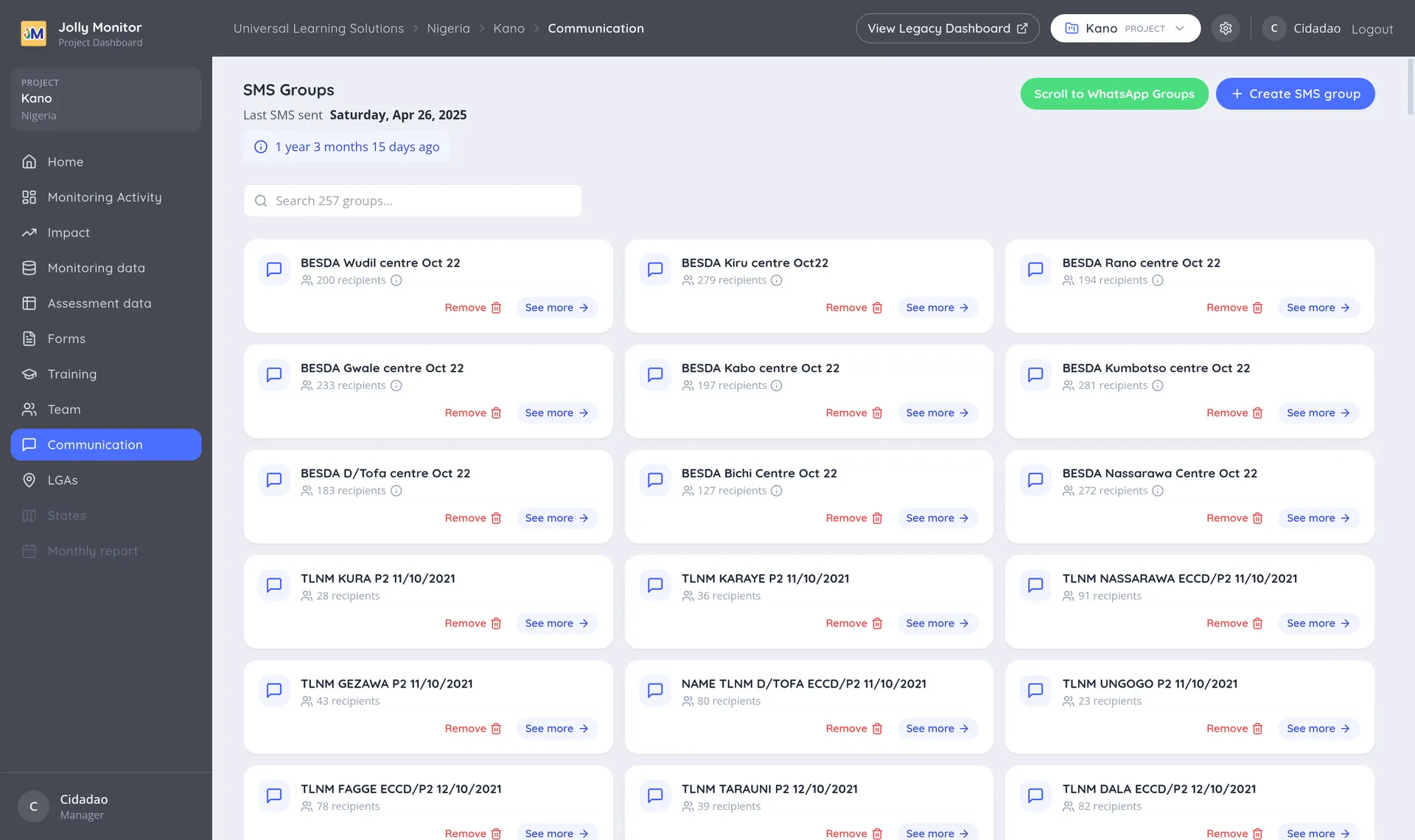
SMS Groups
Section titled “SMS Groups”At the top, a Last SMS sent line shows the date of the last message and how long ago that was. It is a useful sanity check before composing anything: a group nobody has messaged in a year may have stale numbers.
Create SMS group (senior managers) makes a new group. A group collects its recipients either by adding numbers manually or by criteria, which combine three choices: which districts, which trainings, and which kinds of people, from head teachers and the year-group teachers through to region officials, project staff and country officials.
So “the head teachers of one district” is one group with one district ticked and only Head selected, which is the usual shape of a real send.
The group cards
Section titled “The group cards”Each card shows the group name and its recipient count, broken down into By criteria and Added manually.
The buttons on a card depend on your role:
- See more opens the group’s own page, for anyone who can view the section.
- Remove deletes the group, for administrators.
Sending a message
Section titled “Sending a message”Open the group (See more) and use Send SMS (senior managers). The composer has a live character count, and when you are ready the dashboard checks the cost and shows the number of recipients and the estimated cost before anything goes out, so there is a confirmation step between writing and sending.
WhatsApp Groups
Section titled “WhatsApp Groups”The second half lists the project’s WhatsApp groups; this half is for senior managers. Create WhatsApp group adds one, and opening a group shows its members and lets you edit it.
Next: The Training tab